 ShizuStore
Volume++
2.0 · GitHub
More about this app
Custom volume panel with per-app audio mixing via Shizuku or root
Volume++
Volume++ is a native Android app that replaces the stock system volume panel with a fully custom, themeable one, and adds per-app volume mixing that Android doesn't normally expose to the user.


 Also by me: Alarm++ — an alarm clock that wakes you with your own videos.

What it does
Android's real volume panel is a single, fixed UI tied to whatever version of Android you're running, and it only lets you control per-stream volume (media / ring / alarm / notification) — never individual apps. Volume++ replaces that panel outright and fills in both gaps:
- A custom volume panel that intercepts the hardware volume keys. An Accessibility Service captures volume-up/volume-down presses before the system does, suppresses the stock panel, and draws its own floating overlay instead — with the same press-and-hold ramping behavior as the real thing.
- Faithful recreations of every major Android volume-panel design, Android 7 through 16. The overlay isn't one fixed look — it can render the classic Android 7/8 top sheet, the Android 9–11 collapsed-edge-control-plus-"Sound"-sheet layout, Material You's Android 12 panel, and the Android 13/14/15/16 "Sound & vibration" sheet (including Android 15's redesigned "Audio will play on" media-output picker, and Android 16's call-folded take on it). You pick which version's panel you want, independent of the Android version actually installed on the device.
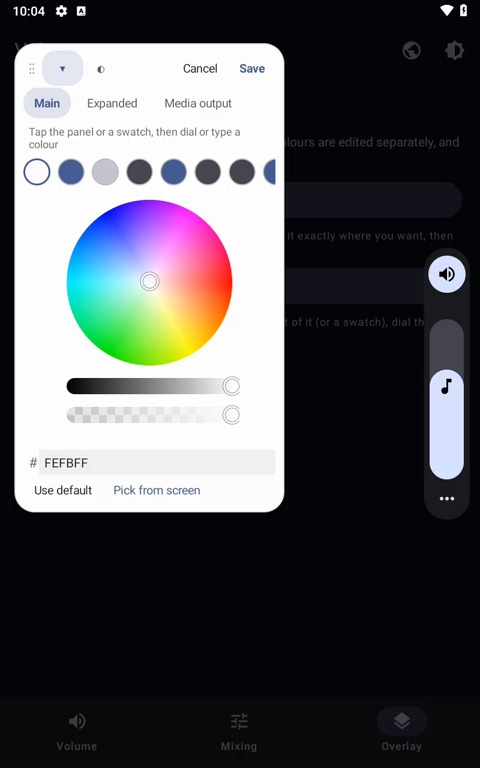
- A live, on-screen WYSIWYG editor for repositioning every panel component (main panel, expanded sheet, output picker) per orientation by dragging it around the screen, and a color editor that lets you tap any element of the panel — background, slider fill/track, icons, accent, text, buttons — to recolor it, independently for each Android-version skin. Colors can be dialled in on a wheel or lifted straight off the screen with the eyedropper.
- Per-app volume mixing, via Shizuku or root: the panel can show one volume slider per currently-playing app (not just per stream) and set that app's actual playback volume using a hidden system API, plus toggle whether an app is allowed to take audio focus at all — i.e. whether it's allowed to pause everything else when it starts playing, which is what makes true audio mixing between two apps possible.
- Per-app volume choices are remembered for the life of a playback session and silently re-applied as the app's audio players churn (e.g. across screen off/on or backgrounding), so a level you set doesn't reset back to full the next time the app makes a sound. They are also stored per app, so closing the app — or rebooting — no longer forgets them: set YouTube to 30% and that is where it starts next time. Turn an app back up to 100% to forget it again.
- The panel follows a call. A call in progress reshapes it the way the stock panel does: the call slider takes over as the main control, media moves beside it, and the volume keys drive the call. A cellular call and an app's own voice or video chat both count.
- A media volume booster, off by default: once media volume is at 100%, pressing Volume Up twice engages up to +20% of extra gain in 5% steps, shown as its own bar above the media slider. A held key never engages it — only deliberate presses — and it clears itself when you drop below 100% or change audio output.
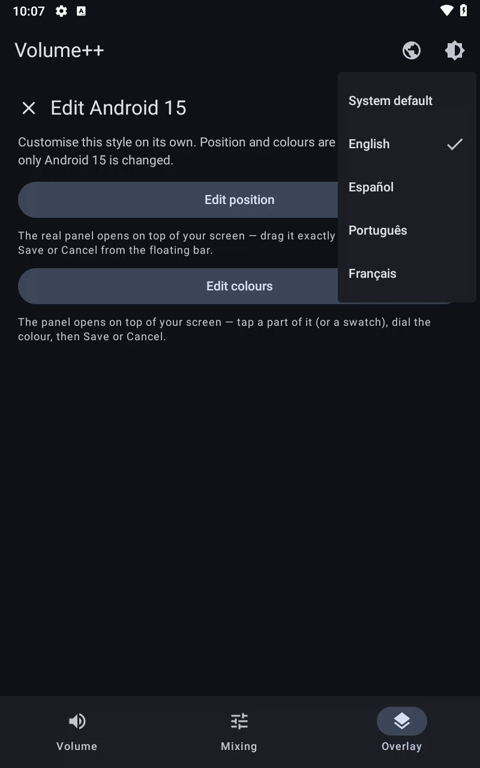
- Four languages, picked in the app or followed from the device: English, Español, Português and Français.
The volume panel, Android 7 → 16
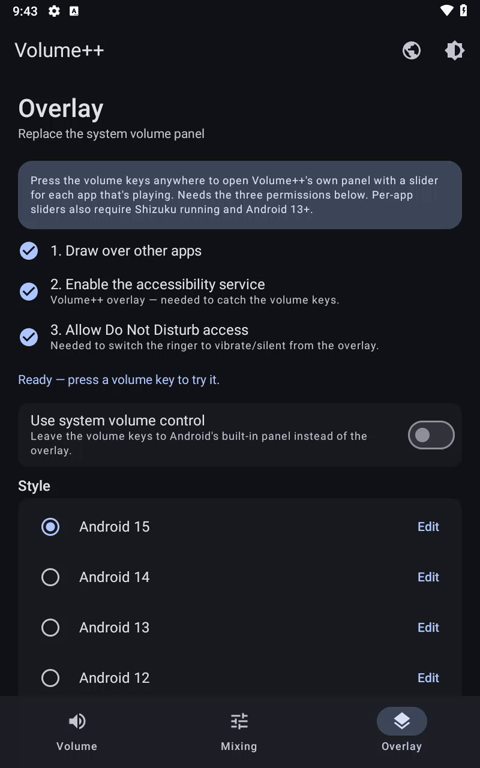
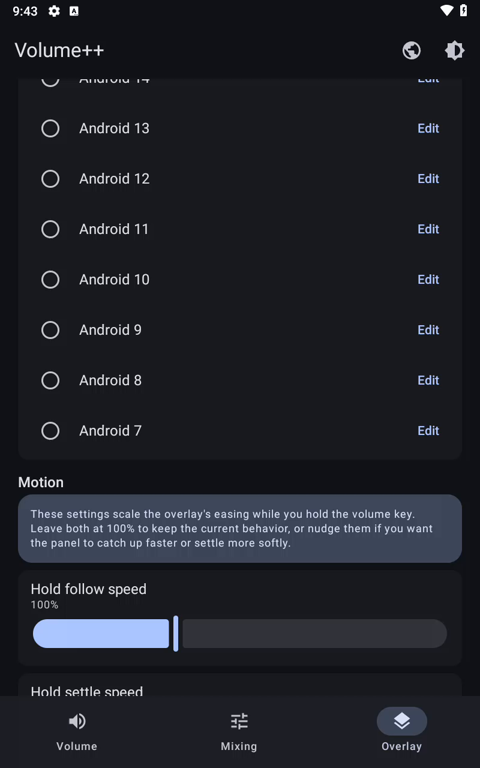
One app, ten panels. Each one is picked in Overlay → Style, and each keeps its own position and its own colors, so switching between them doesn't disturb anything you've set up on the others. The grid below shows nine of them: Android 16 is Android 15 to look at, and parts company with it only once a call is in progress.
(Every shot below comes from one Android 9 device running one build of Volume++. The panel style is the app's, not the system's — which is the whole point.)
| Android 7 | Android 8 | Android 9 |
|---|---|---|
 |
 |
 |
| Android 10 | Android 11 | Android 12 |
 |
 |
 |
| Android 13 | Android 14 | Android 15 |
 |
 |
 |
They expand, too. Android 9 and up open a full sheet carrying every stream and one slider per playing app — including Android 15's "Audio will play on" media-output card — while the Android 7–8 panel grows in place to add its Ring and Alarm rows:


Inside the app
The app itself is three tabs.
Volume
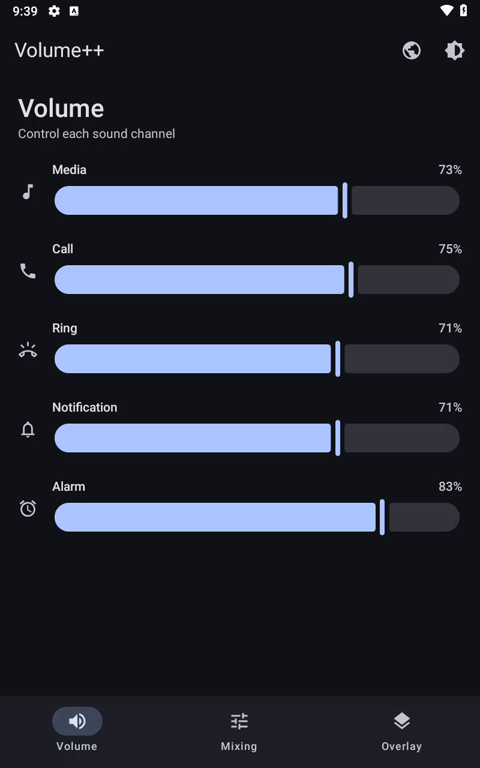
Stock-style sliders over the system's own streams — media, call, ring, notification and alarm. It needs no privileged helper and no setup, and it tracks the hardware keys live, so it stays in sync with whatever else changes the volume. The Notification row greys out while the ringer is silenced, because notifications can't make a sound then anyway; and if Do Not Disturb blocks a ring change, the tab offers the access screen rather than failing quietly.
Each row has − / + buttons for exact single-step changes, held down to repeat on the same
accelerating ramp as a hardware key, and shows the level as both a percentage and the device's
real step position — 73% · 11/15. How many steps a channel has is fixed by the device and can't
be widened by an app, so showing them is what explains why a level lands on 73% and not 74%:
there is no position in between.
Mixing
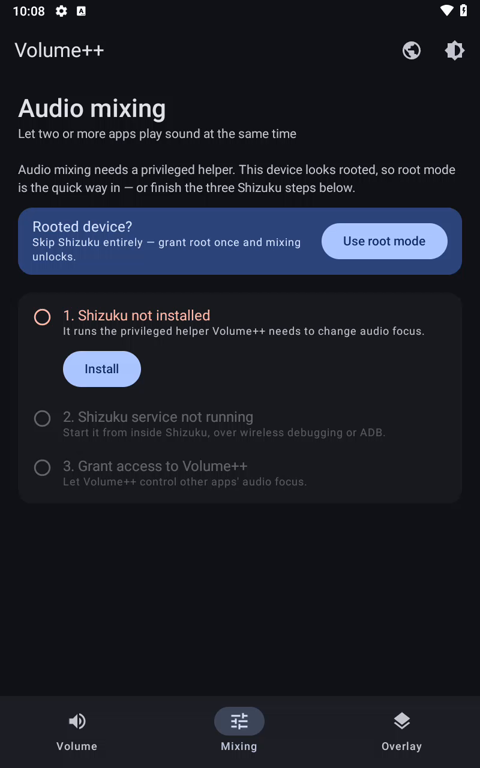
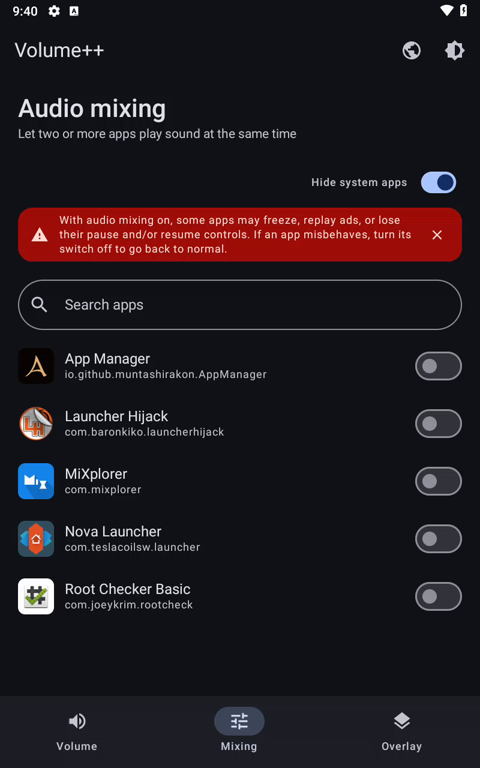
One switch per app: turn it on and that app keeps playing when something else starts. The tab needs a privileged helper — Shizuku or root — and walks you through whichever one you pick with a checklist that ticks itself off as you go.
It also carries the fix for a side effect of sideloading: a build installed from GitHub records whichever browser or file manager opened it as its install source, which some banking apps flag as an "unofficial app store". One tap has the privileged helper reinstall the same APK in place with Google Play recorded as the installer — app data, granted permissions and the accessibility service all survive. The card only appears while the source still looks sideloaded.
| Setup checklist | App list |
|---|---|
 |
|
Overlay
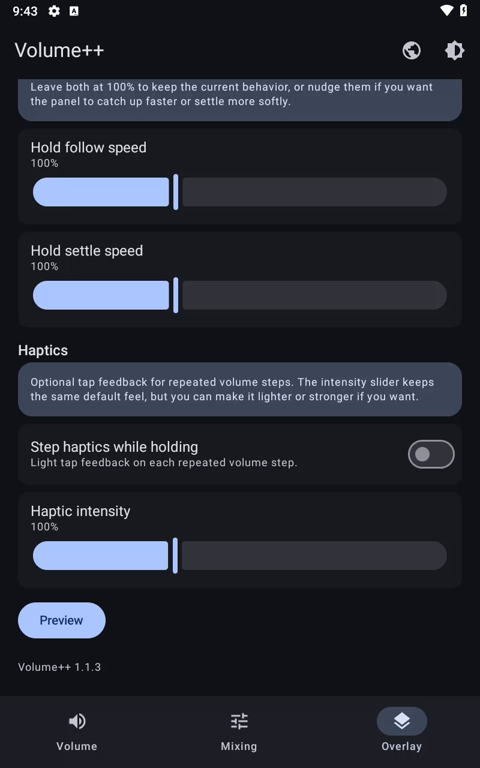
Where the panel is set up and styled: the three permission grants, the switch that hands the volume keys back to Android, the style picker (Android 7 → 16, each with its own editor), the motion and haptics settings, and an option to point the panel's SETTINGS / SEE MORE button at Volume++ instead of Android's Sound settings. The motion and haptics sliders carry the same − / + steppers as the Volume tab, so each can be set to an exact percentage.
It also holds the media volume booster switch (off by default, with the clipping and hearing warning behind its ⓘ), the switch for remembering each app's volume across restarts, and the button that adds the Quick Settings tile — a way to open the panel that doesn't involve the volume keys at all, for a phone whose buttons have worn out.
| Permissions | Styles | Motion & haptics |
|---|---|---|
|
 |
 |
Editing a panel
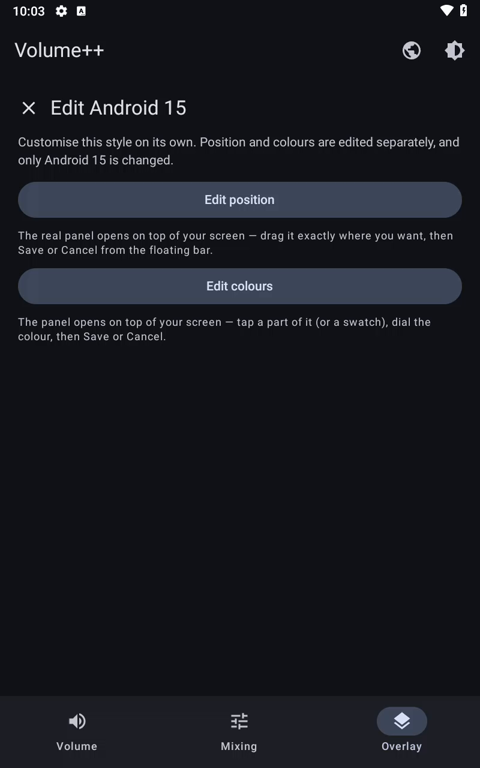
Each style in the list has its own Edit button, and everything you change there is stored against that style alone.
| Edit hub | Position editor | Colour editor |
|---|---|---|
 |
 |
 |
- Position — the real panel is drawn on a dimmed backdrop and dragged where you want it, once per orientation. Every component moves independently: the main panel, the expanded sheet, and (on Android 15 and 16) the media-output picker.
- Colours — tap any part of the panel to recolor it: background, slider fill and track, icons, accent, text, buttons. Colors are shared across orientations, so they're edited in whichever way the device happens to be held. Use system colours fills the whole palette from the device's own Material You scheme in one tap (Android 12+), as a starting point you can then tune.
- Restore defaults — Restore default position puts every one of that style's panels back where it docks (both orientations), and Restore default colours drops its colour overrides. Each undoes only its own half, and neither touches any other style.
The eyedropper
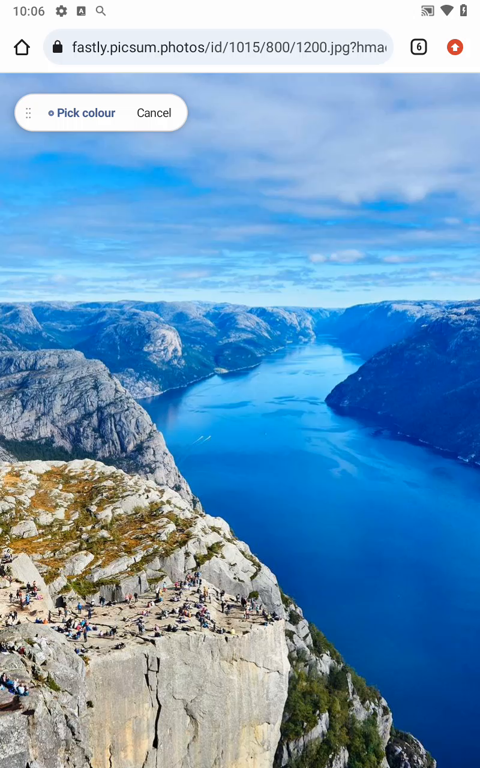
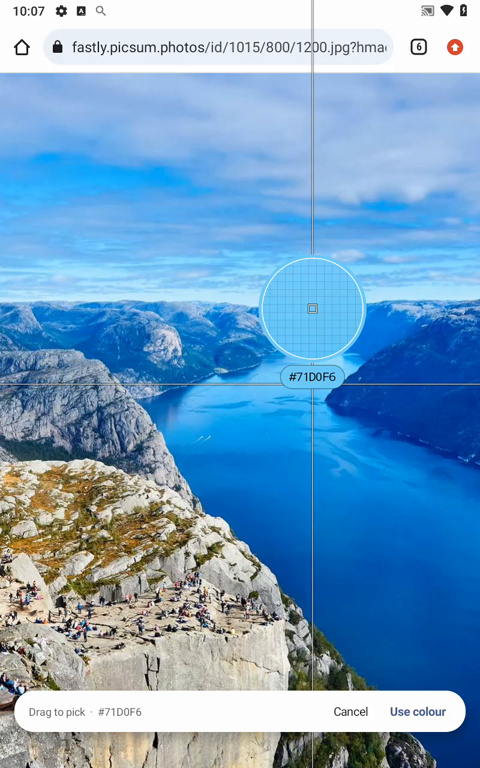
Instead of dialling a colour in, lift one off the screen. Pick from screen puts Volume++ out of the way and leaves a floating pill behind, so you can go anywhere on the device — another app, a photo, the wallpaper — and grab that frame. The frame then freezes under a magnifier loupe, and you drag it to the exact pixel you want.


How audio mixing works
Normally, when one app starts playing sound, Android asks whichever app was already playing to pause or go quiet — this is called audio focus. It's why starting a YouTube video pauses Spotify. Mixing makes an app ignore those requests, so its sound keeps playing on top of everything else.
Under the hood, the Mixing tab flips the TAKE_AUDIO_FOCUS app-op for the app you toggle, via the
privileged helper (appops set <package> TAKE_AUDIO_FOCUS ignore). With that op ignored, the
app's focus requests are silently dropped by the system, so nothing else is ever told to duck
or pause on its behalf.
Using it:
- Turn on the switch for the app you want to keep hearing — for example, enable YouTube to keep hearing it while Spotify plays.
- Enabling just one of the two apps is enough; you don't need to toggle both.
- Restart playback in that app for the change to take effect.
Caveats:
- With audio mixing on, some apps may freeze, replay ads, or lose their pause/resume controls (media buttons and notification controls are wired to the focus system too). If an app misbehaves, turn its switch off to go back to normal.
- Mixing runs through the Volume++ panel, so the Mixing tab is disabled while Use system volume control is on in the Overlay tab. Turn that switch off to re-enable mixing.
- A privileged helper (Shizuku or root) must be running, since the app's own UID isn't allowed to change another app's app-ops.
Shizuku or root
Everything privileged — per-app volume, the audio-focus toggle, silent-without-DND — runs through one helper process, and there are two ways to get one:
- Shizuku spawns it at the shell UID. It needs the Shizuku app, its service started over ADB or wireless debugging, and a one-time authorisation.
- Root spawns it with
suinstead — one tap, no ADB and no third-party app. Offered automatically when the device looks rooted (Magisk, KernelSU, APatch, SuperSU or a plainsubinary).
Both routes end at the same service over the same interface, so nothing else in the app knows or cares which one is live. Neither is required to use the panel itself: without one, Volume++ still replaces the system panel and controls the ordinary system streams.
Motion, haptics and the ringer
- Motion — two sliders (50–200%) scale the panel's easing while a volume key is held: how fast it follows your presses, and how softly it settles afterwards. 100% is the stock feel. The same glide runs on all ten skins, and dragging a slider trails your finger by a tuned amount rather than snapping to it, settling smoothly once you let go.
- Haptics — an optional light tap on every volume step, whether the step came from holding a key or from dragging a slider, with its own intensity slider (50–200%) that plays a live sample as you move it.
- ⓘ on every setting — each motion and haptics control carries an info button explaining, in plain language, what it changes.
- Silent doesn't drag Do Not Disturb along. On the Android 9–15 panels, choosing silent mutes the ringer and notification volume and leaves Do Not Disturb exactly where it was — the framework's usual "external" ringer path switches DND on unconditionally, so Volume++ routes around it (through the privileged helper where available, and by muting the ring stream where it isn't). The Android 7–8 panel behaves as it always has.
- Use system volume control — a switch that hands the volume keys straight back to Android. The overlay never opens while it's on, the style section greys out, and the Mixing tab (which rides on the panel) is blocked with a shortcut back to this switch.
Languages
Volume++ ships English, Español, Português and Français, and follows the device language by default. The globe in the top bar overrides that at any time; the choice applies immediately, overlay included.

Translations are plain Kotlin files with a per-key English fallback, so a partial translation is perfectly usable — adding a language is two edits, documented in docs/TRANSLATING.md.
Release history
2.0
- The panel now follows a call. A call in progress reshapes the panel the way the stock one does: the call slider takes over as the main control, media moves beside it, and the volume keys drive the call. Both kinds count — a cellular call and an app's own voice or video chat (Discord, a messenger call, an in-game voice channel). Every style reshapes, each in the shape its own layout allows: Android 12–16 grow a second card beside the main one, 9–11 stand the two sliders side by side inside the card they already have, and 7–8 give the call a row in Ring's place. On Android 15 and 16 the output card names the call's own output while it lasts.
- A tenth style: Android 16. Android 15's panel and sheet, until a call — the sheet then opens on the Call row alone, with a round chevron beside it that unfolds Media, Ring, Notification and Alarm underneath, and draws its "Calling on" card in a grey surface rather than 15's white one. It is the style a fresh install now opens on.
- Quick Settings tile that opens the panel, so it can still be reached on a phone whose volume buttons have failed. It needs only draw-over-other-apps — no accessibility service — and the Overlay tab has a one-tap button to add it (Android 13+; older releases get instructions).
- Precise volume controls: − / + steppers on every slider in the Volume tab and on the motion
and haptics sliders, held down to repeat, with each level shown as a percentage and the
device's real step position (
73% · 11/15). - Each app's volume is now remembered across restarts and reboots, not just for the current playback session — set YouTube to 30% and that is where it starts next time. On by default; the switch is in Overlay, and turning an app back up to 100% forgets it. (Behaviour change: new playback used to always start at full volume.)
- Media volume booster, off by default. At 100%, two Volume Up presses engage up to +20% of extra gain in 5% steps, drawn as its own bar above the media slider. A held key never engages it, and it clears when you drop below 100% or change audio output. Needs Shizuku or root on most devices, and says so when the device won't allow it.
- Use system colours in the colour editor — one tap fills the panel being edited from the device's own Material You scheme, mapped role by role (fill and accent from the primary, the panel from the surface, the icons that ride inside a filled control from the on-primary tone) rather than pasted flat. Offered on Android 12+, where there is a system palette to read.
- Truer capsule sliders on Android 12–14 — the thin stick behind the fill now has its own sampled slate instead of borrowing the pale sheet-track grey it was nearly invisible against. A track colour you set yourself still wins over it.
- Fix: a single volume press could behave like a stuck key, ramping the volume to an end and pinning the panel on screen. A hold is a latch, and several paths could lose the release that clears it — most often the display sleeping mid-press, which stops volume keys reaching an accessibility service at all. The hold now ends on a lost release rather than running on.
- Power + volume chords (screenshot, and OEM chords besides) no longer move the volume or raise the panel on builds that pass both keys through to us.
1.1.5
- Restore defaults in each style's edit hub — Restore default position and Restore default colours, each confirmed before it runs and reported back with a snackbar, and each undoing only its own half.
- ⓘ explanations on every motion and haptics setting, and the haptic intensity slider now plays a live sample as you drag it.
- Smoother sliders everywhere — the held-key glide runs on all nine skins instead of just the Android 12–15 ones, and dragging trails your finger rather than snapping to it, settling once released.
- Step haptics on slider drags too, not just held keys, plus a fix for a race that silently suppressed the held-key tap for the whole hold.
- Point the panel's SETTINGS / SEE MORE button at Volume++ instead of Android's Sound settings — off by default, offered on the Android 9–15 styles.
- Fix for banking apps flagging Volume++ as an unofficial install, by relabelling a sideloaded build's install source in place.
1.1.3
- Screen eyedropper in the colour editor — pick a colour from anywhere on the device (MediaProjection + a magnifier loupe), and colour selection fixes alongside it.
- Root mode as a full alternative to Shizuku for the privileged service, offered automatically on rooted devices.
- Multi-language support with an in-app language picker: English, Español, Português, Français, plus a translator's guide.
1.1.0
- Audio mixing: a whole tab of per-app
TAKE_AUDIO_FOCUSswitches, so two apps can play at once, with the blocking Use system volume control setting spotlit from the Mixing tab. - Silent no longer enables Do Not Disturb on the Android 9–15 panels — it only mutes ringer and notification volume. Android 7–8 behaviour is unchanged.
- Use system volume control switch, handing the volume keys back to Android's own panel.
- Smoother overlay motion on steps and drags, plus optional subtle haptics while holding (thanks @JoshDoesStuff).
1.0.0
- The custom volume panel, the Android 7–15 skins, the position and colour editors, and per-app volume through Shizuku.
How it works
VolumeKeyService— anAccessibilityServicethat grabsKEYCODE_VOLUME_UP/KEYCODE_VOLUME_DOWNand drives the overlay instead of letting them reach the system panel.OverlayController— builds and animates the floating panel window (SYSTEM_ALERT_WINDOW) for whichever Android-version skin is selected, including the live position/color editor modes.PrivilegedManager/UserService— the single entry point for everything privileged. It gets a privileged process going through Shizuku (shell UID) or libsu (root), binds the sameIUserServiceinside either one, and exposes the calls the app's own UID isn't allowed to make:appops set <pkg> TAKE_AUDIO_FOCUS …, the internal ringer-mode setter, the in-placepm install -r -t -i com.android.vendingreinstall that relabels a sideloaded install source, and hiddenAudioManager/AudioPlaybackConfigurationAPIs for per-player volume, activity and process liveness.PanelLauncher/VolumePanelTileService— the Quick Settings way into the panel. The tile is bound only around the tap, so the launcher is what holds a panel that has to outlive it, lending out the accessibility service's own controller whenever that service is running.MediaBooster/BoostBar— the above-100% gain (aLoudnessEnhanceron the global output mix, applied through the privileged service) and the bar that draws it above the media slider.StepHaptics— the one tuned buzz behind every volume step, shared by the held-key repeat and by slider drags so both feel identical at any intensity.ScreenColorPicker/ColorPickService— the eyedropper. AmediaProjectionforeground service holds the capture session open while the user goes hunting for a colour in another app; the grabbed frame is frozen under a magnifier loupe for the actual pick.AppRepository— enumerates every installed app (not just launchable ones) as candidates for the mixing toggle, with known music/video apps sorted to the top.Permissions— every grant the app asks for as one snapshot, watched continuously and told directly by the accessibility service's own connect/disconnect, so the setup checklist ticks while the user is still standing on the Settings screen.AppConfig/AppSettings/Strings— build-time configuration, the user's saved theme and language, and the translations themselves.
What it's built on
- Shizuku (
dev.rikka.shizuku) and libsu (com.github.topjohnwu.libsu) are the two foundations that make per-app volume and audio-focus control possible — one without root, one with. Both are real dependencies the app binds to at runtime, not just inspirations. - The volume-panel skins are original re-implementations of AOSP/SystemUI's own volume dialog designs from each Android release (7 through 16) — built from scratch in Compose/Views to look and animate like the real thing, not copied from another app's source.
- Everything else (UI, overlay engine, mixing logic, per-app volume persistence, the eyedropper, the translations) is original code written for this project.
Tech stack
- Kotlin, Jetpack Compose + Material 3 for the in-app UI (volume screen, mixing screen, overlay style/editor screen)
- Classic Android views (
WindowManager, custom drawables/animations) for the overlay panel itself, since it has to be drawn outside the app's own window - AIDL (
IUserService) for the privileged process, hosted by either Shizuku or libsu'sRootService MediaProjection+ a foreground service for the screen eyedropper- Kotlin coroutines for the async privileged calls and the per-app re-apply polling loop
minSdk 24(Android 7.0) /targetSdk 36
Permissions & requirements
- Shizuku or root for the Mixing tab and per-app sliders; without either, the app still runs and shows the custom panel with system stream volumes only. (Per-app sliders additionally need Android 13+.)
- Accessibility service — required to intercept the hardware volume keys.
- Display over other apps (
SYSTEM_ALERT_WINDOW) — required to draw the custom panel, and the only grant the Quick Settings tile needs. MODIFY_AUDIO_SETTINGS— granted at install, and what the media volume booster attaches its gain through. It is not sufficient on its own: an effect on the global output mix needs the signature-levelMODIFY_AUDIO_ROUTING, so the booster goes through Shizuku or root as well.- Notification policy access — lets ring/notification volume be changed even under Do Not Disturb.
- Screen capture — asked for only when the eyedropper is used, and only for as long as it runs.
QUERY_ALL_PACKAGESis used to list every installed app for the mixing toggle, which makes this an off-Play-Store build (sideload/F-Droid-style distribution only).
Building
./gradlew assembleDebug
The APK is a standard Gradle Android project (app module); open it in Android Studio or build
from the command line with the wrapper above.
Translating
Adding a language is two edits and needs no build-system changes — see docs/TRANSLATING.md.
AI disclosure
AI-assisted development tools were used in building this app — for writing and refactoring code, and for parts of this documentation. The design decisions, the testing on real devices, and the final review of everything that shipped are the author's own.
License
MIT — see LICENSE.
How Shizuku is used
Can mix per-app audio, set live app volumes, silence ringer, boost loudness and fix install source via `Shizuku`.
This is an AI-assisted analysis of Shizuku-related usages in the app's public source code. It is best effort, so it may not catch every single usage.
How this app uses Shizuku
Volume++ uses Shizuku to run audio and package operations with shell privilege that its own app process cannot perform.
- Mix background audio: users can keep music playing when another app requests focus by setting that app to ignore audio focus with the
appops setcontrol for TAKE_AUDIO_FOCUS through Shizuku. - Adjust live app volumes: users get sliders for each currently playing app, discovered through the system playback list, with individual stream levels applied through the hidden per-player volume control, while a process check keeps saved levels for backgrounded apps and resets them for closed apps.
- Set silent ringer: users can switch the device to silent without turning on Do Not Disturb by applying the chosen ringer mode with the
cmd audio set-ringer-modeshell command through Shizuku. - Boost media loudness: users can apply a global media gain up to the in-app maximum using an effect attached to the global output mix through Shizuku, with zero gain releasing the effect.
- Fix install source: users with a sideloaded install can reinstall the app in place as a Play Store install to clear unofficial store warnings, replaying current APKs with the
pmreinstall commands through Shizuku while keeping data and settings.
Android APIs or commands used
appops setappops getcmd audio set-ringer-modepm pathpm installpm install-multipleAudioManager.getActivePlaybackConfigurationsAudioPlaybackConfiguration.getPlayerInterfaceIdAudioPlaybackConfiguration.getClientUidAudioPlaybackConfiguration.getPlayerStateAudioPlaybackConfiguration.getAudioAttributesAudioPlaybackConfiguration.getPlayerProxyPlayerProxy.setVolumeAudioPlaybackConfiguration.getSessionIdandroid.media.audiofx.LoudnessEnhancerPackageManager.getPackagesForUid
Notable details
Loudness boost can be unavailable on some devices even when connected, in which case the app reports it as unsupported. Silent mode needs a recent platform command and the app confirms against the real ringer mode. The install source fix reinstalls the app in place and the app UI restarts as part of the update.
Changelog
What's new for version 2.0
- Call support: a call now reshapes the panel on every style; the call slider takes over as the main control, media moves beside it, and the volume keys drive the call. Closes #19.
- New Android 16 style: Android 15's panel until a call, when the sheet folds down to the Call row behind a chevron. Partially-Closes #14.
- Quick Settings tile: opens the panel without the volume buttons, for a phone whose buttons have failed. Needs only draw-over-other-apps. Closes #8.
- Precise volume control: − / + buttons on every slider, and each level shown as the device's real step position too, like
73% · 11/15. Closes #12.- Media volume booster, off by default: at 100%, two Volume Up presses add up to +20% of gain. Read the ⓘ warning before turning it on. Closes #20. - Use system colours: one tap fills the panel you're editing from your Material You scheme (Android 12+).
- Minor bugs fixed. Closes #13, #17.
Full Changelog: https://github.com/noel-digital-fan/volume_plus_plus/compare/v1.1.5...v2.0
Permissions
10 permissions requested
More from this category
 allEQ
allEQ
 MicUp
MicUp
 Castix
 WEcho
WEcho
 Spotify Ad Skipper
 Voice Isolation
 Mixer (1)
 Volume Manager
 FineVolume
 centuryplay
 Call Recorder (Skvalex)
 PrecisEQ