 ShizuStore
Thor Pathfinder
1.0.0 · GitHub
More about this app
AYN Thor dual-screen companion: swaps running apps between screens and maps button/combo shortcuts per game profile, using Shizuku to move windows to the other display.
🧭 Thor Pathfinder



Move apps between the AYN Thor's two screens, and put shortcuts on its buttons.
Pathfinder is a free, open-source companion for the AYN Thor. Hold Back and the apps on the top and bottom screens trade places. Double-press Select and the Thor's mouse mode turns on or off. Every shortcut can be changed, on seven of the Thor's buttons, and button combos add dozens more. Profiles can switch by themselves to match the game you're playing, and Pathfinder speaks five languages.
It's made in the spirit of Thor Wayfinder, which found the way first, and covers everything Wayfinder does. It's an independent project, not affiliated with Wayfinder or AYN.
AI disclosure: Thor Pathfinder was written with Claude, Anthropic's AI assistant, under the direction of its maintainer, who tested the changes on an AYN Thor.
📸 Screenshots
| What's new in 1.0 | Main menu |
|---|---|
 |
 |
| A button's shortcuts | Button combos |
 |
 |
| Choosing a shortcut | Settings |
 |
 |
| Manage profiles | Backup & share |
 |
 |
| Language | Setup |
 |
 |
✨ Features
🔀 Swap screens
- Swaps the apps on the two screens, or sends a lone app to the other screen.
- Apps keep running while they move. Pathfinder hands the app's window to the other screen instead of restarting the app there.
- When a lone app leaves a screen, that screen goes to its home screen rather than revealing whatever was underneath.
- If one of the two apps is playing a video or music, it moves first, so playback stays smooth.
🎮 Button shortcuts on Back, Home, the AYN button, Select, Start, L3 and R3:
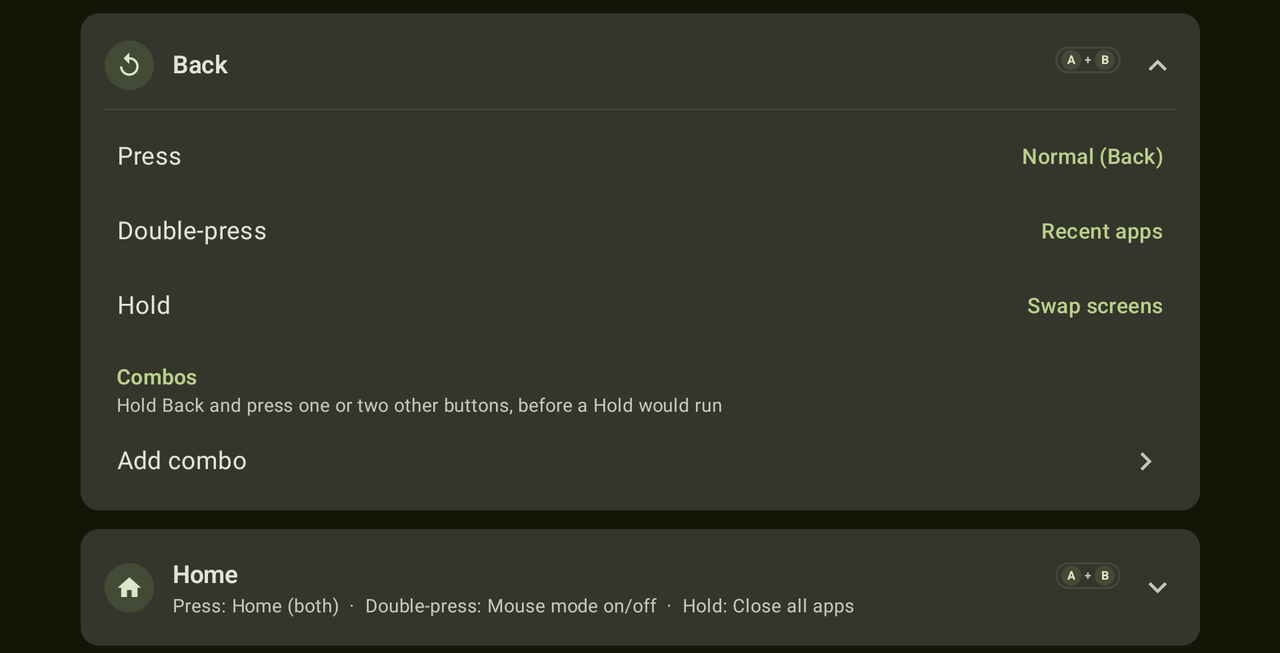
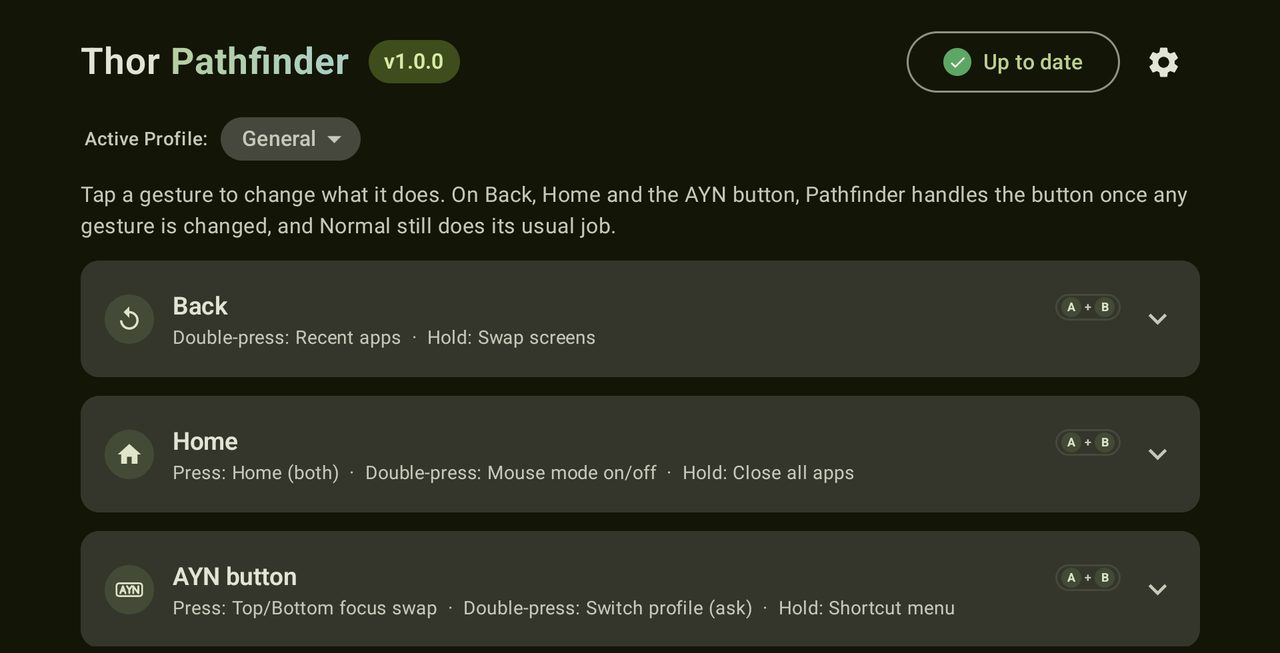
- Back, Home and the AYN button: press, double-press and hold.
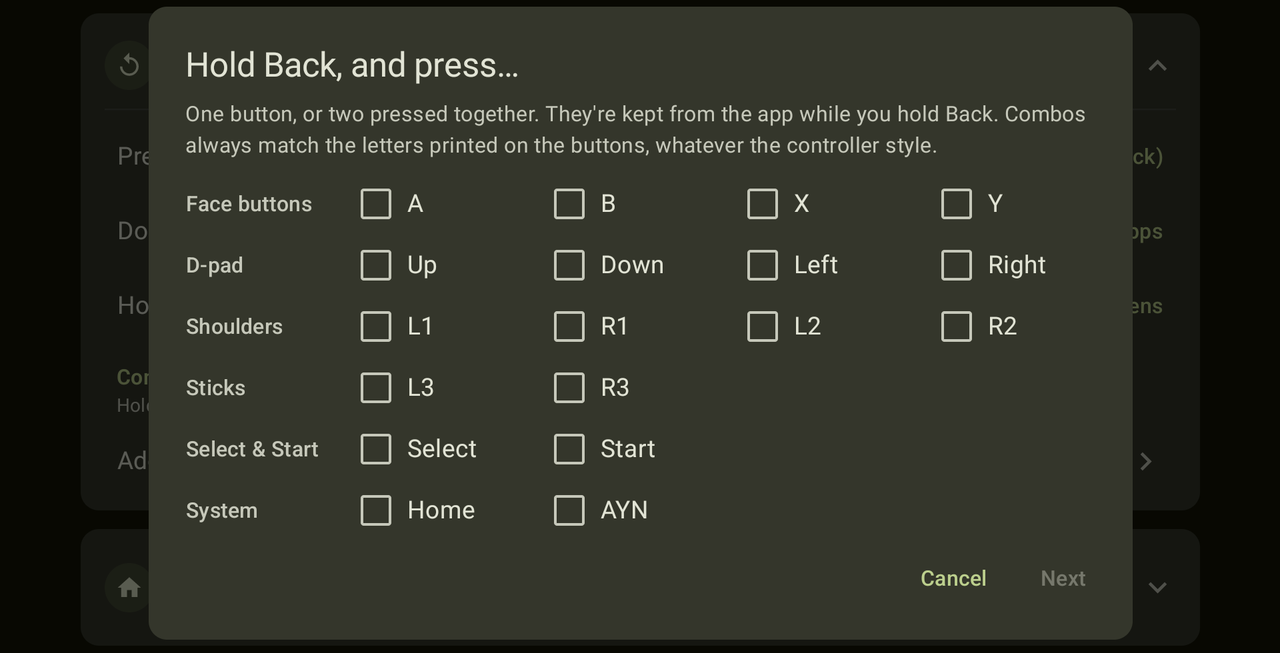
- Combos: hold Back, Home or the AYN button and press one other button, or two together (A, B, X, Y, the D-pad, L1, R1, L2, R2, L3, R3, Select, Start, or another of Back, Home and AYN): 18 two-button combos on each, and far more with three. The buttons in a combo never reach the app. A combo has to come before the held button's Hold time; when a two-button combo is also the start of a three-button one, Pathfinder waits a moment (0.15 s) for the third. Add them on the Back, Home and AYN cards, which carry a small A + B mark. Combos go by the letters printed on the buttons, so they stay the same in the Thor's Xbox controller style, which swaps A with B and X with Y for games.
- Select, Start, L3 and R3: double-press and hold. Games still receive every press of these buttons, so a plain press stays with the game.
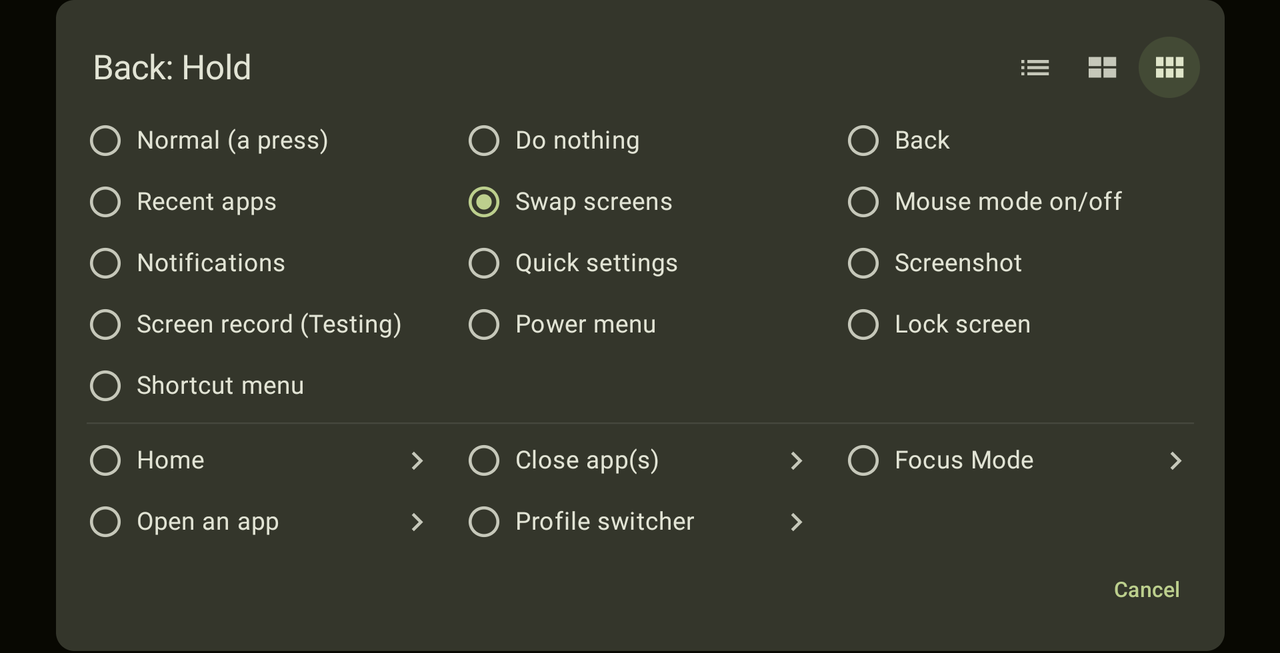
- Actions: swap screens, mouse mode on/off, Focus Mode, back, home, recent apps, close app(s), notifications, quick settings, screenshot, screen record (testing), power menu, lock screen, the Shortcut menu, or open an app.
- The Shortcut menu puts every shortcut in one list on the top screen: the same list you set a gesture from in the app, with the same questions after the ones with an arrow. The one you pick runs straight away, once, so a single button can reach every shortcut.
- Focus Mode sets the screen the controller drives, using the same three modes as the Thor's own Focus Mode menu (Auto-lock, Top screen, Bottom screen). A shortcut can lock focus to the top screen or the bottom one, cycle through all three, or swap between top and bottom (from Auto-lock it goes to the top first). A short message says which mode it moved to.
- Close app(s) closes every app, like Recents' Clear all, or just some: the background ones (all but what the two screens are showing), the focused app (on the screen you last used), the top screen's app, the bottom screen's app, or apps you pick by name.
- Profiles: keep more than one set of shortcuts and switch between them from the oval under the title, or with a shortcut of its own.
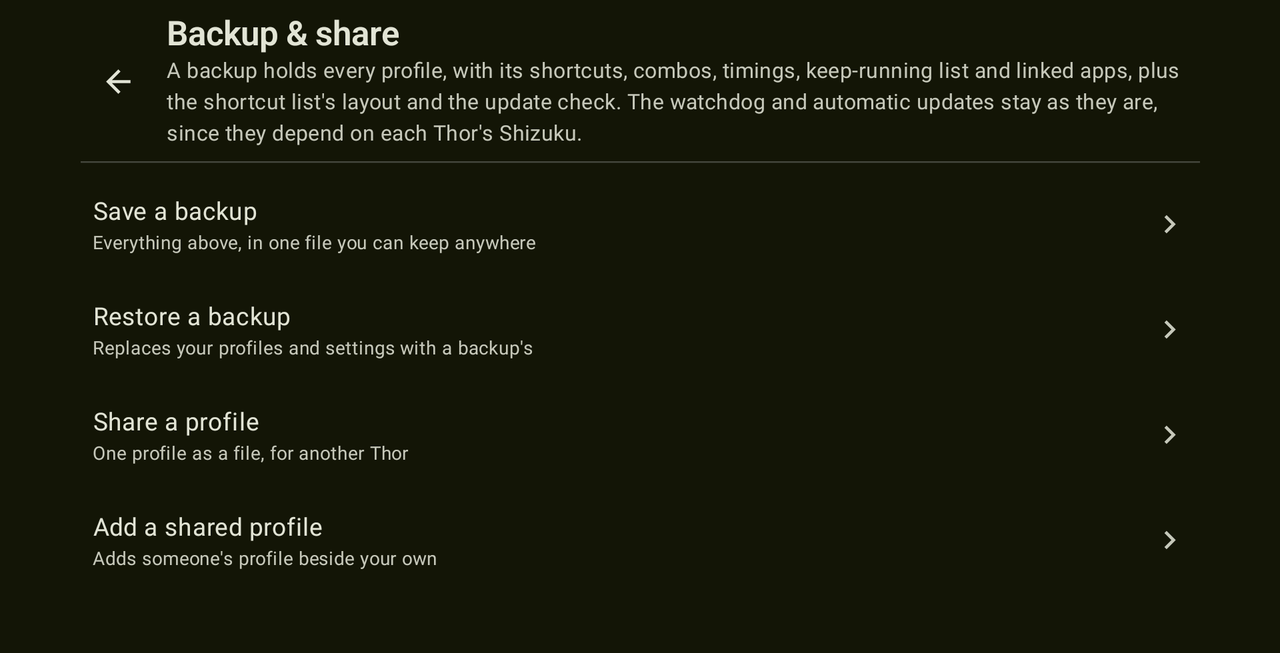
- Backup & share (cog → Manage profiles): save every profile to one file and bring it back, on this Thor or another, or share a single profile for someone to add beside their own. A backup holds the shortcuts, combos, timings, keep-running lists and linked apps, plus the shortcut list's layout and the update check; the watchdog and automatic updates stay as they are. Files go through Android's own file picker, so no storage permission.
- App profiles: link apps to a profile (cog → Manage profiles → Profiles → a profile → Apps that use it), and Pathfinder uses that profile while one of them is the app the controller drives. That follows Focus Mode: the top screen's app when focus is locked to the top, the bottom screen's when locked to the bottom, and in Auto-lock the one you last used. Leave the app and your own profile comes back. Switch profile yourself while in a linked app and your pick holds until you leave it. Each switch shows a short message (and the picture of the Thor, if that is on). Needs Shizuku.
- Open an app on the top screen, the bottom one, or ask each time. Or open two at once, one on each screen.
- Home can go to the top screen, the bottom one, or both at once. Pathfinder starts each screen's own home screen there rather than pressing Home, so AYN's "Enable Home and Back focus lock" setting cannot send the wrong screen home.
- Close app(s) can spare the apps you choose: their window closes like any other, but they aren't force-stopped, so music or a download carries on. Background helpers like OdinTools, ClusterTune and Pulse are offered first.
🖱️ Mouse mode
Before: mouse mode was switched only with the Thor's own switch, and the right stick scrolled backwards. The stick drags an invisible finger across the screen, so pushing up moved the page down. The Thor can reverse that, but there's no button for it in its menus.
With Pathfinder:
- Double-press Select, or any shortcut you pick, to turn mouse mode on or off. The Thor shows its own message saying which.
- One switch, under the cog's Mouse mode page, reverses the right stick, so pushing up scrolls up, like a mouse wheel. It takes effect after a restart, and Pathfinder offers a Restart now button.
- Cursor speed and sensitivity stay in the Thor's own mouse mode settings.
🕹️ Built for the Thor
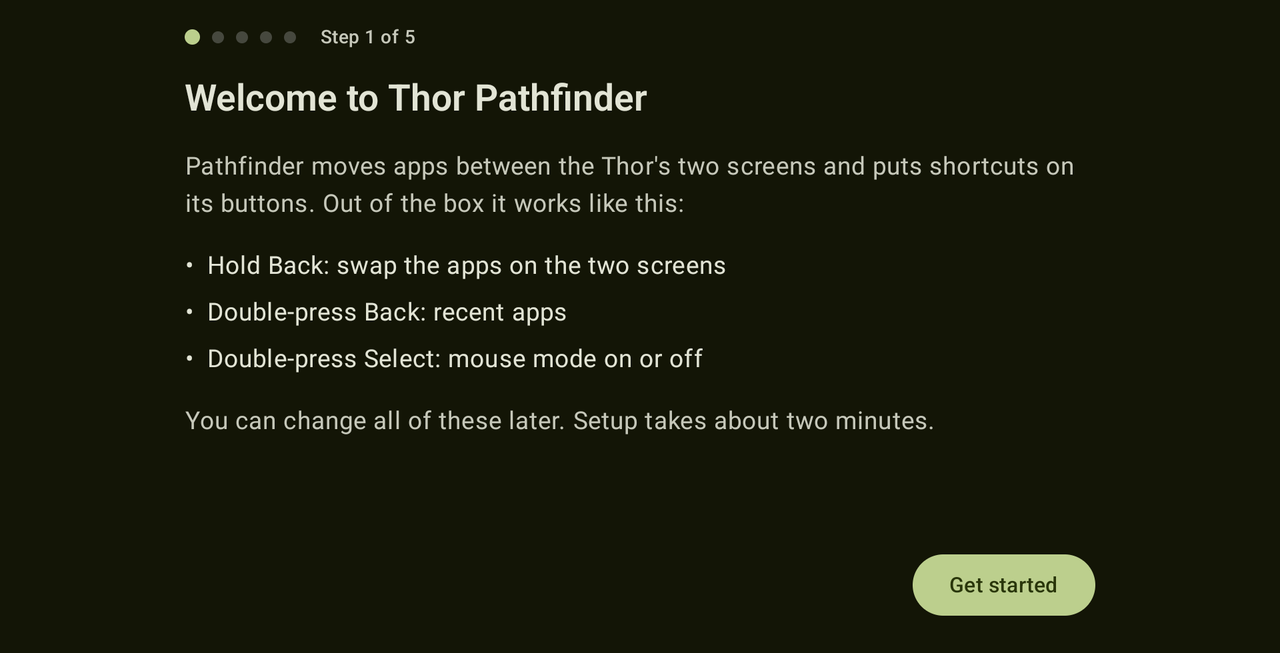
- A step-by-step setup that checks each requirement before moving on.
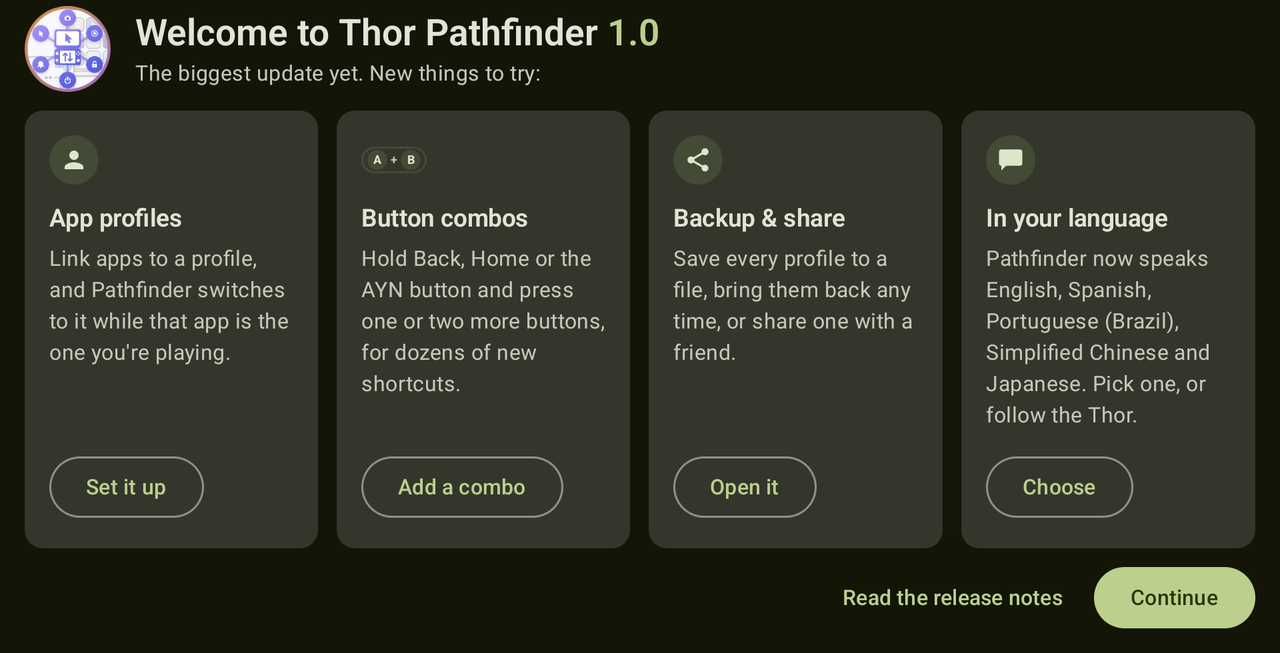
- Updating to 1.0 opens a one-time page with what's new, each with a button straight to it. It's under About → What's new in 1.0 afterwards.
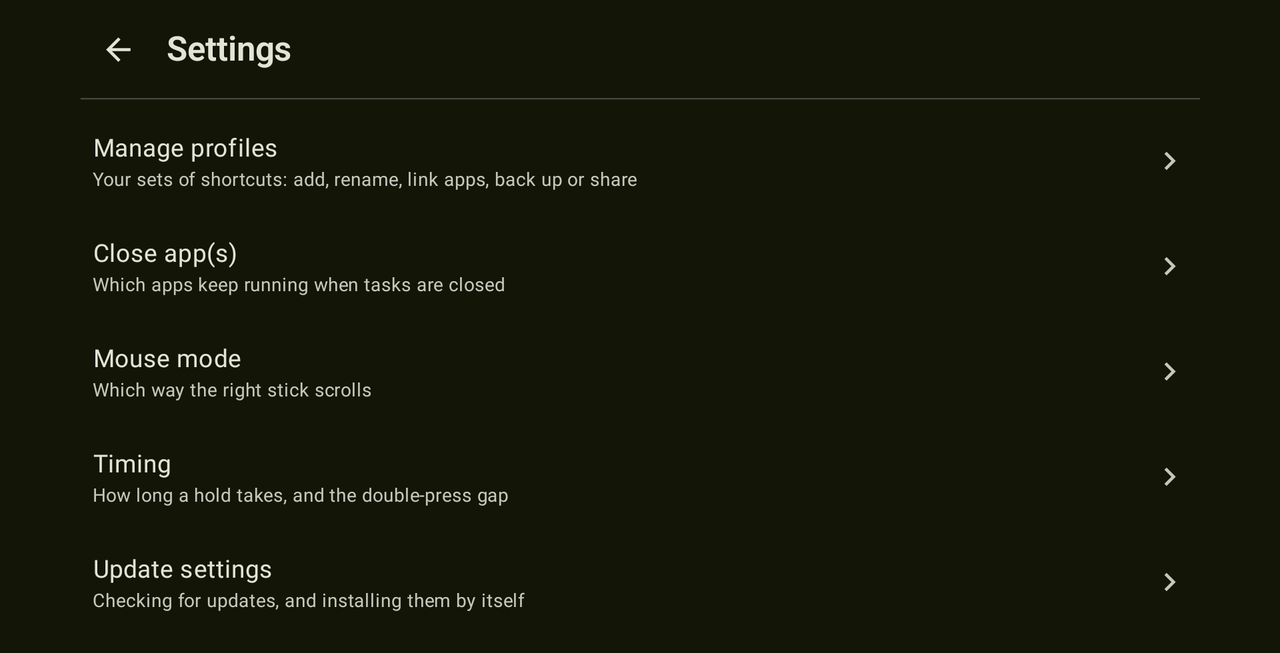
- The cog at the top opens a settings menu: profiles, which apps keep running, mouse mode, the hold and double-press timings, updates, the watchdog, the language, diagnostics, and running setup again.
- When something needs attention, it says why. Android switches accessibility services off whenever their app updates, and Shizuku stops when the Thor restarts.
- Works with the Thor's controller as well as touch. Every control shows a clear outline when it has focus.
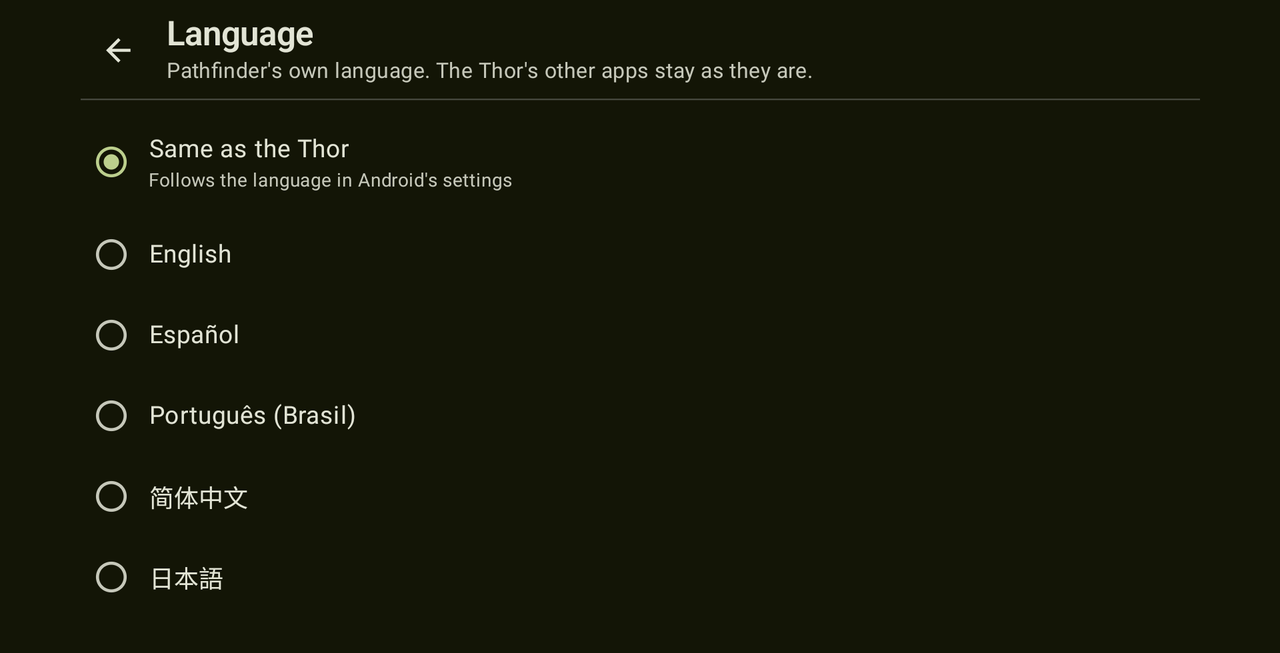
- In English, Spanish, Portuguese (Brazil), Simplified Chinese and Japanese. Pathfinder follows the Thor's language, or you can pick one for it alone under the cog → Language (Android 13's per-app language setting lists it too). The translations were made with AI (Claude), so some wording may be off; corrections are welcome as an issue or pull request. The Diagnostics report stays in English so anyone can read it.
- Pathfinder looks for a newer release when it opens, and the button at the top says what it found. A new version brings up a notice you can dismiss, for now or for good, with What's New to read that version's notes. With Check when Pathfinder opens turned off, the button simply offers a check rather than repeating an old "Up to date".
- If you turn it on, Pathfinder installs an update itself: it fetches the APK from the release here and installs it through Shizuku, with nothing to confirm. It starts off, and only ever installs a build signed with the same key as the copy you already have.
🔒 Private and light
- The accessibility service receives button presses only. It cannot read the screen or anything you type.
- App profiles learn which app is in front from Android's task manager, through Shizuku, and only the apps' names: nothing inside them.
- It goes online only to ask GitHub for the newest release: when you open Pathfinder, which you can turn off, and when you tap the button. With automatic updates on it also downloads the APK from the release. Nothing about you or your Thor is sent.
- The app is about 3 MB and runs no background work of its own. While any app is linked to a profile, a small helper runs under Shizuku to hear which app is in front; it goes when Pathfinder or Shizuku stops.
📦 Out of the box
| Button | Gesture | Does |
|---|---|---|
| Back | Press | Back |
| Back | Double-press | Recent apps |
| Back | Hold | Swap screens |
| Select | Double-press | Mouse mode on/off |
Everything else is left alone until you change it. Home and the AYN button keep their normal behaviour, with no delay, until you give them a shortcut.
✅ Requirements
- An AYN Thor on firmware 1.0.0.377 or newer (Android 13). Setup checks this, and offers the system update screen if the Thor needs updating. The AYN Thor Lite is supported too, and has been tested on one.
- Shizuku, from Google Play or its GitHub releases, for swapping screens and for anything to do with mouse mode. Shizuku grants the extra access without rooting the Thor, and walks you through its own setup.
📲 Install and set up
- Download the latest
Thor-Pathfinder-*.apkfrom Releases and open it on the Thor to install it. - Open Thor Pathfinder and follow the setup:
- Check your Thor: confirms the model and firmware.
- Thor Wayfinder (only if it's installed): both apps use the Back button, so uninstall Wayfinder or turn off its accessibility service.
- Accessibility: turn on Thor Pathfinder's service.
- Shizuku: install and start Shizuku if needed, then allow Pathfinder.
Tip
"Restricted setting"? Android blocks accessibility services for apps installed from outside the Play Store until you allow them. If you see this, open Pathfinder's app info, tap ⋮ in the corner, choose Allow restricted settings, then turn the service on again.
Note
Every release is signed with the same key, so new versions install over old ones. The release notes list the key's fingerprint and the APK's checksum.
⚠️ Known limitations
Important
Reverse scrolling needs a restart. The setting lives in AYN's own mouse mode configuration, which the Thor reads once at start-up. Pathfinder offers a Restart now button after you change it. Resetting the Thor's own mouse mode settings can turn it off again; if so, switch it back on in Pathfinder.
Note
Screen record is still being tested, and takes a few seconds. The recorder's options panel can only be opened from its Quick Settings tile, so the shortcut opens Quick Settings, finds the tile (on any page) and presses it for you. Keep the Screen record tile in Quick Settings for this to work.
🔧 How it works
Seeing the buttons. Android only shares button presses with accessibility services, so Pathfinder runs one. It hears about each press just before the app on screen does, and asks for nothing else: no screen contents and no typing. Every physical button also reports a hardware number, its scan code. That's how Pathfinder tells the Home button (102) from the AYN button (194), although Android calls both "Home". Presses that Android makes up itself, such as the back gesture on the screen, carry no scan code, so Pathfinder leaves them alone.
The AYN button isn't really a Home button, though: the Thor's own software catches it and opens AYN's menu on a press, or another panel on a long press. Nothing else can open those, so when a gesture on the AYN button is left on Normal, Pathfinder presses the real button again, through Shizuku, and lets that one press through to the Thor.
Only the real key opens those panels, so with Shizuku not running Pathfinder leaves the AYN button alone altogether: spotting a hold or a double-press means swallowing every press, and a plain press it swallowed could not be given back. The AYN menu keeps working, and shortcuts on the button start working again the moment Shizuku does. A press set to a shortcut of its own never has to be given back, so that one always works.
Back and Home work the same way when Shizuku is running. Android can perform a Back or a Home itself, but that stand-in comes from no real button, and apps that bind to the button itself, RetroArch for one, don't accept it. Pressing the real key means they see exactly what the button sends. Without Shizuku, Pathfinder uses Android's own Back and Home instead.
If the service stops working. Two different things can go wrong, and Pathfinder now tells them apart. Android may switch the service off — it does that whenever the app is updated, and some devices do it at other times too. Or the switch stays on and Android never starts the service, in which case everything looks right and no shortcut works.
Both are fixed the same way: switch Thor Pathfinder off and on again in
Android's accessibility list. With Shizuku connected, Pathfinder's setup screen
offers a button that does it for you. Without Shizuku it can't, since only the
shell user may change that setting — so there is a script for that case,
tools/fix-accessibility.sh in this repository.
Put it somewhere you can reach, such as Download, then open the Thor's own
settings, choose Run script
as Root and pick it. It takes Pathfinder off APP Auto Launch Manage's list
(see below), adds it back to the accessibility list, keeps every other app and
service in both exactly as they were, and changes nothing else. It is worth
reading before running; it is deliberately short.
If it stops after every restart. The Thor's own settings have a page
called APP Auto Launch Manage (Settings → Thor settings → Advanced
Settings). Despite the name, an app switched on there
can't have anything started in the background: the system refuses to start
its services unless the app is on screen, and says nothing about it. With
Thor Pathfinder switched on in that page, Android lists the service as on
after a restart but never starts it. Switch Thor Pathfinder off on that page,
then switch the service off and on once; no restart is needed. Pathfinder
spots this and says so, its setup screen's button takes it off that list
before switching the service off and on, and fix-accessibility.sh and the
watchdog take it off too. The Diagnostics report shows the list.
If it keeps happening, the cog's Watchdog page turns on a small helper
that Shizuku keeps running. Because it belongs to Shizuku rather than to
Pathfinder, it carries on when something stops Pathfinder itself, and it puts
the service back within a few seconds. It is off unless you turn it on, and it
only ever adds Pathfinder's own service. If you switch the service off
yourself in Android's settings, the watchdog leaves it off, after you close
Settings and after a restart, until the service is switched on again.
It also takes Pathfinder, and nothing else, off APP Auto Launch Manage's list.
A restart stops it along with Shizuku, and it starts again by itself as soon
as Shizuku is running, whether Shizuku comes up at boot or you start it later.
An update to Pathfinder brings the watchdog's new script with it straight away.
The script is watchdog.sh in the
source and it is worth reading.
The cog's Diagnostics page gathers everything that matters when reporting one of these: what the device reports itself as, whether Android has the service installed, switched on and started, and a history of every time the switch changed or the service stopped.
Moving apps between screens. Android keeps each open app in a task, and
every task belongs to one screen. Pathfinder asks Android to hand the app's
task to the other screen (am display move-stack), the same move Android
makes itself, so the app keeps running instead of restarting. Asking for that
takes more access than an app normally has, and that's what Shizuku provides:
it runs the command with the same rights as a USB debugging connection, with
no root needed.
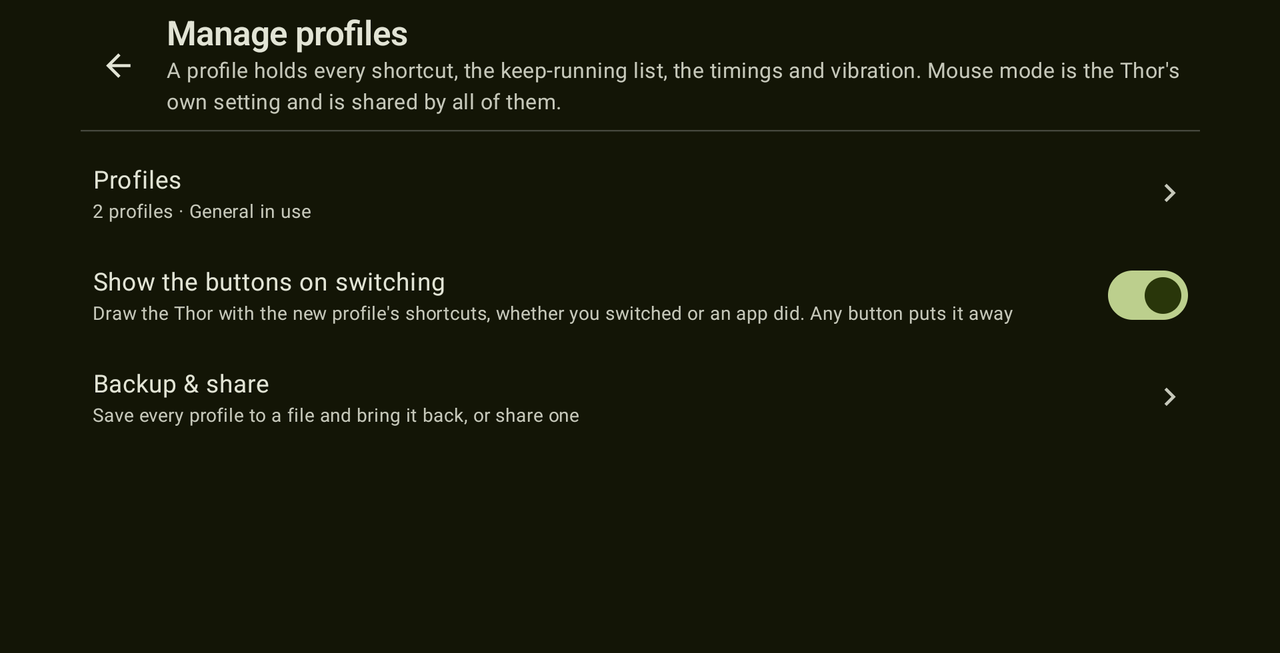
Profiles. A profile is a whole set of shortcuts: every button and gesture, the keep-running list, the hold and double-press timings, and vibration. Whatever you had before profiles existed becomes your Main profile, untouched. The oval under the title says which profile is in use and switches between them; Create profile starts one with every shortcut at its default, and offers to copy the keep-running list across so you don't have to pick those apps again. Manage profiles, behind the cog, renames, adds and removes them.
Which profile is the main one is yours to choose, in Manage profiles. The main profile is the one an Enable shortcut goes back to on a second press, the one Pathfinder falls back to if the profile in use is deleted, and the one that can't be deleted itself. It starts out as the profile you already had, and moving it moves all three of those.
Mouse mode is deliberately not part of a profile. It isn't Pathfinder's to keep: mouse mode is the Thor's own setting and its own config file, shared by everything on the device, so it stays as it is whichever profile is in use.
Switching profiles draws the Thor on the top screen with a box beside every button that carries a shortcut in the profile you have just moved to, so you can see what you are holding without opening anything. It stays until you press Dismiss; a tap anywhere on it, or any button press, does the same. Dismiss shows the A button, though any button works. While it is up the buttons belong to it: the press that closes it goes no further, so the game or app underneath never sees it. Volume still works, and the sticks still reach the app, since Android gives Pathfinder no way to hold them back. Turn it off with Show the buttons on switching in Manage profiles, and a switch just names the profile instead.
The Profile switcher action puts profiles on a button. It can cycle through them, enable one by name (pressing it again goes back to the main profile), or ask, which puts a list on the top screen to choose from. A shortcut set to enable a profile that has since been deleted cycles instead.
Closing all apps. Recents' "Clear all" button removes every task shown in
Recents and stops those apps. Pathfinder's Close all apps does the same
through Shizuku (am stack remove for each task, then am force-stop for
each app), so the Recents screen never has to open. Home screens stay; even
Pathfinder's own window is closed, so Recents ends up empty. Both screens then
return to their home screens, as after Clear all.
Close background apps clears everything the two screens aren't showing. What's in front is the point of it, so neither screen is sent home and the apps on them keep running, other windows of theirs included; every task behind them goes, force-stop and all.
Close focused app does the same for one app: the one on the screen you last touched, which is the app Android itself treats as in front. Close top app and Close bottom app pick the app showing on that screen, the same way a swap decides what to move. Close specific apps closes the apps you chose, wherever they are, even with no window open. Home screens are never closed.
Apps on your keep-running list lose their window like any other, but skip the force-stop, whichever way they're closed. Removing a window ends what's on screen; force-stopping also ends an app's background work, which is what would cut off music, a download or a sync.
Screen record. The recorder's options panel is a dialog inside System UI
that only its Quick Settings tile opens: its recording service isn't exported,
the panel isn't an app screen, and Android's tile-click command only reaches
third-party tiles. So the shortcut does what a finger would, through Shizuku:
it opens Quick Settings, reads the panel with Android's uiautomator tool to
find the tile on whichever page it is, and taps it. The tile's label comes from
System UI's own resources, so it's found in any language. Pathfinder's
accessibility service takes no part in this.
Mouse mode. The Thor's mouse mode is one system setting that AYN's input engine watches. Pathfinder flips it, through Shizuku, exactly as the Thor's own switch does.
Scroll direction. In mouse mode the right stick isn't a mouse wheel: it
drags an invisible finger across the screen, which is why pushing up moves the
page down. AYN's input engine can reverse that drag. The switch for it sits in
the Thor's mouse mode settings file
(AYN_Thor_Settings/global_mouse_mode_config.json) but has no button in the
Thor's menus. Pathfinder changes only that one value, keeps a copy of the
original next to it, and the Thor picks it up the next time it starts.
🐛 Reporting a problem
Please include your firmware version (shown in setup) and, if you can, a log:
adb logcat -s PathfinderSwap PathfinderShell PathfinderMouse
Each swap logs one line describing what Pathfinder saw on both screens and what it moved.
🛠️ Building
You need JDK 17 and the Android SDK (platform 35).
./gradlew :app:testDebugUnitTest :app:assembleRelease
The APK is written to app/build/outputs/apk/release/app-release.apk. Without
the project's signing key it is signed with your local debug key, so it
installs fine but can't update a copy installed from Releases.
The launcher icon is built from tools/icon/icon-source.png by
python tools/icon/make_icon.py (needs Pillow), which writes the icon's
foreground layer into the app's resources.
📜 License
Thor Pathfinder is free software, released under the GNU General Public License v3.0.
It bundles the Shizuku API (MIT License) and AndroidX, Jetpack Compose and Kotlin libraries (Apache License 2.0). See THIRD_PARTY_NOTICES.md; the app shows the same licenses under About → Open-source licenses.
AYN and Thor are trademarks of their respective owners. Pathfinder is not affiliated with or endorsed by AYN, Thor Wayfinder or Shizuku.
How Shizuku is used
Can swap apps between screens, launch and close apps, switch profiles and run shortcuts via `am`, `input` and Shizuku shell commands.
This is an AI-assisted analysis of Shizuku-related usages in the app's public source code. It is best effort, so it may not catch every single usage.
How this app uses Shizuku
Thor Pathfinder uses Shizuku to control the dual screens, physical buttons and game profiles from button and combo shortcuts.
- Swap screens: move the running apps on the top and bottom screens to the other display without relaunching them with the
am display move-stackshell command through Shizuku, after listing tasks witham stack listand checking playing media withdumpsys media_session. - Open apps on screen: launch a chosen app or pair of apps on the top or bottom display with the
am start --displayshell command through Shizuku when the normal launch does not work. - Go home per screen: send the top, bottom or both screens to their home screens with the
input keyevent KEYCODE_HOMEshell command through Shizuku when a home intent cannot be started. - Close running apps: close the focused app, the app on a screen, chosen apps, background apps or all apps with
am stack removeplusam force-stopshell commands through Shizuku, found withdumpsys activity recents,dumpsys activity activitiesandam stack list. - Auto switch profiles: detect which app is on each screen and which has focus to activate the linked per game button profile, using a Shizuku user service that watches the system task manager for task and focus changes.
- Change focus mode: switch which screen the controller drives by writing the Thor focus lock value with the
settings put systemshell command through Shizuku. - Replay physical buttons: retrigger AYN buttons through the kernel with the
sendeventshell command through Shizuku, after finding the input device withcat /proc/bus/input/devices. - Open screen recorder: expand Quick Settings with
cmd statusbar expand-settings, read tiles withuiautomator dump, then tap or swipe to the Screen Record tile withinput tapandinput swipethrough Shizuku. - Toggle mouse mode: flip gamepad to mouse mode and its right stick scroll direction with
settings getandsettings put system,getpropandcatplus file backup and replace shell commands through Shizuku, and restart the device withsvc power reboot. - Fix auto launch block: remove the app from AYN auto launch management with
settings deleteandsettings put systemshell commands through Shizuku so its service can start. - Install app updates: download and silently install the app own update with a
pm install-create,pm install-write,pm install-commitsession through Shizuku.
Android APIs or commands used
am stack listam display move-stackam start --displayam stack removeam force-stopdumpsys media_sessiondumpsys activity recentsdumpsys activity activitiessettings getsettings put systemsettings deleteinput tapinput swipeinput keyevent KEYCODE_HOMEcmd statusbar expand-settingscmd statusbar collapseuiautomator dumpsendeventcat /proc/bus/input/devicescatgetprop ro.product.vendor.modelcppm install-createpm install-writepm install-commitpm install-abandonsvc power rebootidlogcatandroid.app.ActivityTaskManager.getServiceregisterTaskStackListenerunregisterTaskStackListenergetFocusedRootTaskInfogetAllRootTaskInfosandroid.app.ITaskStackListenerActivityManager.moveTaskToFrontActivityOptions.setLaunchDisplayId
Notable details
Opening apps and sending screens home first try the normal Android launch, Shizuku shell commands are only the fallback when that fails. Update installs verify the APK is a newer Thor Pathfinder build with the same signature before installing, and offer the release page when Shizuku is unavailable.
Changelog
What's new for version 1.0.0
The biggest update yet: profiles that follow the game you're playing, button combos, backups you can share, and Pathfinder in five languages. After updating, a one-time Welcome to 1.0 page shows each new feature with a button straight to it (it's under About → What's new in 1.0 afterwards).
🎮 App profiles
Link apps to a profile (cog → Manage profiles → Profiles → a profile → Apps that use it) and Pathfinder switches to that profile while one of them is the app you're playing, then back to yours when you leave it.
- It follows Focus Mode: the top screen's app when focus is locked to the top, the bottom screen's when locked to the bottom, and in Auto-lock the one you last used.
- Switch profile yourself inside a linked app and your pick holds until you leave that app.
- Each switch shows a short message, plus the picture of the Thor's buttons if Show the buttons on switching is on.
- Needs Shizuku. A small helper runs under Shizuku only while some app is linked, and it only learns app names, nothing inside them.
➕ Button combos
Hold Back, Home or the AYN button and press one other button, or two together, for dozens of new shortcuts. Add them on the Back, Home and AYN cards (the ones with the small A + B mark).
- Any button can join: A, B, X, Y, the D-pad, L1, R1, L2, R2, L3, R3, Select, Start, and the other two of Back, Home and AYN.
- The buttons in a combo never reach the game.
- A combo has to come before the held button's Hold would run.
- Combos follow the letters printed on the buttons, so they stay the same in the Xbox controller style.
- They show on the button cards and on the picture of the Thor.
💾 Backup & share
Under cog → Manage profiles → Backup & share:
- Save a backup: every profile with its shortcuts, combos, timings, keep-running list and linked apps, in one file.
- Restore a backup on this Thor or another.
- Share a profile as a file, and Add a shared profile beside your own. Its linked apps come along if they're installed and not linked to one of your profiles already.
Files go through Android's own file picker, so Pathfinder needs no storage permission. The watchdog and automatic updates stay as they are, since they depend on each Thor's Shizuku.
🌍 Five languages
English, Spanish, Portuguese (Brazil), Simplified Chinese and Japanese. Pathfinder follows the Thor's language, or you can pick one for it alone under cog → Language. The translations were made with AI (Claude), so some wording may be off: corrections are welcome as an issue or pull request. The Diagnostics report stays in English.
🧭 Smaller changes
- Manage profiles is now three rows: Profiles, Show the buttons on switching, and Backup & share.
- The picture of the Thor now stays up until you press a button or tap it, instead of closing on a timer.
- Button cards show up to two lines of shortcuts when closed, so nothing is cut off.
- New screenshots in the README.
📲 Install
Download Thor-Pathfinder-1.0.0.apk below and open it on the Thor. It installs over 0.9.0 and keeps your settings and profiles. With automatic updates turned on, Pathfinder installs it by itself.
🔐 Verify the download
- APK SHA-256:
6ae432a2fe20c3880326fbe6ca4bbe3caa4d3dac9d079e211b7524bdb4b4429c - Signing certificate SHA-256:
27:06:E8:5B:A6:9B:3F:77:E3:72:27:B4:C0:A0:F9:93:11:FC:73:43:4D:72:64:21:6F:7B:F3:2C:BE:43:98:97(unchanged since 0.2.0)
🐛 Something not right? Open an issue and paste the Diagnostics report (cog → Diagnostics → Copy report).
Permissions
5 permissions requested
More from this category
 Calibrate SoC
 VR Launcher
 buttonoo
 Heimdall
 MindControl
 SidePad
 Glyph Barty
 ha-paneld
 BooxUltimatum
 DiAuto
 Thor Volume Link (ThorVolumeLink)
 flipx
flipx