 ShizuStore
OpenCyvis
2.0.1 · GitHub
More about this app
Open-source AI phone that sees your screen and operates apps from natural language tasks, works in the background
The open-source AI phone.
Commercial AI phones are black boxes. This one isn't.
Open Cyber Jarvis
Docs • 中文 • Getting Started • Roadmap • Contributing





What It Does
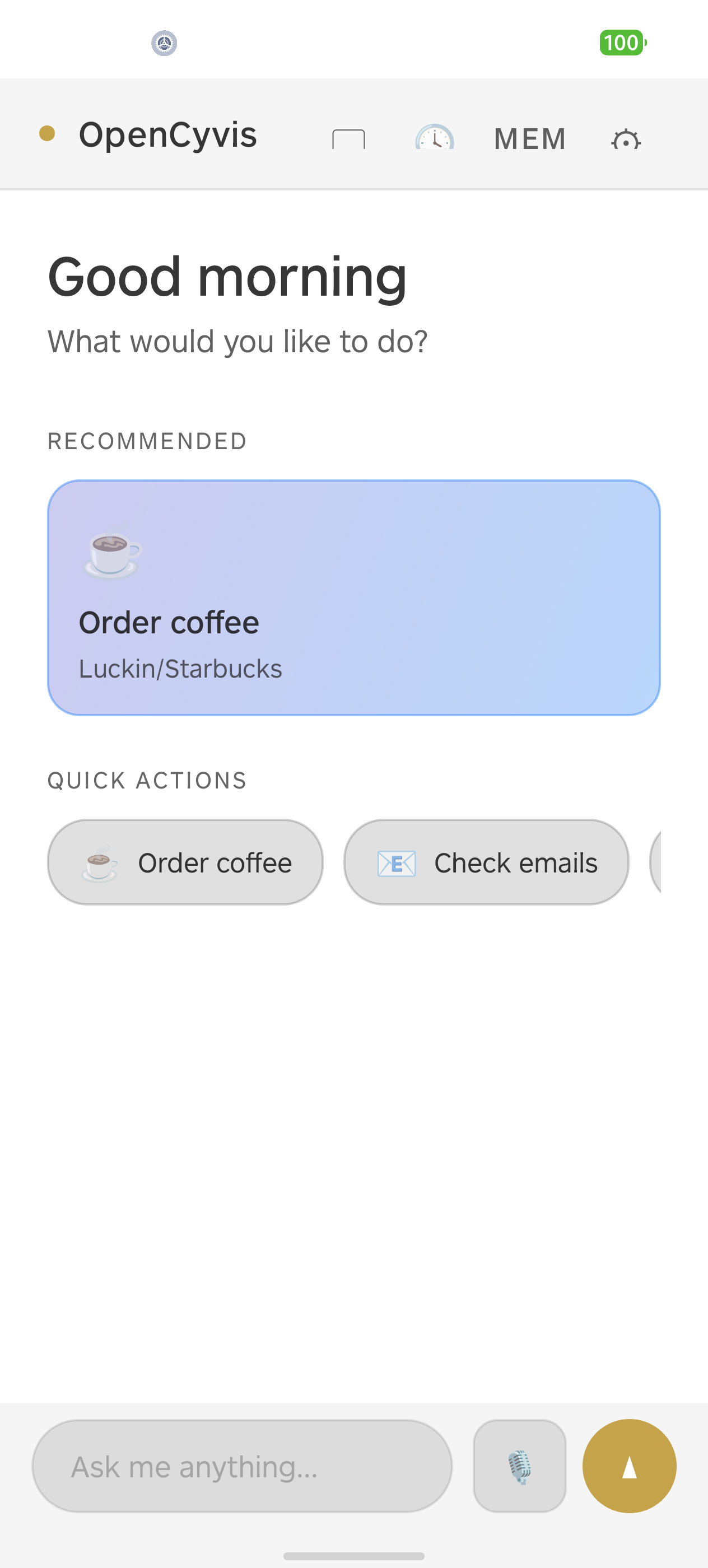
OpenCyvis turns Android into an AI phone. Give it a task in natural language — it sees your screen, understands the UI, and operates apps just like you would.
"Reply 'let's go eat sushi' in WeChat" — opens WeChat, finds the conversation, types and sends:

"Find the best-rated coffee shop nearby and get directions" — opens Maps, searches, sorts by rating, taps navigate.
"Set a 7am alarm, turn on Do Not Disturb, and switch to dark mode" — chains Clock, Settings, and Display in one go.
It works in the background
Most AI tools lock your screen while they work. OpenCyvis operates on a virtual display — an isolated background screen. The AI books your flight while you scroll Twitter.
┌─────────────────────┐    ┌─────────────────────┐
│   Your screen        │    │   Virtual display    │
│                      │    │   (AI works here)    │
│   Browse, chat,      │    │                      │
│   watch videos —     │    │   Booking flights,   │
│   phone is yours     │    │   sending messages,  │
│                      │    │   placing orders     │
└─────────────────────┘    └─────────────────────┘
      You use this              AI uses this
Watch the AI work anytime. Take over if something looks wrong. Hand it back when you're done.

Why
When a company ships an "AI phone," they get full access to your screen, your apps, your messages — and you can't see what model is running, can't verify what data leaves your device, can't choose an alternative.
You should at least have the choice.
OpenCyvis is the open-source alternative: you see every line of code, you pick the AI model, you decide where your data goes. With a local model, nothing ever leaves your device.
Two Install Modes
Standard Mode
For most users. No custom ROM, no root, no computer.
- Download and install the APK
- Open the app and choose ADB wireless pairing or Shizuku as the privilege backend
- Choose your LLM backend (cloud or local), start using
The built-in ADB wireless pairing flow completes entirely on-device. Alternatively, if Shizuku is already running, grant OpenCyvis access once and no wireless debugging or pairing is needed. Supports Android 11+.
ADB wireless pairing tips
- The wizard sends you to Wireless debugging → Pair device with pairing code. Once you see the 6-digit code, pull down the notification shade and type the code straight into the OpenCyvis notification — no need to switch back to the app.
- Some vendor ROMs (ColorOS / OnePlus, MIUI, …) freeze apps once they go to the background. If the system asks you to allow background activity / ignore battery optimization during pairing, choose Allow for a smoother experience.
- If you don't see the notification with the input field, just pull down the shade once to find it.
System App Mode
For developers and power users.
Flash an AOSP system image. The app runs as a system application with full platform signing privileges. Screenshots use SurfaceControl directly — fastest possible. Full virtual display task management via system APIs.
How they relate
Same AI engine, same LLM backends, same UI, same capabilities. The only difference is how the app obtains system permissions. Standard mode uses ADB shell or Shizuku privileges; System App mode uses platform signing. For everyday tasks, you won't notice the difference.
v2.0 New Features
Remote Control via IM
Send messages to a bot in your IM app to control the phone's AI remotely. Currently supports Feishu and Telegram.
Use case: Install OpenCyvis on a parent's phone. Mom says "the text is too small" — you send "set font size to largest" in IM. The AI does it and sends back a confirmation screenshot. No need for both parties to watch the screen simultaneously.
Supports: sending commands, receiving progress, viewing screenshots, answering the AI's questions, stopping tasks. Pairing uses a 6-digit code.

Routines
Save frequent operations and run them on a schedule or with one tap.
Example: "Check calendar, weather, and unread emails every morning at 8am" — the AI runs automatically and pushes a summary to chat. Also supports geofencing — auto clock-in when arriving at the office.
Provider Profiles
Save multiple AI configurations (e.g., cloud Qwen, local Gemma 4, Claude) and switch between them with one tap. No need to re-enter API URLs and keys each time.
Dark Mode
Full day/night theme. Follows system settings or set manually. All screens — home, chat, settings, watch mode — have matching dark variants.
Multi-ROM Support
Standard mode now supports MIUI, ColorOS, OriginOS, and other vendor ROMs. Different manufacturers have vastly different wireless debugging entry points — OemHelper handles the differences.
How It Compares
| Commercial AI Phones | Cloud Phones | Phone-control Scripts | OpenCyvis | |
|---|---|---|---|---|
| Open source | ❌ | ❌ | ⚠️ | ✅ |
| Choose your AI model | ❌ | ❌ | ⚠️ | ✅ |
| Data stays on device | ❌ | ❌ | ⚠️ | ✅ |
| Phone usable while AI works | ⚠️ | ✅ | ❌ | ✅ |
| Works with any app | ⚠️ | ⚠️ | ⚠️ | ✅ |
| No computer setup | ⚠️ | ⚠️ | ❌ | ✅ |
| Works on everyday phones | ✅ | ⚠️ | ❌ | ✅ |
Supported Models
OpenCyvis is model-agnostic. Bring your own AI account, connect a private service, or run a local model.
Cloud Models
| Model | Latency per step | Pass Rate | Notes |
|---|---|---|---|
| Qwen 3.5 Plus | 4-6s | 4/4 | Stable, recommended |
| Claude Opus 4 | 4-8s | 4/4 | Highest reasoning quality |
| MiMo v2.5 | 2.3-4.5s | 4/4 | Fastest |
| GPT-4o | 3-6s | 3/4 | Occasionally ignores tool_choice |
Local Models (via Ollama)
| Model | Size | Speed | Pass Rate |
|---|---|---|---|
| Gemma 4 26B-A4B Q4 | 17 GB | 63 tok/s | 4/4 |
| Gemma 4 E2B Q4 | 1.8 GB | 41 tok/s | 4/4 |
| Qwen 3.5 35B-A3B Q4 | 22 GB | 47 tok/s | 3/4 |
| Gemma 4 E4B Q4 | 3 GB | 61 tok/s | 3/4 |
Recommended: Gemma 4 26B-A4B — best balance of speed, quality, and memory.
Minimal: Gemma 4 E2B — just 1.8 GB, still passes all 4 tests.
Architecture
Both install modes share all upper-layer code. The difference is only in the privilege layer, isolated behind a PrivilegeBackend interface:
| SystemBackend | RemoteBackend | |
|---|---|---|
| Privilege source | Platform signing (uid system) | ADB shell or Shizuku |
| Input injection | InputManager reflection | AIDL proxy to PrivilegedService |
| Screenshot | SurfaceControl.screenshot() | ImageReader from VD Surface |
| VD task management | ActivityTaskManager reflection | PrivilegedService proxy |
The backend is selected automatically at runtime.

Privacy & Security
An AI agent with full phone access is one of the most privileged pieces of software you can run. This is not a place for "trust us."
- You choose the AI service — hosted, private, or local
- No telemetry, no analytics, no phone-home — zero tracking code
- Open source — anyone can audit
- Local model option — nothing leaves your device
Getting Started
Download
Two APKs are available on the Releases page:
| APK | For | Package ID |
|---|---|---|
opencyvis-standard-release.apk |
Most users — install on any Android 11+ phone | ai.opencyvis.standard |
opencyvis-system-release.apk |
Developers — flash into AOSP as a system app | ai.opencyvis |
Standard Mode (recommended)
- Download
opencyvis-standard-release.apkand install - Open the app and choose ADB wireless pairing or Shizuku
- Configure your LLM provider in Settings
- Start sending tasks
Use the built-in ADB wireless pairing flow by entering the 6-digit code in the OpenCyvis notification and allowing background activity if your ROM prompts for it. Alternatively, if Shizuku is already running, simply grant OpenCyvis access—no wireless pairing is required.
System App Mode
For developers building a custom AOSP image:
git clone https://github.com/opencyvis/opencyvis-phone.git
cd opencyvis-phone/android
./gradlew assembleSystemRelease
See android/README-AOSP.md for AOSP deployment and platform key signing.
Configure LLM
Set your provider in-app, or via deeplink:
# Local Ollama (fully private)
adb shell am start -a android.intent.action.VIEW \
  -d "opencyvis://config?provider=ollama&base_url=http://localhost:11434&model=gemma4:26b"

# Cloud API
adb shell am start -a android.intent.action.VIEW \
  -d "opencyvis://config?provider=openai&base_url=https://api.example.com/v1&api_key=YOUR_KEY&model=qwen-vl-max"
Roadmap
- Explore more convenient privilege acquisition methods
- Further optimize local model support
- Cross-device coordination (phone + desktop)
Contributing
See CONTRIBUTING.md. We welcome code, bug reports, security audits, translations, and documentation.
License
Acknowledgments
- Sherpa-ONNX — on-device speech recognition (Apache 2.0)
How Shizuku is used
Can run AI tasks in a background display via Shizuku using `bindUserService` hosted automation and screen control
This is an AI-assisted analysis of Shizuku-related usages in the app's public source code. It is best effort, so it may not catch every single usage.
How this app uses Shizuku
Shizuku is used to run a privileged helper that lets the AI assistant see the screen and operate apps in a background display while the phone stays usable. The helper runs with elevated shell privileges through Shizuku and provides input, capture and display control to the automation engine.
- Operate apps by touch: taps, long presses, swipes and key presses chosen by the AI task are injected on the background display through the system input service.
- See screen for AI: screenshots of the main or background display are captured for the AI to decide the next step, using system capture APIs with a command fallback.
- Run tasks in background: a hidden virtual display is created to host automated app sessions separate from the visible screen.
- Open apps in background: apps and the home screen are launched directly on the background display with a system start command, moving existing tasks there when needed.
- Manage background tasks: tasks are moved between the visible and background displays and the current task on a display is checked to keep automation contained and to return apps afterward.
- Show background display: the background display can be attached to an on screen view for viewing, or detached for background capture, and released when done.
- Configure display input: keyboard behavior on the background display is configured through the system window service, and empty displays are given home content.
- Close setup screen: the system settings app is closed with a force stop command after exiting split screen during setup.
Android APIs or commands used
IInputManager.injectInputEventDisplayManagerGlobal.createVirtualDisplayDisplayManager.createVirtualDisplayVirtualDisplay.setSurfaceVirtualDisplay.releaseandroid.window.ScreenCapture.captureandroid.window.ScreenCaptureInternal.captureDisplaySurfaceControl.screenshotActivityTaskManager.getTasksActivityTaskManager.moveRootTaskToDisplayActivityTaskManager.moveTaskToDisplayIWindowManager.setDisplayImePolicyImageReader.newInstanceam start --displayam force-stopscreencap -p
Notable details
The same background automation can also work without Shizuku through a direct wireless debugging connection that hosts the same privileged helper, so Shizuku is one of two ways to enable the elevated features.
Changelog
What's new for version 2.0.1
OpenCyvis v2.0.1
Downloads
| APK | For |
|---|---|
opencyvis-standard-release.apk |
Most users — install on any Android 11+ phone, no root/ROM needed |
opencyvis-system-release.apk |
Developers — flash into AOSP as a system app with platform signing |
Changes since v2.0.0
- ADB wireless pairing — split-screen OTP entry + on-device number pad, no need to leave Settings to type the code
- ColorOS / OnePlus fix — discover pairing port at submit-time so aggressive OEM freezers (HansManager) no longer kill the pairing service
- Privileged permissions — added
INTERACT_ACROSS_USERS_FULL(ShizukuProvider multi-user) andSCHEDULE_EXACT_ALARM(scheduled routines / BootReceiver) to AOSP allowlist - AOSP integration — updated
Android.bpoptional libs, renamed prebuilt APK toOpenCyvis.apk - Battery optimization prompt — user can exempt the app from OEM battery savers that suspend the pairing service
Signing
standardAPK: signed withopencyvis-releasekey (RSA 4096)systemAPK: unsigned — sign with your platform key before pushing to/system/priv-app/
Permissions
24 permissions requested
Sources
2 sources
Sources
2 sources
More from this category
 Operit AI
 AndroidHarness
 Minis
Minis
 OpenDroid
 Agent
Agent
 XiaoEr
 Aether
 ClawGUI
 rish-mcp
 Zafiro
 小万
小万
 Ruto
Ruto