 ShizuStore
小万
0.6.3 · GitHub
More about this app
On-device AI agent with terminal, web browsing, device control, and system integration
Your On-Device AI Assistant

| Demo | Quick Start | Release | Issues |
OmniBot runs directly on your Android device and combines chat, agent tools, local workspaces, and system integrations in one app. 🎉 Our iOS & macOS version: ViaVera
OmniBot is an on-device AI agent built with native Android Kotlin and Flutter. Instead of stopping at chat, it focuses on the full loop of understand -> decide -> execute -> reflect.
Core Capabilities
- Extensible tool ecosystem: Skills, Alpine environment, browser access, MCP, and Android system-level tools.
- System-level actions: Supports scheduled tasks, alarms, calendar creation/query/update, and audio playback control.
- Memory system: Short-term and long-term memory with embedding support.
- Productivity tools: Read and write files, browse the workspace, use the browser, and access the terminal.

Quick Start
Configure the app
Open the settings page from the left sidebar:


Then open the scenario model settings:

Note: Memory embedding requires an embedding model. For the best overall experience, the other scenarios should use multimodal or vision-capable models whenever possible.

The app usually initializes the Alpine environment automatically on startup, and you can also manage that environment from the same settings area.
Use Cases
Skills
You can ask OmniBot to install a skill by simply sending it the repository link. Recommended collection: https://github.com/OpenMinis/MinisSkills
Enable or disable skills from the skill repository:


Scheduled tasks


Scheduled tasks execute subagent flows. Alarms are reminder-only. A subagent can be assigned a complete task and behaves like a full agent.
Browser

Workspace

Remote Codex bridge
To use Codex mode with Codex running on a PC or Mac, start codex-bridge on the computer where the Codex CLI is installed and logged in:
npx @thuocean/codex-bridge
Choose the LAN address and token mode in the terminal setup UI, then scan the printed QR code from OpenOmniBot's Codex settings. For advanced options and troubleshooting, see the codex-bridge README.
Development Guide
Requirements
- Flutter SDK
3.47.2+ - JDK
17+ - Node.js
20.19+or22.12+and pnpm10.28.0(for WebUI development)
Get the code
git clone https://github.com/omnimind-ai/OpenOmniBot.git
cd OpenOmniBot

cd ui
flutter pub get
If Flutter reports Could not read script '.../ui/.android/include_flutter.groovy', run:
flutter clean
flutter pub get
Develop the WebUI locally
The WebUI in webchat/ is a standalone React + TypeScript + Vite project. During local development, Vite serves the frontend with hot reload and proxies /webchat/api requests to the Android app's local service.
- Install and start OpenOmniBot on an Android device. Keep the computer and device on the same trusted LAN.
- In the app, open Settings > Local Service, enable the service, and copy its address and Token. The default port is
8899, but always use the address shown by the app. - Start the WebUI development server from the repository root, replacing the sample address with the Android local-service address (do not append
/webchat):
cd webchat
pnpm install --frozen-lockfile

VITE_WEBCHAT_PROXY_TARGET=http://192.168.1.20:8899 pnpm dev
On PowerShell, set the proxy target first:
$env:VITE_WEBCHAT_PROXY_TARGET = "http://192.168.1.20:8899"
pnpm dev
Open the URL printed by Vite (normally http://localhost:5173) and enter the Token copied from the app. Use pnpm dev for end-to-end API/SSE testing; the proxy keeps session cookies, realtime events, workspace access, and browser mirroring on the same local origin.
Before submitting WebUI changes, run:
cd webchat
pnpm run typecheck
pnpm run build
The production files are generated in webchat/dist/. Both dist/ and node_modules/ are local outputs and must not be committed.
Android builds handle the WebUI automatically: Gradle runs the locked pnpm install, executes the Vite production build, clears stale WebChat assets, and copies only dist/ into the APK. To verify this step without building the full app, run:
./gradlew :app:syncWebChatBundle -Ptarget=lib/main_standard.dart
Flutter Web is not part of this workflow.
Build and install
Release APK builds use OMNIBOT_UPDATE_WORKER_URL as the default GUI VLM proxy
and receive the Gelab route from the update Worker. The upstream Gelab key stays
in the Worker. Debug APK builds use the OpenAI-compatible LLM API configured by
LLMTHU_API_BASE, LLMTHU_API_KEY, and LLMTHU_MODEL for normal LLM requests,
context compaction, and scene.vlm.operation.primary.
For local acceptance testing, Release builds can explicitly enable
-POOB_BUNDLE_LLMTHU_PROVIDER=1 to bundle the same LLMTHU_* configuration
for use out of the box. Regular Release and CI builds do not bundle this
configuration by default.
cd ..

./gradlew :app:installDevelopStandardDebug -Ptarget=lib/main_standard.dart
For acceptance testing on a physical device, use the repository's LLMTHU
installation script. It enables the LLMTHU provider by default and reads the
API key from LLMTHU_API_KEY in the current shell. If the key is missing, the
script fails immediately instead of producing an unusable test APK. Regular
Release and CI builds still do not automatically bundle the key.
export LLMTHU_API_KEY='your-api-key'
./scripts/install_release_llmthu_device.sh
Architecture Overview
OpenOmniBot/
├── app/                        # Android host app: entry point, agent orchestration, system abilities, MCP, services
├── ui/                         # Flutter Android UI: chat, settings, tasks, and memory
├── webchat/                    # React + TypeScript WebUI; Vite builds the static bundle packaged by Android
├── baselib/                    # Shared core libraries: database, storage, networking, model config, permissions
├── assists/                    # Shared task lifecycle and chat/model coordination
├── uikit/                      # Native overlay UI: floating ball, overlay panels, half-screen surfaces
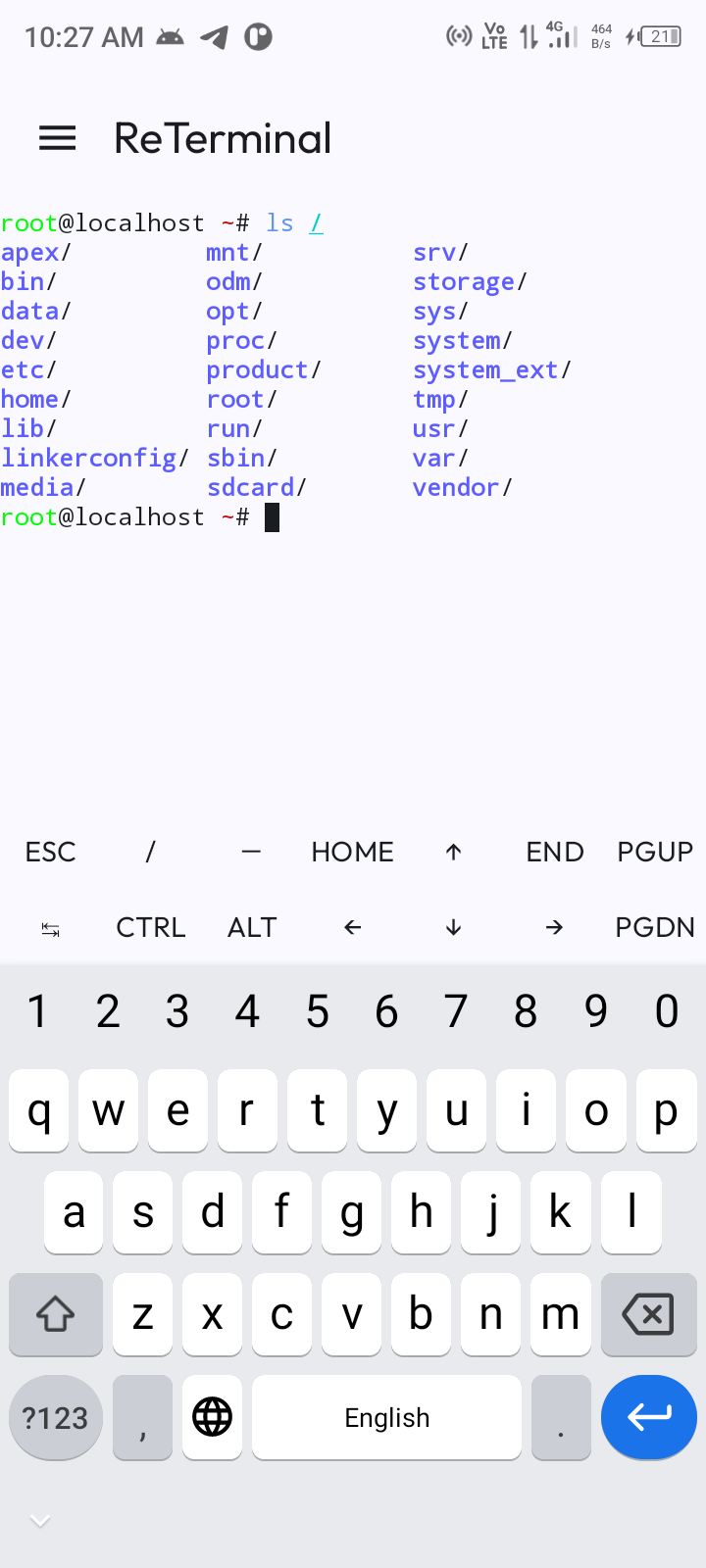
└── ReTerminal/core/            # Embedded terminal experience modules
More
Thanks to developers from LINUX.DO and other communities for supporting OpenOmniBot.
Special thanks to these open-source projects:
|
WeChat Group Join the Discord community |
How Shizuku is used
Can run AI-directed privileged shell, app, settings and device actions via `Shizuku` user service shell commands.
This is an AI-assisted analysis of Shizuku-related usages in the app's public source code. It is best effort, so it may not catch every single usage.
How this app uses Shizuku
The on-device AI agent uses Shizuku to run privileged Android operations that normal apps cannot perform.
- Run privileged shell commands: the agent can run a one-shot shell command with a chosen working directory and environment through the privileged process, with dangerous commands blocked by policy.
- Use persistent shell sessions: the agent can start a reusable privileged shell session, run commands in it, read back output transcripts and stop the session when done.
- Launch and stop apps: the agent can launch an app or a specific app screen with
am startor the launcher trigger, and force stop other apps witham force-stop. - Manage app permissions: the agent can grant or revoke an app permission with
pm grantandpm revoke, and set an app operation mode withappops set. - Read and change settings: the agent can read system properties and settings values, and write system, secure or global settings values.
- Control device features: the agent can send key events, expand notifications or quick settings, and turn WiFi or mobile data on or off.
- Inspect system diagnostics: the agent can list installed packages, read selected system service status and read recent logs.
Android APIs or commands used
ProcessBuilder/system/bin/sh -lcam startam force-stoppm grantpm revokepm list packagesappops setsettings getsettings putinput keyeventcmd statusbar expand-notificationscmd statusbar expand-settingssvc wifi enablesvc wifi disablesvc data enablesvc data disablegetpropdumpsyslogcatmonkey -p
Notable details
Privileged agent actions ask for explicit user confirmation before running and show the pending command first; unconfirmed or denied actions do not run. A built-in safety policy blocks reboot, power off, recovery wipe, repartition, fastboot, block device and protected system partition writes. Mobile data control and kernel log access are only available in some Shizuku configurations.
Changelog
What's new for version 0.6.3
小万 0.6.3
基于 0.6.2.3 的功能与修复发布,保留现有前端操作。
- 修正 DSH 在通用 OpenAI 接口下关闭思考时没有明确发送关闭参数的问题。
- 保存 ACP 会话中已接受的模型与思考设置,避免修改后重启恢复成上一轮的设置。
- 继承 0.6.2.3 的长对话、历史恢复、多助手切换、工具执行和文件预览改进。
验证范围与尚未完成的真机边界见 验收记录。跨设备 Codex 同步仍在开发和验收中,不作为本版已完成功能发布。
已验证:PJE110 真机上的 DSH 关闭/开启、修改后未发送就重启、重启后继续会话,以及 29 项相关 JVM 回归。真机安装版本为 0.6.3/code 16 的 debug 验收包;下载资产为 CI 正式签名包。
Full Changelog: https://github.com/omnimind-ai/OmniBot/compare/v0.6.2.3...v0.6.3
Permissions
36 permissions requested
More from this category
 Operit AI
 AndroidHarness
 Minis
Minis
 OpenDroid
 Agent
Agent
 XiaoEr
 Aether
 ClawGUI
 rish-mcp
 Zafiro
 Ruto
Ruto
 OpenCyvis