 ShizuStore
Lightspeed
1.0.3 · GitHub
More about this app
Offline gesture-driven workstation and control layer over OEM setups, using Shizuku for elevated navigation and seamless app switching.
🚀 Lightspeed
A control layer, launcher, and workstation for Android.
Android's foundation is Linux.
Moving between different devices or changing your Android device shouldn't mean losing capabilities because of artificial rules or restrictions imposed by the software layer built on top.
Lightspeed is about taking back control and enhancing the way you interact with your device without making you choose between Lightspeed's implementations and your OEM's own implementations.
Lightspeed's Central Command provides a polished portal for configuring navigation, hardware interaction, setting up information beacons, and utilizing built-in system controls, aka System Override, the way that suits you and your Android.
📥 Download
- Orion Store users: open Lightspeed in Orion. This link opens inside the Orion Store app, so the app must be installed.
- Obtainium users: add
https://github.com/SBFlabs/Lightspeedas a source in Obtainium to install and receive updates straight from GitHub Releases. - Everyone else: download the APK from GitHub Releases.
🚀 One Launch Pad, Three Workstations
🛰️ The Launch Pad
The Astrogation Core — or simply the sidebar — is your way into the three main areas of Lightspeed.
1. 🌌 Category Cruise
The categorized app drawer.
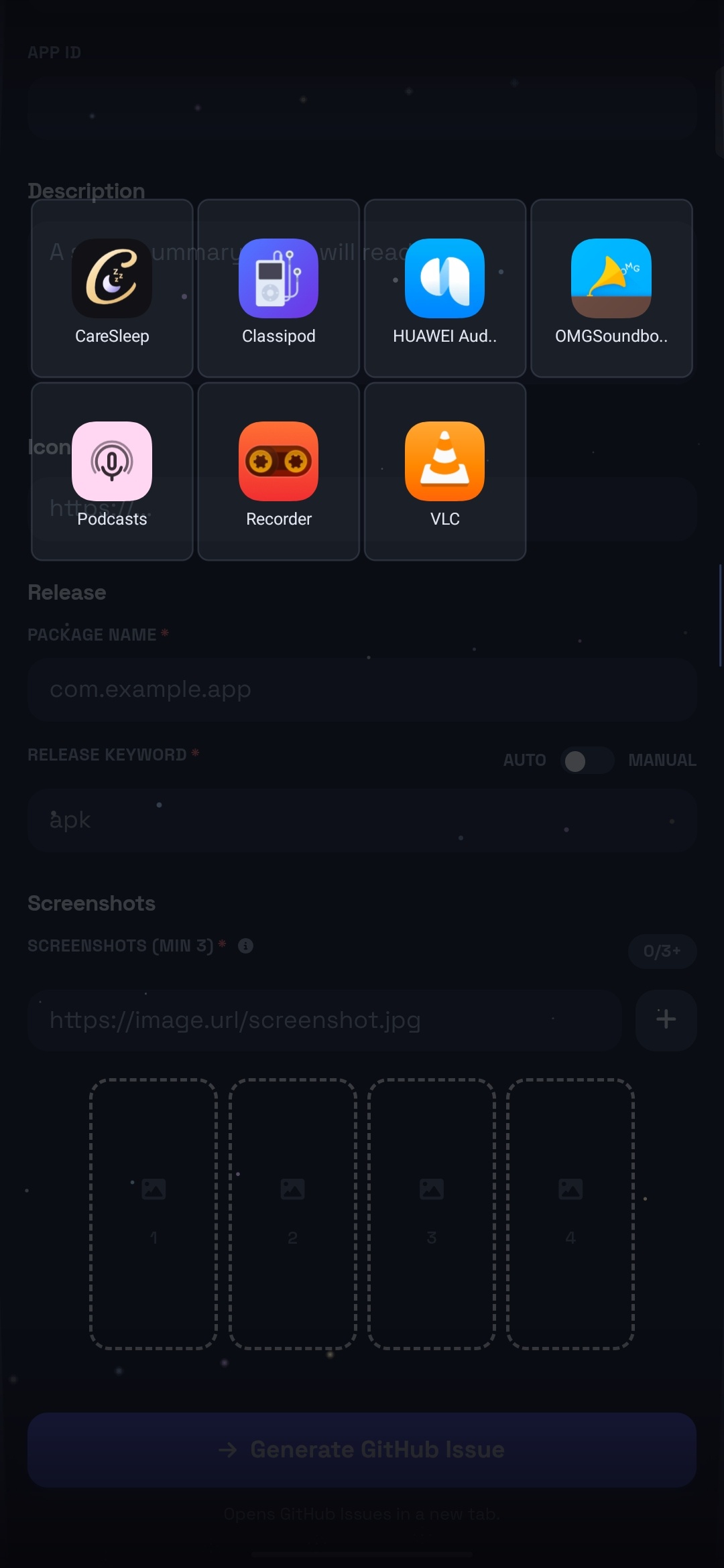
To browse the categories, move your finger up and down the Astrogation Core. To browse a specific category, swipe horizontally while said category is in focus without lifting your finger.
Your position within the Category Cruise, or the focused item within the chosen category, is calculated relative to where your finger is on your specific screen dimensions. No matter where you're planning to make the jump from or back to the Category Cruise, you will always find it easy to navigate the whole app drawer with your thumb without lifting it.
To cancel the gesture at any point, swipe your finger back to the Astrogation Core or the edge of the screen.

🌠 Category Cruise — kinetic app browsing with live icon grid
2. ⚙️ Cockpit
A configurable workspace built around Cockpit Gear Sets and the Action Selection Menu.
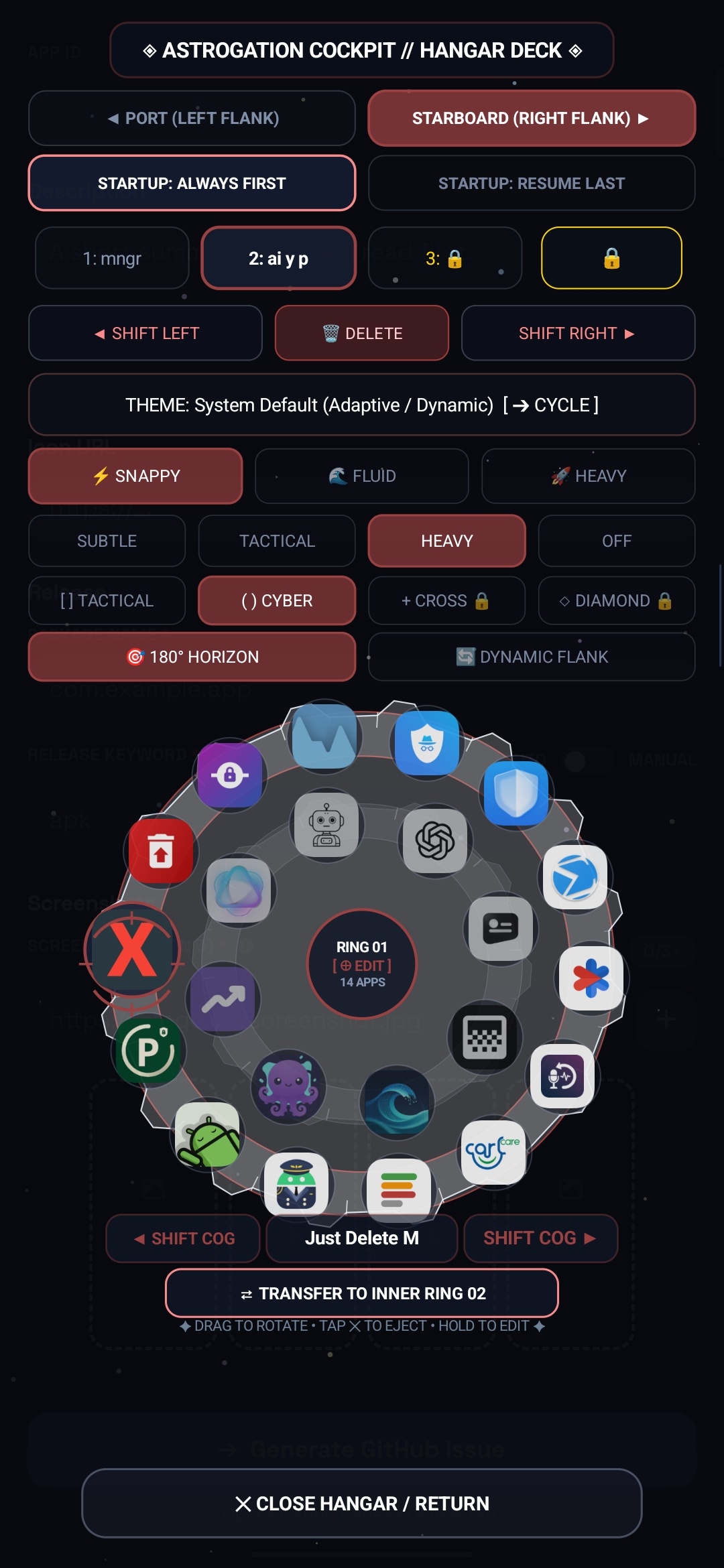
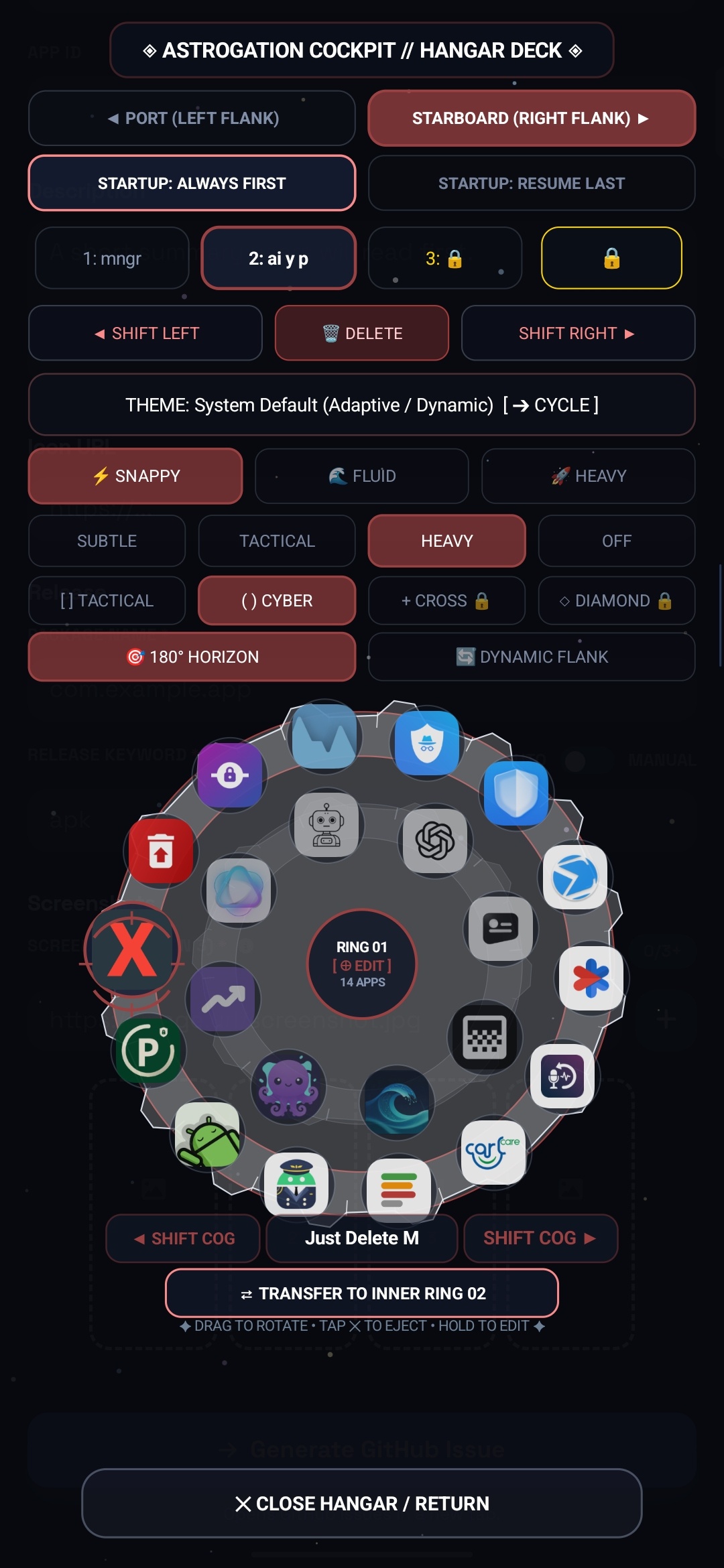
Each Gear Set contains two gears with a rotating Cockpit Hangar at the center, represented by a rotating reticle. A separate fixed reticle remains non-rotating, dead locked onto the currently focused item.
The Action Selection Menu is Lightspeed's global selection interface for choosing what gestures, hardware maneuvers, or Gear Set items map to.
At the top is an accordion dedicated to System Actions, including actions that utilize Shizuku, such as gracefully closing an app and switching to the previous app. It also provides direct shortcuts to the Perimeter Watchdog and Core Watchdog.
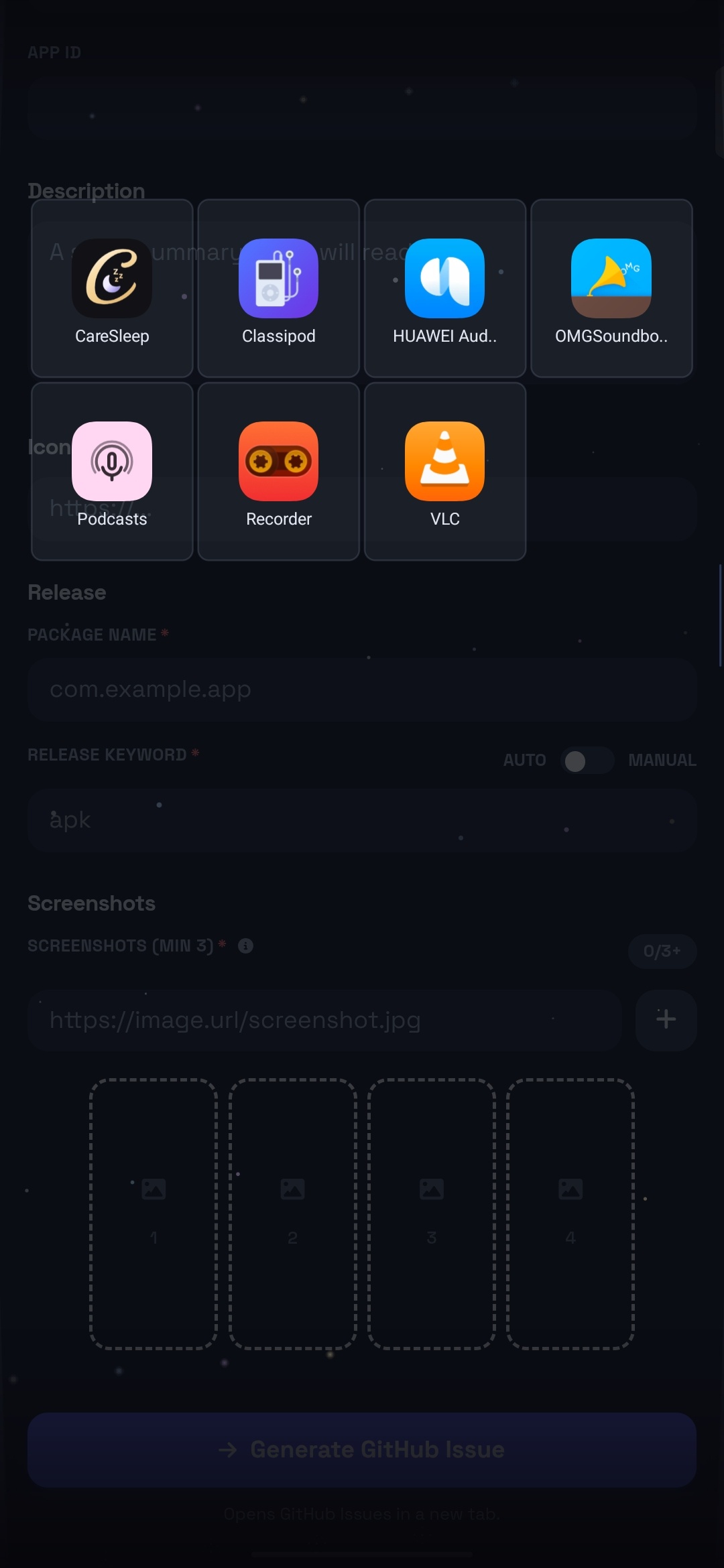
Below that, frequently used apps can be pinned at the top for easier access. For example, MacroDroid, Tasker, Key Mapper, and Shortcut Maker are pinned by default if they are installed. Any app accordion can be pinned or unpinned by a long press.
For each app, Lightspeed attempts to provide its available app shortcuts, home-screen launcher shortcuts, and deep activities. An app can be launched directly by tapping its accordion title or icon, or its accordion can be expanded to choose from the aforementioned options.
The Action Selection Menu also features Lightspeed's distinctive take on an indexed scrollbar. It can be interacted with either by tapping the index or by sliding along it. While interacting with the index bar, a HUD displays the first two letters corresponding to the current alphabetical position, making it clear where you are within the app list.

⚙️ Cockpit Hangar — dual orbital gear rings with full tactile eject, rotate & edit controls
3. 🛰️ Central Command
Central Command can be accessed directly by tapping the Lightspeed app icon, or from the Astrogation Core. While cruising the categories by swiping down the Astrogation Core, Central Command remains hidden behind the bottom-most category. Swipe a little further toward the bottom to reveal it, accompanied by a subtle haptic cue.

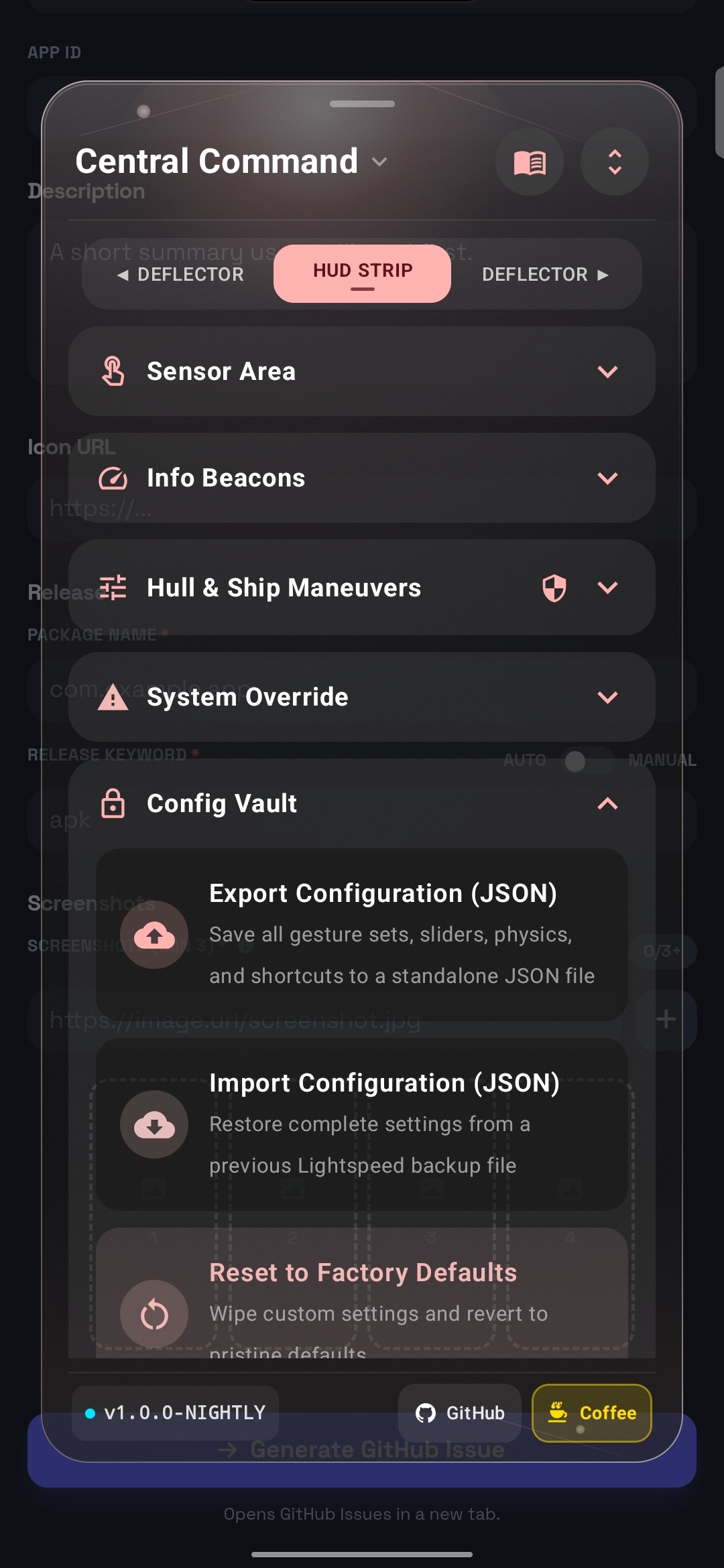
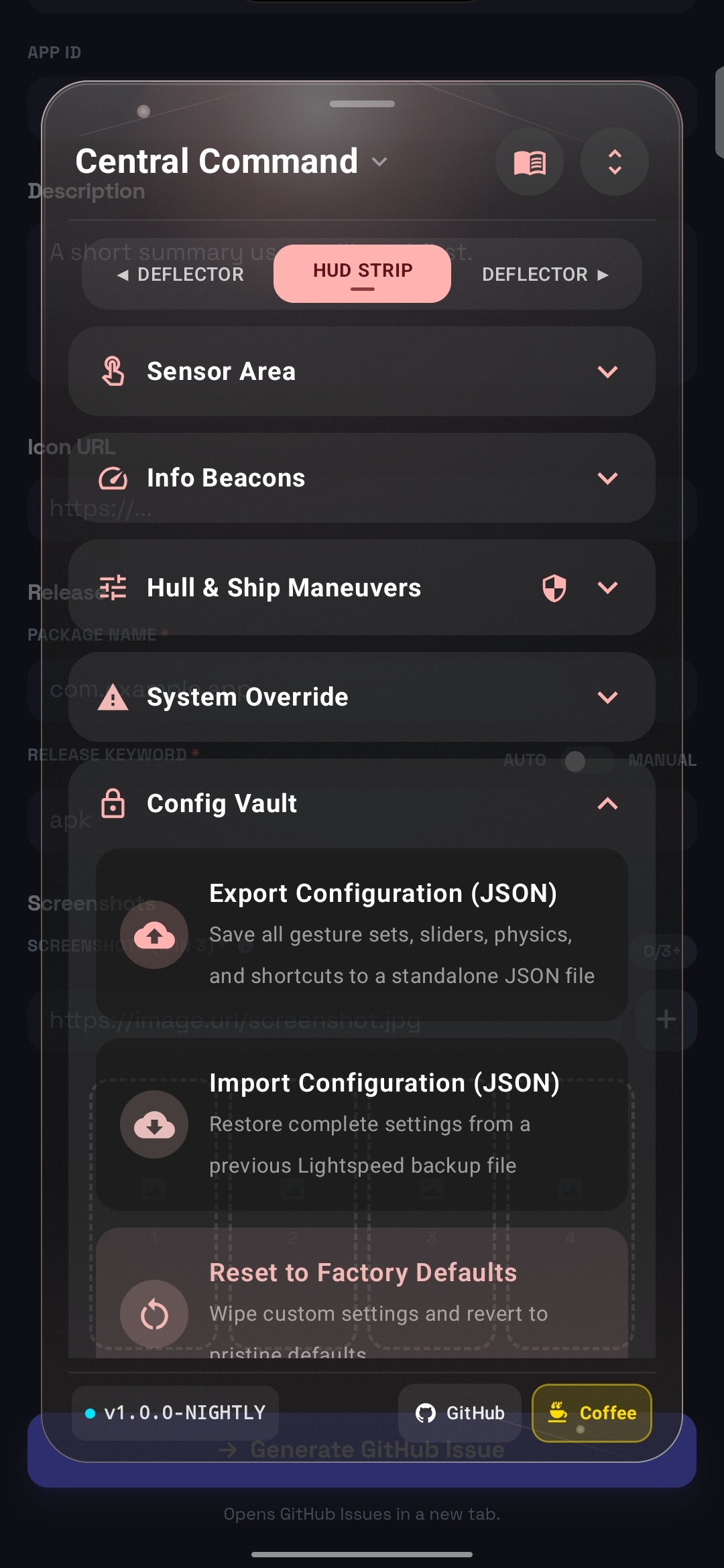
🛰️ Central Command — HUD Strip, Sensor Area, Hull & Ship Maneuvers, System Override & Config Vault
The Central Command floating window's header area is interactive in three ways. You can swipe down on the header area to dismiss the floating window. The Central Command title can be single-tapped or long-tapped: a long tap quickly toggles the entire Lightspeed system on or off. The Guidebook icon can likewise be single-tapped or long-tapped. There is also the plain old Expand/Collapse All button for expanding or collapsing the accordions in the current tab.
For customizing the Central Command theme, tap the Central Command title. For organizing or changing how the accordions are arranged within a specific tab, tap the tab title while it is in focus — whether it is the HUD STRIP, Left DEFLECTOR, or Right DEFLECTOR.
The Flight Control Deck is organized into three cards. The first card contains the aforementioned theme engine for Central Command and different ways of toggling Lightspeed as a whole or in part.
The second card contains the Core Watchdog. It keeps Lightspeed alive through two possible methods and includes the Black Box:
- Auto Revival — when Lightspeed crashes, it triggers an auto-revival message utilizing Shizuku. Enabled by default.
- Periodic Check — every 20 seconds, it checks whether Lightspeed is still alive and operational.
- Black Box — keeps a lightweight record of the latest Lightspeed crash or action failure, which can be copied and pasted into GitHub issues for easier troubleshooting.
The Core Watchdog also contains a Material 3 mini-card/button labeled “Services.” Pressing it opens the Perimeter Watchdog, where the accessibility services of your apps can be toggled more conveniently than through Android's built-in settings page. Each service can also be shielded and have its battery exemption whitelisted or revoked using two dedicated buttons directly beneath it.
The Perimeter Watchdog also contains a light-blue Material 3 mini-card/button labeled “Exempt More Apps.” Pressing it opens the Exempt More Apps floating window, providing a more accessible way to whitelist or revoke apps from Android's native battery-management exemption system.
Both the Core Watchdog and Perimeter Watchdog are not 100% bulletproof and should be treated accordingly.
There are also dedicated System Actions for launching the Perimeter Watchdog window and the Core Watchdog card directly. By default, these are assigned to the left and right swipes of the HUD STRIP sensor area, respectively, providing quick access without having to navigate through Central Command.
The third card provides another way to toggle Lightspeed as a whole or in part.
📡 Gesture Sensor Areas (HUD STRIP & DEFLECTORS)
The HUD STRIP tab contains the Sensor Area accordion for the status-bar gesture area. The Left DEFLECTOR and Right DEFLECTOR tabs contain the settings for the left and right edges of your screen, respectively. These are sensor areas for the gestures you perform along the edges of your screen.
There is a lot of customization and plenty to explore here, especially with the Action Selection Menu.
🪢 The Rope
Each DEFLECTOR has a Unified Deflectors accordion, reflecting how each side of the screen can be treated as either one unified gesture area or two separate controls.
Inside it, the Unified Gesture Matrix contains one entry for each gesture. Each gesture entry has its own Rope. When the Rope is tethered, that gesture is configured as one unified control across the upper and lower portions of the DEFLECTOR.
Tap the Rope to untether it. The gesture entry is then duplicated into separate upper and lower gesture entries, which move into the Separate DEFLECTOR Controls sub-accordion. From there, each half can be configured independently—for example, using the upper tap-and-hold gesture to control brightness and the lower one to control volume.
Long-pressing the Rope sends the current gesture mapping to the opposite DEFLECTOR. It is simply a one-time copy-and-paste operation—not a persistent mirror or synchronization.
🌌 Advanced Flight Avionics
The HUD STRIP comes with a set of configurable accordions for additional flight controls, information, and system tools. Their default arrangement is:
1. Sensor Area
The Sensor Area is the status-bar gesture area described above. Its gestures are fully customizable through the Action Selection Menu.
2. Info Beacons
Info Beacons lets you route telemetry to the Horizon Rail, the Orbital Capsule, or both.
The Horizon Rail is a progress line for downloads and currently playing media. It shows two lines by default and can be set to anywhere from one to three lines. It can also display the name of the currently playing media, which can be particularly useful on tablets and other larger displays where the center of the status bar provides additional space. Horizon Rail is disabled by default.
The Orbital Capsule is a lightweight implementation of an interactive capsule around the camera punch-hole. It offers several interactive features, but development has been deliberately deprioritized as many Android devices now provide their own implementations. It remains available for experimentation and may receive further development in the future. Orbital Capsule is disabled by default, and its own settings live in Experimental Labs.
3. Hull & Ship Maneuvers
Hull & Ship Maneuvers provides the Volume Key Matrix and Hull Tap Sensors (back-tap) mappings.
It also includes safeguards intended to preserve Android's native volume- and power-button functions, including OEM-specific gestures such as screenshots and accessibility-service shortcuts. These behaviors vary between manufacturers and Android skins—for example, Samsung and Infinix XOS implement their accessibility shortcuts differently.
Back-Tap battery behavior: Back-Tap only holds a CPU wake lock when its scope is set to Screen Off or Always (both labeled High Drain). With Screen On Only (the default) no wake lock is used. The wake lock has a safety time cap and is automatically disabled at 20% battery or in battery saver.
4. System Overrides
System Overrides contains Native Edge Gesture Sovereignty, which can neutralize Android's native edge gestures so that the DEFLECTORS have full control over those gesture areas.
It also provides controls for Animation Speed, Display Metrics (DPI), and Font Scale. These three sliders require Shizuku. Without it they are disabled and Lightspeed shows a "Shizuku offline" banner.
Because these are native Android system settings commonly associated with Developer Options, Lightspeed treats their sliders cautiously. Tapping directly on a slider track to jump to a value is disabled by default. Long-press the value box to reveal the Precision Control & Presets mini window, which contains the Tap to Jump on Track toggle. This can then be enabled when desired.
The sliders also support fine adjustment. Moving a finger across the slider normally follows the default, coarse steps. Moving the finger vertically while scrubbing horizontally makes the adjustment finer.
Tapping the value box itself restores that setting to its default value.
5. Config Vault
Config Vault contains Lightspeed's backup, export, and factory-reset controls, allowing the configuration to be preserved, exported, or restored to its defaults.
6. Experimental Labs
Experimental Labs contains features that are disabled by default and should be used at the user's own discretion.
This includes experimental features such as the Orbital Capsule, Refueling Bay, Power Button Remapping, Core Cooling Schedule, and Omniscient Audio Dock.
The Refueling Bay is a functional charging-dock screen designed to show charging speed while giving you a dedicated space for your favorite widgets. It also displays the clock and supports two widget orientations, each with its own widget arrangement. It can be particularly useful as a manually launched charging display—for example, showing charging speed alongside a calendar and task widgets.
Because the Refueling Bay currently darkens the display using a dark overlay rather than physically turning the screen off after a timeout, it is not recommended for OLED displays. It is therefore kept in Experimental Labs. If you want to use it, launch it manually or assign a gesture to it through the Action Selection Menu → System Actions → Ship Maintenance.
Power Button Remapping launches the assigned action without attempting to block the device's native power-button behavior.
The remaining experimental features are unfinished or currently non-functional and are best treated accordingly.
Experimental features are best treated as exactly that: experiments. The HUD STRIP swipe-down gesture may require making the Sensor Area thicker and keeping the swipe-down distance roughly equal to its thickness, so that Android's native status-bar pull-down gesture is not triggered unintentionally.
🔐 Permissions & Elevated Capabilities
Lightspeed can technically operate using Android's Accessibility Service alone, without Shizuku. However, from day one, Lightspeed has been designed with Shizuku in mind.
Without Shizuku, Lightspeed may still provide its core accessibility-based gesture functionality, but a significant portion of its intended system-level capabilities becomes unavailable. In practical terms, the result can border on a semi-functional version of Lightspeed rather than the complete experience the application was designed to provide.
Accessibility Service
The Accessibility Service is the foundation of Lightspeed's gesture system. It allows Lightspeed to detect gestures across the screen, perform global navigation actions such as Back, Home, and Recents, and provide the gesture sensor areas used by the HUD STRIP and DEFLECTORS.
It also allows Lightspeed to interact with supported system controls and maintain its gesture-driven interface while other applications are in the foreground.
Shizuku
Shizuku is therefore highly recommended. It provides Lightspeed with elevated Android capabilities without requiring root and is an integral part of the application's design.
Among other things, Shizuku enables:
- Previous App Switching — Switch directly between recent applications without passing through the launcher's recent apps menu.
- Graceful Task Closer — Close the active application through a graceful task-removal mechanism rather than relying on the OEM's recent-apps gesture. This distinction matters on heavily customized Android systems where swiping an application away from the recent apps menu may be interpreted as a force stop. Graceful Task Closer is intended to avoid that behavior where possible, which can be particularly useful for applications such as Termux that may otherwise be disrupted by aggressive OEM task-management behavior. The implementation is still not 100% bulletproof against OEM task killing or other system-level process management.
- Split Screen, Freeform & OEM-Specific Pop-Up Windows — Launch supported applications into split-screen, freeform, or OEM-specific pop-up windows, where supported by your device and its Android/OEM implementation.
- Lightspeed First-Time Onboarding — Assist with enabling Lightspeed's Accessibility Service and completing its initial setup without requiring the user to manually navigate through multiple Android settings screens.
- Action Selection Menu App Discovery — Deep activities and "create shortcut" entries are discovered without Shizuku. Home-screen launcher shortcuts and dynamic app shortcuts are normally only exposed by Android to the default launcher, so Lightspeed asks Android directly first and uses Shizuku to fill the gap.
User-Granted Permissions
Most of Lightspeed's permissions do not require additional interaction from the user. The permissions that require user action are primarily tied to specific features:
- Modify System Settings — Required when using Lightspeed to modify settings such as screen brightness or screen timeout.
- Notification Listener — Required when enabling Info Beacons features that depend on notification access, such as media playback or download-progress information.
- Ignore Battery Optimizations — Used for Lightspeed's battery-management and watchdog functionality where supported.
- Post Notifications — Used for notification-based status and controls, including the ability to toggle the DEFLECTORS and Lightspeed as a whole.
Other Permissions
The following permissions are declared by Lightspeed but do not require a separate user-granted permission prompt under normal Android permission handling:
- Query All Packages — Allows Lightspeed to discover installed applications for Category Cruise, the Action Selection Menu, and related app-launching functionality.
- Vibrate — Provides haptic feedback throughout the interface.
- Call Phone — Declared for using the Home Screen Launcher App Shortcut for direct contact calling, at least on supported devices such as Infinix devices.
- Internet — Not declared. Lightspeed has no
android.permission.INTERNETpermission and therefore has no network access through the standard Android networking APIs. - Write Secure Settings — Used for camera auto-rotate. It's a protected permission, so it must be granted through Shizuku or ADB.
- Wake Lock — Used by Back-Tap (only in Screen Off or Always scope) and for brief 3-second screen wake-ups by Power Button Remapping and the Refueling Bay.
- Foreground Service — Declared for launching foreground services that some app shortcuts point to.
🛠️ Architecture & AI Development Notice
Lightspeed is built as a modular Android application, with its gesture system, configuration interface, action mapping, watchdogs, and experimental features separated into distinct components.
The project goes through regular cycles of implementation, testing, and refactoring. As part of that process, source files exceeding 400 lines are treated as warning signs that a component may be becoming too large or carrying too many responsibilities. Files exceeding 750 lines are treated as a critical threshold and are placed at the top of the priority list for the next refactoring cycle.
These thresholds are not strict technical limits. They are practical indicators used to keep the codebase maintainable as Lightspeed continues to grow.
AI-Assisted Development
Lightspeed has been developed with substantial assistance from modern AI tools. This is deliberately documented here for transparency.
Different models are used for different parts of the development process:
- Claude 4.6 — primarily used for refactoring plans, feature planning, and architectural planning, helping analyze the structure of the project and determine how larger changes should be approached.
- Gemini Flash 3.6 through 3.8 — primarily used for execution, including implementing planned features, modifying code, and carrying out development tasks based on the architectural direction. It is also frequently used on its own for small bug fixes and straightforward feature implementations that do not require the larger planning models.
- Gemini Pro 3.1 — used occasionally, and generally as a fallback, for feature planning, refactoring plans, and architectural planning when the primary planning-model quota is unavailable or exhausted.
This is not intended to suggest that AI independently designed or developed Lightspeed. The architecture, requirements, priorities, testing decisions, and final direction remain driven by the project's creator.
The creator does not necessarily consider themselves a traditional developer. Lightspeed began with a dream, a need, and a perceived gap in the Android community: a source-available tool that could provide a different approach to system-wide gestures, navigation, customization, and Android automation.
AI made it possible to turn that idea into a functioning project while making the process of learning, experimenting, refactoring, and iterating considerably more accessible.
The use of AI is therefore part of the project's development story, not something being hidden or presented as conventional software-development experience. The resulting source code remains the final authority on what Lightspeed actually does, and real-device testing remains essential—particularly for Android accessibility behavior, OEM-specific system implementations, battery management, task handling, and other areas where behavior can vary significantly between devices.
The project continues to go through regular refactoring cycles as features are added and the codebase evolves. The intention is not simply to make Lightspeed work, but to keep its implementation understandable and maintainable as it grows.
💬 Community, Issues & Support Policy
Because of a demanding offline profession, there is no real-time chat support (Discord/Telegram) and Reddit comments/DMs are not monitored for ongoing technical triage.
All communication, bug reporting, and regression tracking are handled strictly asynchronously via GitHub Issues:
- Tracking reproducible bugs and hardware edge cases.
- Catching regressions across Android OEM distributions.
- Submitting crash logs captured via the built-in crash logger in Central Command.
Feature suggestions will be cataloged into the development backlog for future milestone deployment rather than immediate release.
☕ Free & Supporter Longevity Model
The vast majority of Lightspeed is and will remain free forever. Core gesture navigation, app launching, deflectors, system overrides, and backup reliability have zero paywalls.
The Lightspeed Infinity tier is designed not as a restrictive constraint, but as a voluntary thank-you incentive for supporters who want to fuel ongoing development and longevity through Buy Me a Coffee. Supporter contributions unlock cosmetic perks, specialized cockpit themes, custom reticle collimators, and unlimited Cockpit Gear sets (free users get 2).
📄 License & Credits
- License: Source-available for personal, non-commercial use. See LICENSE.
- Credits & Inspirations: Detailed acknowledgments of third-party inspirations, open-source community ethos, and required notices (including Shizuku API MIT) can be found in CREDITS.md.
How Shizuku is used
Can close and switch apps, trigger split-screen and pop-up windows, tune system visuals and reboot via `IActivityTaskManager` and shell commands through Shizuku.
This is an AI-assisted analysis of Shizuku-related usages in the app's public source code. It is best effort, so it may not catch every single usage.
How this app uses Shizuku
Shizuku gives Lightspeed elevated control over tasks, windows and protected system settings from its gesture overlays and settings screens.
- Close foreground app: dismisses the current non-system app and removes it from Recents with a direct task manager call, falling back to
am task removeoram force-stopthrough Shizuku. - Switch to previous app: jumps back to the last used app by reading recent tasks and bringing that task forward, falling back to a double app-switch key press through Shizuku.
- Toggle split-screen mode: puts the current app into split-screen with a windowing mode call or
am task set-windowing-modethrough Shizuku. - Open pop-up window: moves the current app into freeform floating mode with a windowing mode call or
am task set-windowing-modethrough Shizuku. - Neutralize edge back gestures: zeroes or scales native back gesture insets with
settings put securethrough Shizuku, including automatic restore around the lock screen. - Adjust animation speed: changes global window, transition and animator scales from a slider with
settings put globalthrough Shizuku. - Change display density: applies a chosen screen density with the
wm densityshell command through Shizuku. - Change font and touch timing: applies font scale with
settings put systemand long-press timeout withsettings put securethrough Shizuku. - Control rotation settings: writes auto-rotate and orientation values with
settings put secureandsettings put systemthrough Shizuku. - Manage audio focus: grants audio focus and battery whitelist entries for chosen apps with
cmd appopsandcmd deviceidlethrough Shizuku, plus a vendor mute list update. - Manage battery whitelist: adds or removes apps from the Doze whitelist with
cmd deviceidlethrough Shizuku. - Revive accessibility services: re-enables its own and protected accessibility services by writing secure accessibility settings and granting protected permissions through Shizuku.
- Reboot device: performs the Core Cooling reboot action with
svc power rebootthrough Shizuku. - Open Recents and unlock: sends app-switch and menu key events through Shizuku when accessibility actions are unavailable or the device is locked.
- Discover shortcuts: reads
dumpsys shortcutthrough Shizuku to list launcher and app shortcuts for gesture actions. - Monitor power key: listens to
geteventoutput through Shizuku to detect physical power button presses.
Android APIs or commands used
IActivityTaskManager.getRecentTasksIActivityTaskManager.removeTaskIActivityTaskManager.startActivityFromRecentsIActivityTaskManager.moveTaskToFrontIActivityTaskManager.setTaskWindowingModesettings put secure back_gesture_inset_scale_leftsettings put secure back_gesture_inset_scale_rightsettings put global window_animation_scalesettings put global transition_animation_scalesettings put global animator_duration_scalesettings put system font_scalesettings put secure long_press_timeoutsettings put secure camera_autorotatesettings put system accelerometer_rotationsettings put system user_rotationsettings put secure enabled_accessibility_servicessettings put secure accessibility_enabledsettings get global audio.zerosound.applistsettings put global audio.zerosound.applistwm densitydumpsys activity topdumpsys shortcutdumpsys deviceidle whitelistam task removeam stack removeam task set-windowing-modeam force-stopcmd appops setcmd deviceidle whitelistpm grant android.permission.WRITE_SECURE_SETTINGSinput keyeventsvc power rebootgetevent -l
Notable details
Many gesture actions still work without Shizuku through the accessibility service, such as Recents, split-screen toggle and app switching, with Shizuku providing faster and more reliable task control. System override sliders are disabled without Shizuku, and the app offers an ADB command to copy for edge gesture zeroing when Shizuku is offline.
Changelog
What's new for version 1.0.3
⚡ What's New in v1.0.3
✨ Features & Improvements
- Granular Lockscreen Visibility Controls: Choose exactly what displays on your lockscreen (Deflectors, Horizon Rail, or Top Sensor Deck), with automatic restoration of native gestures while locked.
- Synthetic Gravity Overhaul & Quick-Tuning Chips
- Power Management & Battery Optimization
🐛 Bug Fixes
- Deflector Flank Isolation: Resolved an issue where swipe gestures on the right deflector accidentally executed left deflector actions under symmetry settings.
- Orbital Capsule Live Preview: Cutout calibration and preview overlays no longer show up when the Orbital Capsule is turned off.
- Perimeter Watchdog Recovery: Fixed edge cases where external accessibility services failed to re-bind cleanly after system restarts or service interruptions.
📖 Full changelog: CHANGELOG.md
🛠️ Code Refactoring: Status bar rendering modularization and typed preference constants.
🔑 SHA-256 Checksum:
7087ab0190bbe4dd4391249a94b8f08960104e95143b6754572344f328a3fb48
Permissions
11 permissions requested
More from this category
 Essentials
 Extendroid
 ShizuTools
 Smart Island
 Dragon Launcher
 GAMA
GAMA
 Tap, Tap
 Expressive Cutout
 SystemUI Tuner
 Ambient Music Mod
 ColorBlendr
 XGesture