 ShizuStore
InkPalm+
1.1.0 · GitHub
More about this app
Side panel of recent apps plus per-app e-ink tuning, fonts and touch-button remapping for the Moaan InkPalm Plus; Shizuku covers whitelist and animation toggles
InkPalm+
A side panel of recent apps, plus e-ink tuning for each app, for the Moaan InkPalm Plus.
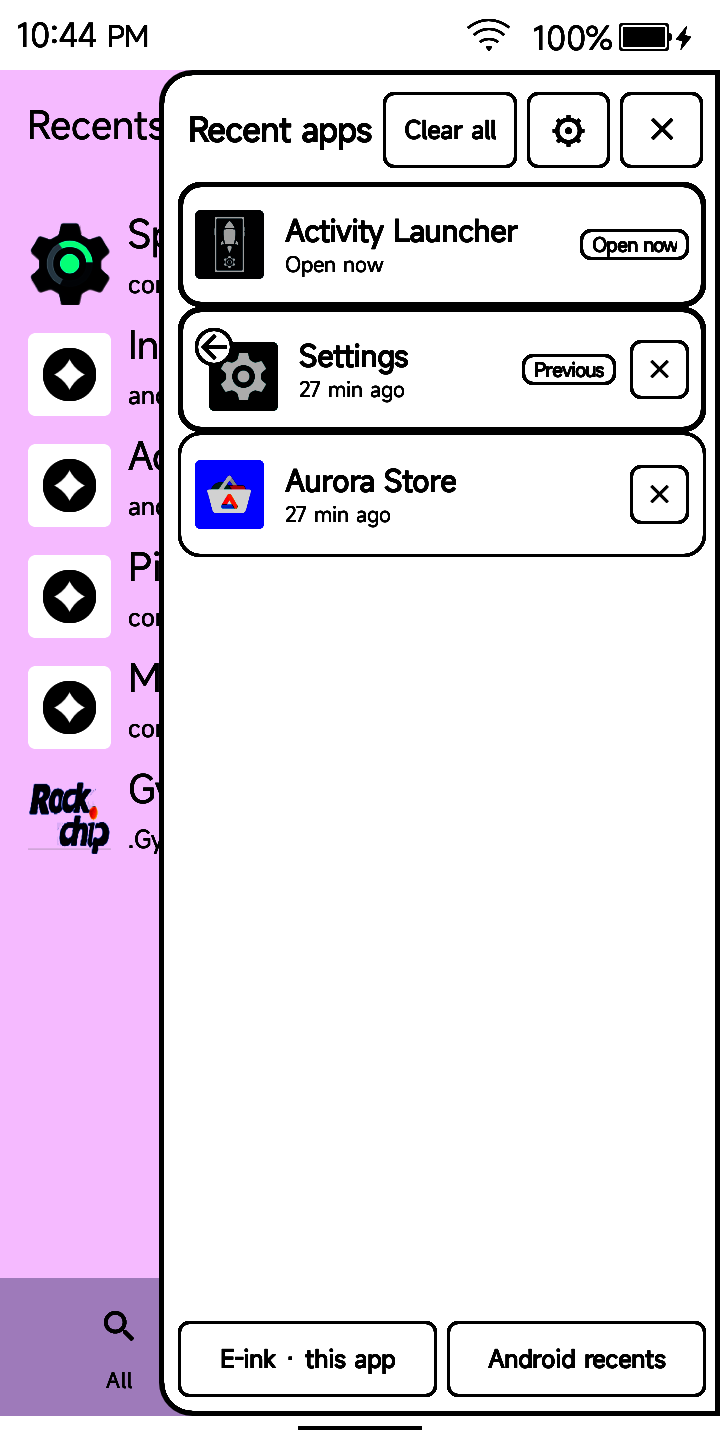
Swipe up or down along the edge of the screen, in any app, and a panel slides in. It holds:
- your recent apps, newest first
- the app you were just in, one tap away
- a button for the e-ink settings of the app in front
- Clear all, and a ✕ on every app
You can also set each app's size, refresh mode and contrast, pick a font, and change what the touch button does.
No internet permission. Not affiliated with Moaan.

Getting started
- Install. Install Obtainium on the InkPalm. In Obtainium, tap Add App, paste
https://github.com/rn-os/inkpalm-plus, then tap Add and Install. Obtainium will let you know when there's a new build. You can also download the latestinkpalm-plus-….apkfrom Releases and open it on the phone. - Open InkPalm+. On the home screen, tap Side panel, then the Side panel switch. It opens Android's Accessibility settings. Turn on InkPalm+ quick panel. This is the only required step.
- Swipe up or down along the right edge of the screen.
The service only learns which app is in front, and that a page scrolled, text was typed or the screen changed. It doesn't read what's on screen or what you type.
What's in the panel
From top to bottom:
| Part | Tap | Hold |
|---|---|---|
| Clear all | Closes every listed app except the one in front | |
| ⚙ | Opens InkPalm+'s home screen | |
| ✕ (top) | Closes the panel | |
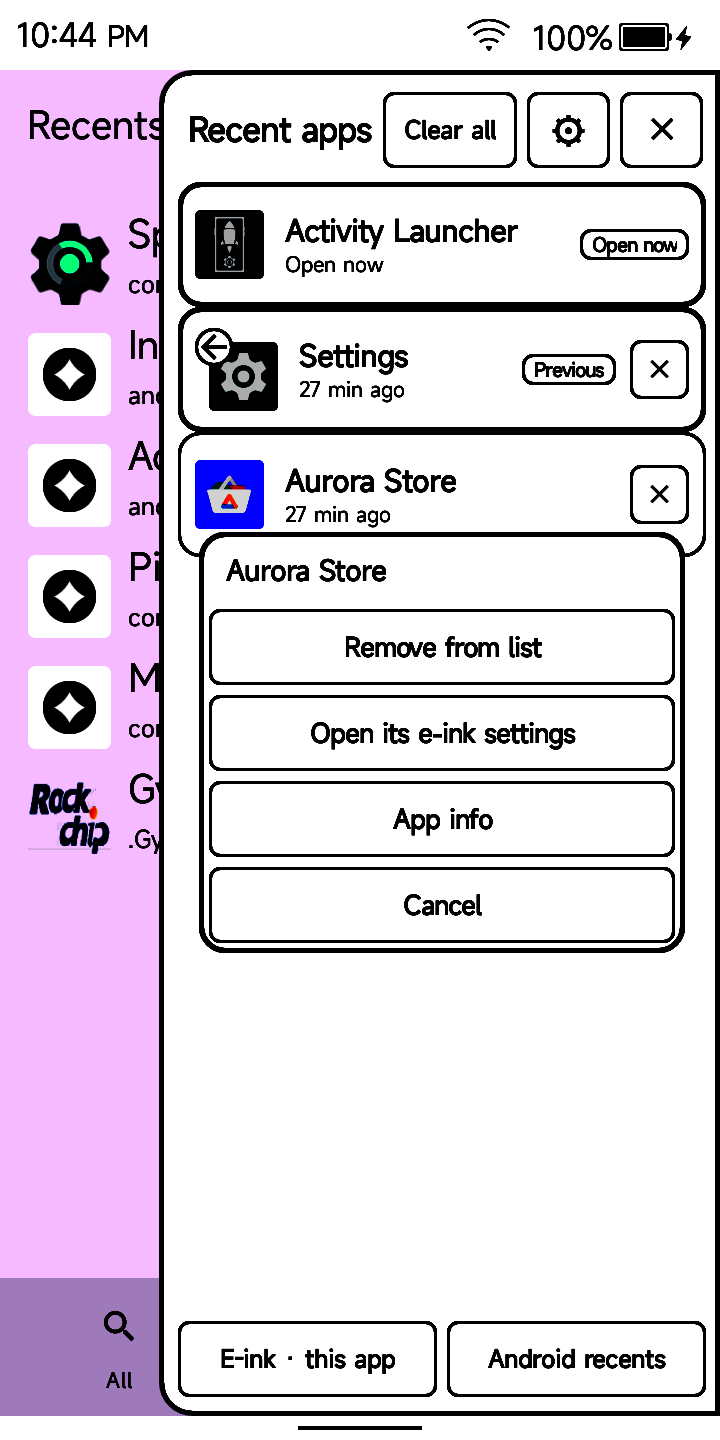
| An app | Switches to it | Opens a small menu: Remove from list, Open its e-ink settings, App info |
| ✕ (on an app) | Closes the app and removes it from the list | |
| ◀ 1 / 2 ▶ | Turns the page. You can also swipe up or left for the next page, down or right for the previous one | |
| E-ink · this app | Opens the e-ink panel for the app in front (see below) | |
| Android recents | Opens Android's own recents |
A few things to know:
- Newest at the bottom, right above the pager and under your thumb (or at the top, if you prefer: Newest app on the home screen). The app open now says Open now. The one before it has a small ← on its icon and a Previous tag. Tap it to go straight back.
- Pages, not scrolling, so nothing smears on e-ink. 9 apps fit on a page in portrait, 8 in landscape.
- It's quick. The panel opens in about 30 ms.
- Clear all leaves the app you're in. An app that's playing audio in the background may keep running after ✕.
- Home screens and InkPalm+ itself aren't listed. The list is kept across restarts.
- Last read. Pick your reader (NeoReader or KOReader) and the last book you read in it sits below your apps (above them with Newest app: Top). Tap it to keep reading. Hold it for your books, newest first, and Browse files… for anything new. KOReader needs Android's All files access, so InkPalm+ can read its history.

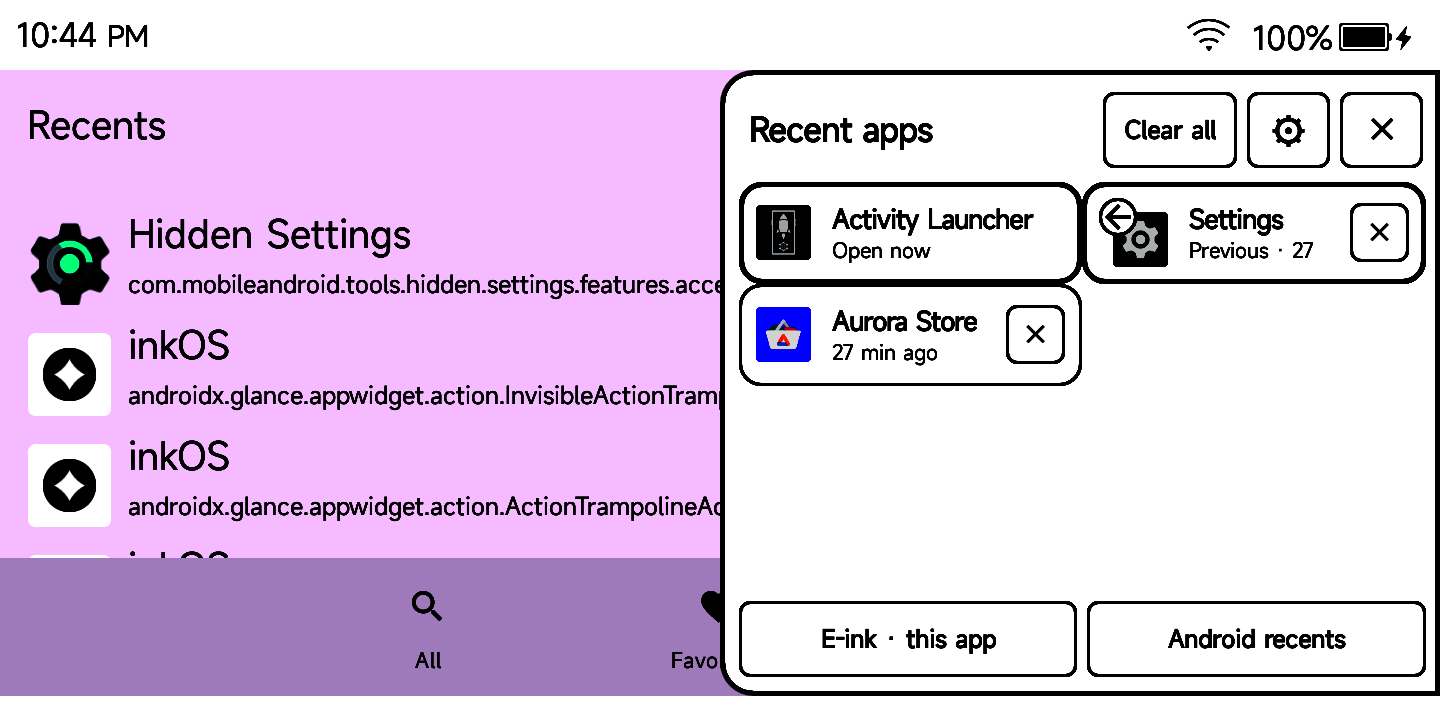
Landscape
In landscape the panel is half the screen wide, with two columns.

KompaktOS: screen and light panel
On KompaktOS (the KompaktOS port for the InkPalm Plus, whose image has a small root helper built in), InkPalm+ also does what InkControl did; InkControl isn't needed any more (uninstall it, so the two don't both drive the screen).
Swipe up or down along the other edge (the left one, unless recent apps are there) for Screen & light:
| Part | What it does |
|---|---|
| Wi-Fi, Bluetooth, Airplane | Three toggles at the top, filled black while on (they show Turning on… while they switch). Airplane turns both radios off at once, and Android restores them when it ends. They use the KompaktOS root helper, or Shizuku, or open Android's own screen for it |
| Screen mode | Six big buttons, KompaktOS's presets: Fast (black and white, quickest), Soft (black and white, gentler), Dither (fast, dotted grays for pictures), Text (crisp text, fewer flashes), Quality (all 16 grays, cleanest), Auto (the screen picks for each update). The screen redraws once in the new mode |
| Use for this app / Use everywhere | Where your pick goes. The line below says where the mode in use comes from: the app's own, KompaktOS's per-app setting, or everywhere. Use everywhere also drops the app's own |
| Full refresh | One full, clean refresh |
| Contrast − + | Lighter or darker, for the whole phone |
| Brightness, Warmth, Auto | The front light. Brightness 0% turns it off. Auto (only the pill turns it on or off) sets the light from the room's light sensor, smoothed and slow to change; Brightness becomes the maximum, and a Sensitivity −/+ (−2 to +2) and a lux readout appear |
Also on KompaktOS:
- Edge Back: swipe in from either edge to go back (KompaktOS has no navigation bar, so no back gesture). On by default; a switch under Side panel.
- Touch button: a short touch is Home; holding it is a full refresh, as on the stock firmware.
- Quick Settings tiles: one per screen mode, E-ink mode (steps through them), Full refresh and Front light. Add them with the pencil in Quick Settings.
- Settings (home screen): Front light (whether the light follows Android's brightness) and Sleep & power: the sleep screen (see below), the power-off screen (Moaan's, Moaan's panda in English, or your picture), and auto power-off after 4 to 24 hours asleep on battery.
- The light goes off with the screen and comes back with it.
On the stock firmware none of this changes anything: the e-ink panel below stays as it is.
Sleep screen (KompaktOS)
The InkPalm keeps a picture on the screen while it sleeps, at no cost: e-ink holds an image without power. InkPalm+ can draw that picture for you. On the home screen, tap Sleep & power, then Sleep screen, and pick a face:
| Face | What it shows |
|---|---|
| Clock | The time, huge |
| Clock + date | The time, the date and the battery |
| Analog | A clock face with hands, the date and the battery |
| Agenda | The time and your events, in one of six styles (asks for calendar access the first time; without it the face says "Calendar access needed") |
| Reading | The cover, title and how far you are in the last book of your reader app (covers come from EPUB files, with All files access) |
| Photo | Your picture, with a small clock in the corner (Choose picture…; without one it shows Clock + date) |
| Minimal | Just the day and date, so it's never out of date |
| Picture | Your picture as it is |
| Default | Moaan's own picture |
With Agenda picked, Agenda style (under the faces) changes how it lays out your day; each style has a preview:
| Style | What it shows |
|---|---|
| Classic (default) | The time, then your next 3 events in boxes |
| Big clock | A large time and date, then your next 3 events as rows |
| Day rail | Today by the hour (from 7 AM, or your first event if earlier): a block per event, a line at now and your longest free stretch |
| Next up | Your next event in a large black card, the rest of today below and tomorrow's first event |
| Two days | Today and tomorrow, one under the other (side by side in landscape) |
| Week | This week's days with a dot per event, the time, then the rest of today |
With Photo or Picture picked, Photo style (under the faces) sets how your picture is drawn. The panel shows 16 greys, so a photo's soft gradients fall into blotchy grey steps; the dithered styles trade those for fine dots, drawn one per screen pixel. Each style has a preview; the clock and date on the Photo face stay clean.
| Photo style | What it does |
|---|---|
| Crisp (default) | Black and white dots (Atkinson dithering): sharp, no grey bands |
| Smooth | The panel's 16 greys with fine dots between them (Floyd–Steinberg) |
| Plain | Greys as they come, as before: gradients may show bands |
Update sets how the drawn faces keep up while the phone sleeps:
| Update | Battery cost (estimate) |
|---|---|
| Frozen | None. The face shows the moment you pressed the power button |
| Every 5 min (default) | About 4% a day |
| Every 15 min | About 1.3% a day |
| Every 30 min | About 0.7% a day |
| Every 60 min | About 0.3% a day |
Each update wakes the phone for about 3 seconds, redraws the face and sleeps again, with one screen flash. The front light stays off, and auto power-off keeps counting. A Live face carries a small Updated 10:15 stamp, so you can tell how fresh it is. Updates land on the clock (10:15, 10:20, …), carry on while charging, and stop below 10% battery: the face then shows a black BATTERY 9% box. The costs are estimates (about 3 s awake at about 400 mA per update, on a 2500 mAh battery), not measurements. KompaktOS exempts InkPalm+ from Doze, so the updates come on time.
While the screen is on, the face is redrawn whenever what it shows changes (the minute, the battery, your events), so it's ready the moment you press the power button. If the phone is in landscape when it sleeps, the face is laid out for landscape; a photo is cropped from the whole picture you picked (pictures picked before this version: pick them again for the best landscape crop). Turning the phone while it sleeps is picked up at the next update when auto-rotate is on.
E-ink panel and settings
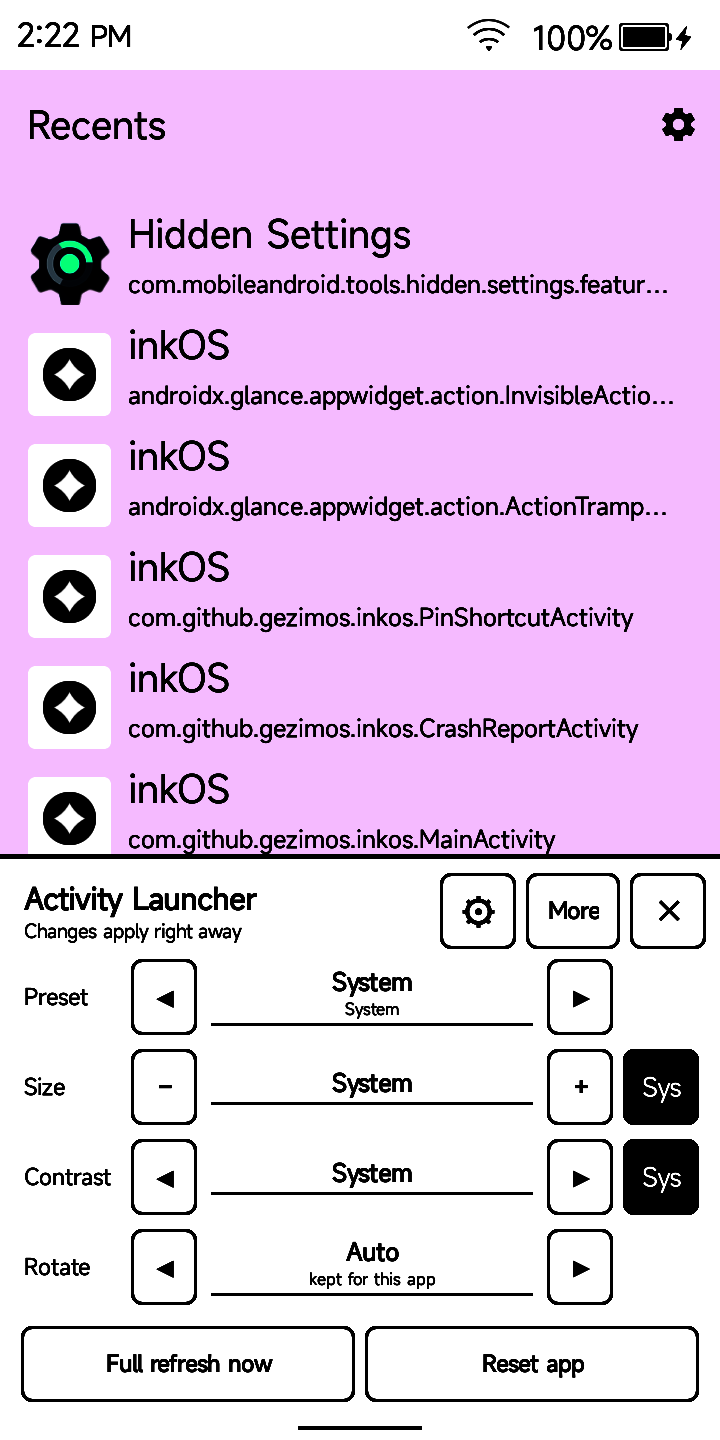
Tap E-ink · this app in the side panel (or hold an app and choose Open its e-ink settings). The panel opens over the app in front. It has four lines, each with ◀ and ▶. Tap the value to see the full list.

| Line | What it does |
|---|---|
| Preset | One choice for refresh and the refresh helpers: System, Reading, Browsing, Comics & photos, Video. Shows Custom if you've set something else on the app's page |
| Size | The app's DPI: System, or 120 to 560. − and + step by 10; the value's list has 200 to 400. 276 is the screen's own. Lower fits more on screen; higher makes everything bigger |
| Contrast | Lighter or darker, in 15 steps, while this app is open. Sys goes back to the system setting |
| Rotate | Auto, Portrait, Landscape, or either flipped. Remembered for each app. The InkPalm has no rotation sensor, so this is how you turn the screen |
At the bottom, Full refresh now flashes the screen once, and Reset app puts that app back to its defaults. More opens the app's own page, and ⚙ opens the home screen.
Changes apply right away and are saved, and Size redraws the open app in place. For that, turn on Modify system settings (see Permissions). Without it, Size applies the next time you open the app.
New apps start on System, which leaves Moaan's own settings alone.
Presets
| Preset | Refresh | Full refresh | Helpers |
|---|---|---|---|
| System | Moaan's own | Moaan's own | Follow the home-screen switches |
| Reading | Normal | Every 10 | Clean screen on open |
| Browsing | Normal | Every 20 | Fast while scrolling and typing |
| Comics & photos | Normal | Every 5 | Follow the home-screen switches |
| Video | Speed + dither | Moaan's own | All helpers off |
A preset only changes refresh and the helpers. It never touches Size, Contrast or Rotate.
E-ink settings screen
On the home screen, tap Screen & e-ink (stock firmware).

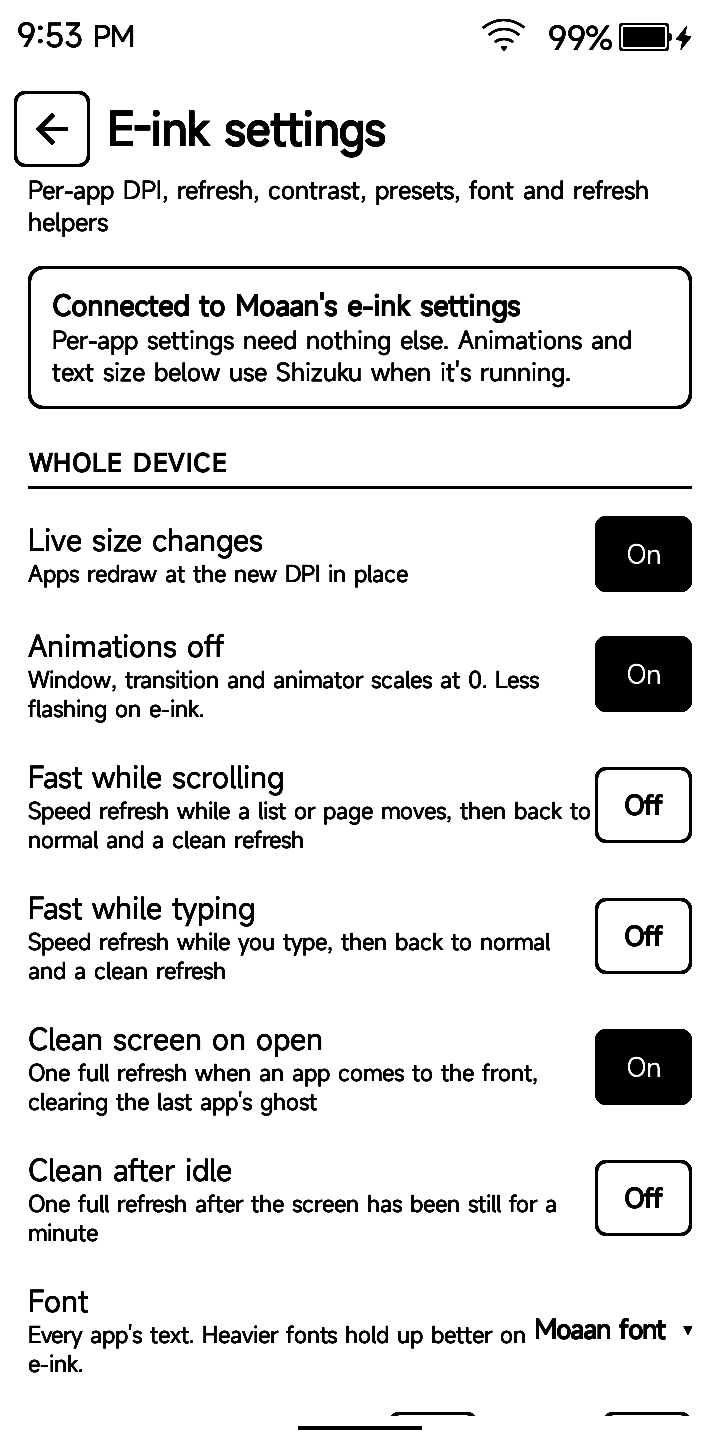
Whole device:
- Live size changes. Opens the "Modify system settings" screen.
- Animations off. Turns window and transition animations off, for less flashing. Needs Shizuku, or the one-time
WRITE_SECURE_SETTINGSgrant below. - Refresh helpers. Each is one switch for every app, and each app can override it on its own page:
- Fast while scrolling (on). Speeds up refresh while a list or page moves, then goes back to normal and cleans the screen.
- Fast while typing (on). The same while you type.
- Clean screen on open (on). One full refresh when an app comes to the front, to clear the last app's ghost.
- Clean after idle (off). One full refresh after the screen has been still for a minute. It's off because it can flash while you read a long page.
- Font. Android's Roboto and Noto Serif fonts, plus Moaan font (the one the device had before). Applies to every app, live. Heavier fonts hold up better at 16 grays.
- Text size. 0.70× to 1.60×.
Apps. Search, then tap an app for its own page. Tuned apps are listed first. The page has:
- Size (DPI)
- Refresh mode: System, Normal, Auto, Fast, Fast + 4 grays, Speed, Speed + dither
- Full refresh: System, or every 5, 10, 15, 20, 30, 50 partial updates
- Contrast
- Refresh helpers: Default, On or Off for this app. They apply right away
- Moaan extras: Bleach, Bold text, Animation filter. What they do depends on the app
Use Save to keep your changes, or Save + reopen to also close the app so it reopens at its new size. Reset puts the page back to the defaults, and you then Save it.
Touch button
The button below the screen. On the home screen, tap Buttons.
- Tap: Back, Home, Page down, Volume down
- Hold: Full refresh, Screenshot, Page up, Volume up, Front light on/off, Home
These are the actions already built into the device. Changes apply on the next touch. For anything else, pick Page up or Volume up and map that key in a key-mapping app such as Key Mapper.
Home screen
The home screen is a short list of categories; each opens its own screen (◀ goes back). Each row says what's set there.

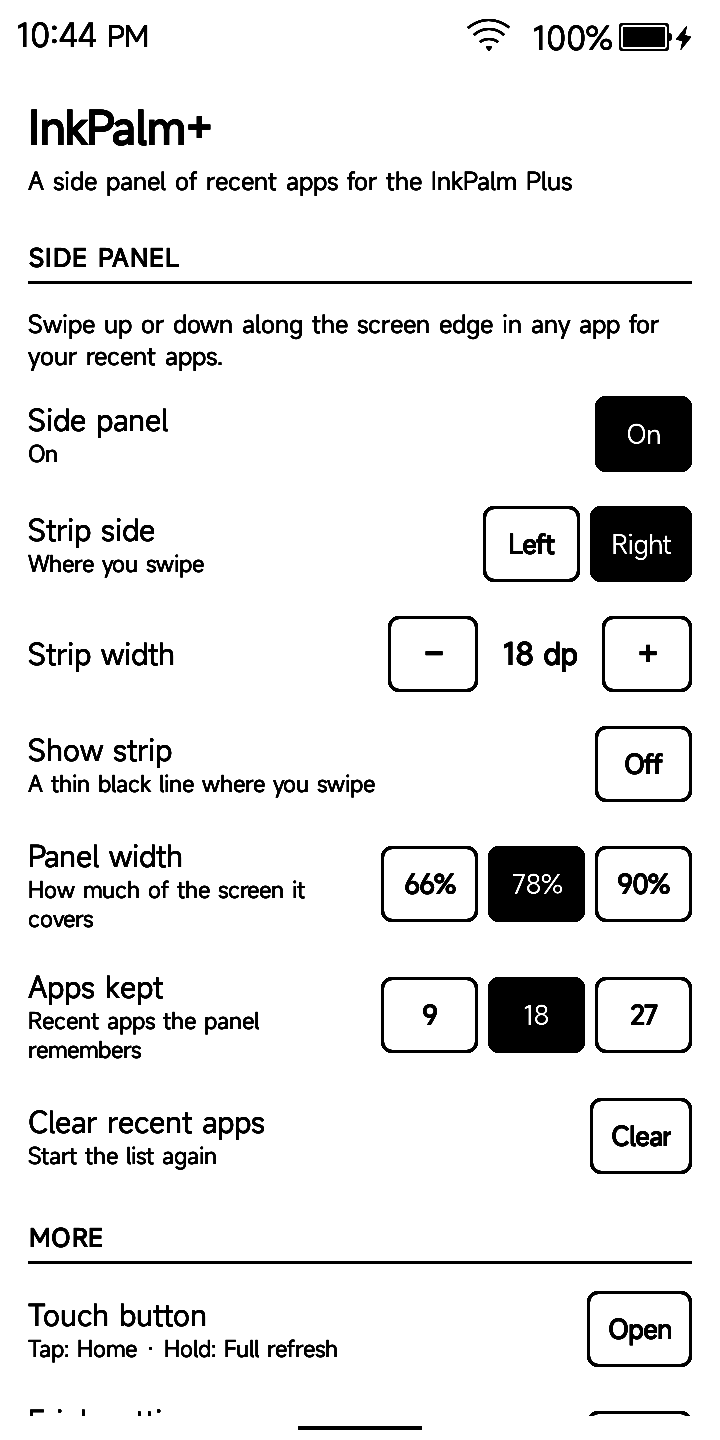
- Side panel:
- Side panel. Opens Accessibility so you can turn the service on or off.
- Newest app. Bottom (the default) or Top of the list.
- Strip side. Left or Right.
- Screen & light panel (KompaktOS). The other edge's strip.
- Edge Back. Swipe in from either edge to go back.
- Strip width. 6 to 40 dp.
- Show strip. Draws a thin black line where you swipe.
- Panel width. 66, 78 or 90% of the screen, in portrait.
- Apps kept. 9, 18 or 27.
- Clear recent apps. Starts the list again.
- Keeping the panel on (see below).
- Screen & e-ink: on KompaktOS, the e-ink control status and the screen-mode switches; on the stock firmware, the E-ink settings and your apps.
- Front light (KompaktOS): whether the light follows Android's brightness.
- Sleep & power (KompaktOS): the sleep screen, the power-off screen and auto power-off.
- Reading: your reader app, NeoReader, KOReader or None. You're asked once, the first time you open InkPalm+.
- Buttons: the touch button.
- About: the version, and what InkPalm+ can see.
Keeping the panel on
On the home screen, tap Side panel; the switches are at the bottom. Both are optional, and both need Shizuku or a one-time adb command.
- Survives Clear Memory. Moaan's Clear Memory force-stops every app that isn't on its whitelist, and Android then switches the panel off. This adds InkPalm+ to the whitelist. The screen shows the exact
adb shell "settings put system ..."command if Shizuku isn't running. - Turns itself back on. If the panel gets switched off by mistake, InkPalm+ switches it back on, when it opens and after a restart. This needs the
WRITE_SECURE_SETTINGSpermission, which the touch button settings also use. Tap the switch with Shizuku running, or run this once from a computer (it survives restarts and updates):
adb shell pm grant com.inkpalmplus android.permission.WRITE_SECURE_SETTINGS
Per-app settings work without Shizuku. If InkPalm+ can't reach them on your firmware, the E-ink settings screen says so and points you to Shizuku.
Permissions and privacy
- No internet permission. Nothing leaves the phone.
- Required: the accessibility service, InkPalm+ quick panel. It receives which app is in front, and that a page scrolled, text was typed or the screen changed. It doesn't read screen content or what you type.
- Optional:
- Modify system settings: live size changes, and the font and text size.
WRITE_SECURE_SETTINGS: turning the panel back on, and the touch button. Granted once with Shizuku or adb.- Shizuku: the Clear Memory whitelist, and a fallback for Animations off and for reaching Moaan's settings.
- Kill background processes: used by ✕, Clear all and Save + reopen.
- Exact alarms (KompaktOS): auto power-off at the time you chose, and the sleep screen's updates, even in Doze.
- Calendar (only if you pick the Agenda sleep screen): your events for this week and the next 7 days, read on the phone.
- Key events (KompaktOS, only while "Hold for a full refresh" is on): the service sees the Home key to tell a hold from a touch. Other keys pass straight through.
- Run at startup: checks after a restart that the panel is back on.
- The recent-apps list and your choices stay on the phone. Clear recent apps empties the list.
Limits
- Tested only on the InkPalm Plus: stock firmware
MAS_EPD305_L81B804_T44_V09(Android 11), and the KompaktOS 1.2 port (Android 16). Other Moaan models may differ. - The e-ink features use Moaan's firmware. They won't work on other phones. The side panel itself is plain Android, but it hasn't been tried elsewhere.
- Android doesn't let apps read its recents, so the list only has apps that came to the front after InkPalm+ was switched on.
Before you uninstall
Some changes live in the phone, not in InkPalm+, so they stay after you uninstall it. Undo them first:
- Per-app size and refresh: on each app you tuned, tap Reset app in the e-ink panel, or Reset then Save on the app's page.
- Font: set it back to Moaan font under E-ink settings.
- Text size, and Animations off if you turned it on, are system settings too.
- Touch button: set Tap and Hold back to what you want.
- Clear Memory whitelist: InkPalm+ stays on it. Remove it from Moaan's list if you care.
Building
You don't need to: download the APK from Releases. To build it yourself:
./gradlew assembleDebug needs JDK 17 and the Android SDK (set sdk.dir in local.properties). Then install it:
adb install -r app/build/outputs/apk/debug/app-debug.apk
For developers
docs/screenshots: real screenshots from the device (the pictures above are drawn from the same UI bydocs/launch/build.py).CLAUDE.md: project layout, how to build and test, and product direction.docs/firmware.md: what was learned about the InkPalm's firmware (Moaan's per-app table, how DPI and refresh are applied, live changes). Check it before decompiling anything.tools/device-test.sh: scripted checks over adb (tools/device-test.sh list, thenrun all). Seetools/README.md.docs/mockups: the UI mockups, built bydocs/mockups/build.py.
The UI is built in code (Ui.kt), black on white, with no animations. The only libraries are Shizuku's API and HiddenApiBypass.
License
Apache License 2.0, see LICENSE.
How Shizuku is used
Can tune per-app e-ink profiles, fonts, animations and panel survival via `Shizuku newProcess` shell commands
This is an AI-assisted analysis of Shizuku-related usages in the app's public source code. It is best effort, so it may not catch every single usage.
How this app uses Shizuku
Shizuku runs ADB level shell commands on the device itself to change Moaan firmware settings that ordinary apps cannot write.
- Per-app e-ink profiles: Save DPI, refresh waveform, full refresh interval, contrast, bleach, bold text and animation filter for each app to Moaan's e-ink table with
content update,content insertandcontent querythrough Shizuku, and read the table the same way. - Apply size instantly: Push the chosen DPI to PackageManager with a
service call packagecommand and reopen the app witham force-stopso the new size takes effect. - Live screen tuning: Apply refresh mode, full refresh count, contrast gamma, system font and full refresh triggers immediately with
setpropcommands when the built in e-ink service path is unavailable. - Redraw without reopening: Nudge the system text scale with a
settings put system font_scalecommand so open apps redraw at the new DPI or with the new system font. - System font choice: Switch every app's text between Android fonts and the device original by setting the font path property and nudging the text scale.
- Text size control: Raise or lower the system text scale with a
settings put system font_scalecommand. - Animations off: Turn window, transition and animator scales to 0 with
settings put globalcommands for less flashing on e-ink. - Keep panel on: Add InkPalm+ to Moaan's Clear Memory whitelist with a
settings put systemcommand and grant the permission that lets the app turn its side panel back on with apm grantcommand, which also unlocks touch button remapping.
Android APIs or commands used
content query --uri content://com.android.systemui.eink/einksettings
content update --uri content://com.android.systemui.eink/einksettingscontent insert --uri content://com.android.systemui.eink/einksettingsservice call package 201am force-stopsetprop persist.sys.mogufont.pathsetprop debug.sf.gamma.gammasetprop sys.eink.modesetprop persist.sys.mogu.refresh_typesetprop persist.vendor.fullmode_cntsetprop sys.eink.one_full_mode_timelinesettings put system font_scalesettings put global window_animation_scalesettings put global transition_animation_scalesettings put global animator_duration_scalesettings put system APPS_WHITE_LIST_KEYpm grant android.permission.WRITE_SECURE_SETTINGS
Notable details
Many writes first try a direct path and use Shizuku only as fallback: the e-ink table via the app's own ContentResolver, live properties via Moaan's e-ink service, DPI via the system package manager API, text scale via Modify system settings, and closing apps via the normal background kill. The Keep panel screen also shows the equivalent adb shell commands that work from a computer without Shizuku.
Changelog
What's new for version 1.1.0
InkPalm+ 1.1.0: KompaktOS support. On the KompaktOS port for the InkPalm Plus, InkPalm+ now does everything InkControl did, so InkControl isn't needed any more (uninstall it, so the two don't both drive the screen and light). On the stock firmware nothing changes.
New on KompaktOS
- Screen & light panel: swipe up or down along the other edge (the left one, unless recent apps are there). Six screen modes as big buttons (Fast, Soft, Dither, Text, Quality, Auto), for the app you're in or everywhere, with a line saying where the mode in use comes from. Full refresh, Contrast, and the front light (Brightness, Warmth, Auto).
- The front light moved here from the recent-apps panel, so recent apps get their rows back. It goes off with the screen and comes back with it, and follows Android's brightness or the light sensor.
- Edge Back: swipe in from either edge to go back (KompaktOS has no navigation bar). On by default; a switch under Side panel.
- Touch button: a short touch is Home; holding it is a full refresh, as on the stock firmware.
- Screen & light settings: your own sleep screen, the power-off screen (Moaan's panda in English, or your own picture), and auto power-off after 4 to 24 hours asleep on battery.
- Quick Settings tiles for the screen modes, Full refresh and the front light.
Install: download the .apk below on your InkPalm and open it, or add https://github.com/rn-os/inkpalm-plus in Obtainium. It installs over 1.0.0 and keeps your settings. New permissions: exact alarms (auto power-off) and asking to uninstall an app (the Uninstall InkControl button).
No internet permission. Now under the Apache 2.0 license.
Tested on the InkPalm Plus with KompaktOS 1.2 (Android 16) and the stock firmware's side panel. The English panda power-off screen needs the latest KompaktOS port image. Feedback and bug reports: GitHub issues.
Permissions
10 permissions requested
More apps from this developer
 SuperBoox
More from this category
 Calibrate SoC
 VR Launcher
 DiAuto
 BooxUltimatum
SuperBoox
 MindControl
 ha-paneld
 flipx
 RedTrigger