 ShizuStore

Hush
2.0.7 · GitHub
More about this app
Skips Spotify ad breaks by restarting Spotify in the background, with optional Spotify-only DNS filter; works via Wireless debugging or Shizuku

Hush
Ad-free listening for Spotify on Android — no root needed, no modified Spotify app.



Hush runs alongside the official Spotify app. The moment Spotify starts an ad break, Hush restarts Spotify in the background — which discards the entire break — and your music continues a few seconds later. An optional on-device DNS filter, applied to Spotify only, can also remove video ads and the playback freezes they cause.
Since 2.0 Hush is the only app you need: it pairs with Android's Wireless debugging by itself and starts its own small helper. Shizuku still works if you already use it, and rooted phones can use root instead of pairing.


Features
| Skips whole ad breaks | Every ad is recognised from Spotify's own metadata — including the first ad of a multi-ad break — and music is back about 2 to 3 seconds later. |
| Leaves your phone alone | No screen wake-ups. A locked phone stays locked, the app you are using stays in front, and Spotify never pops up on screen when it was in the background. Its lock-screen controls come back right away. Music keeps playing with the screen off. |
| Keeps your place | If Spotify comes back on a different playlist or album after a restart, Hush switches back to the one you were playing. |
| Sleep timer that survives skips | Spotify's own timer is lost whenever Spotify restarts, so Hush has its own: 5 minutes to 1 hour, any custom time (hours, minutes, seconds), or end of song. |
| Mute mode | Prefer not to restart Spotify? Hush can mute ads instead, and does so automatically (with one notification) whenever skipping is not ready. |
| Spotify-only DNS filter (optional) | Off by default. Turn on Block ad servers to block video-ad hosts and the ad-asset host that can freeze background playback. Other apps and all non-DNS traffic are untouched. |
| One app, guided setup | Hush pairs with Wireless debugging itself: you type a six-digit code into its notification, once. No computer, no second app. |
| Looks after itself | If its helper stops, Hush starts it again; if Spotify crashes right after a skip, Hush starts Spotify again. After a reboot one tap brings skipping back, or Hush does it by itself if you turn on automatic restart. |
| Private | No accounts, analytics or tracking. Nothing about you leaves the device (with the DNS filter on, only Spotify's own DNS lookups are forwarded; once a day Hush asks GitHub if there is a new version, which you can turn off). |
Requirements
- Android 11 or newer to skip ads. Wi-Fi is needed only to pair and to start Hush's helper (once after each reboot), because Android turns on Wireless debugging only on Wi-Fi. After that, skipping works on mobile data too (Hush turns on USB debugging for this, see Troubleshooting). On Android 8 to 10 Hush can skip through Shizuku started from a computer, or mutes ads.
- The official Spotify app (free tier)
Installation
Setup video
Install and set up Hush from scratch in under a minute: pairing, permissions and the first skipped ad.
https://github.com/user-attachments/assets/b7713aba-1956-459b-b680-6d76fd52765b
Steps
Download
Hush-<version>.apkfrom the latest release and open it. Allow installing from your browser if Android asks.Open Hush and tap the power button. Hush asks for what it needs, one step at a time:
Permission Why Notification access Read Spotify's "now playing" information to recognise ads. Android calls this "notification read, reply & control"; Hush doesn't read your notifications VPN (only if you turn on Block ad servers) The local DNS filter (Spotify's DNS lookups only) Wireless debugging (pair once), or root Start Hush's helper, which restarts Spotify when an ad starts Notifications Status, a Turn off button, and problem alerts Unrestricted battery Keep working while the phone is locked Hush opens Set up skipping. It takes about two minutes, once:
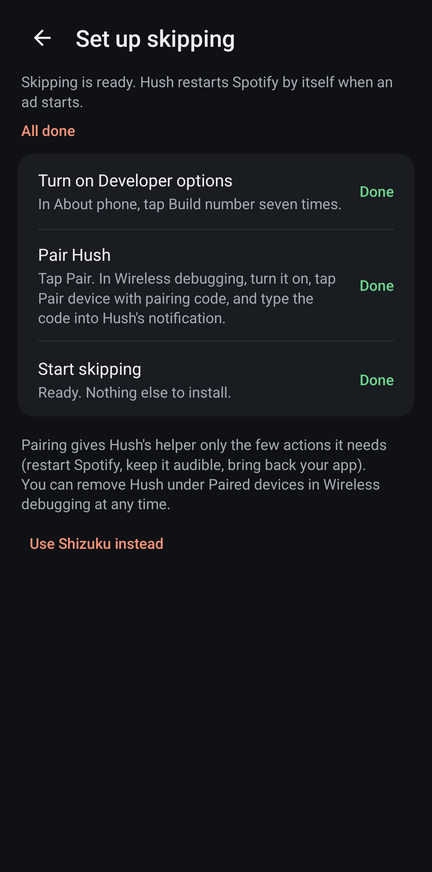
- Turn on Developer options: tap Open, then tap Build number seven times (in About phone). Come back to Hush.
- Pair Hush: tap Pair. Hush opens Developer options. Turn on Wireless debugging (allow it on your Wi-Fi), open it and tap Pair device with pairing code.
- Stay on that screen: Hush's Enter the pairing code notification pops up over it (if you miss it, pull down the notification shade and expand it). Tap Enter code and type the six digits shown in Settings. Hush pairs and starts its helper; the notification changes to Skipping is ready.
Some phone makers need one extra switch in Developer options; Hush shows that step only on those phones. Already using Shizuku? Hush uses it too, and you can skip this. On a rooted phone (Magisk, KernelSU, APatch) the setup screen offers Use root instead: one tap, no pairing and no Wi-Fi needed. Root is used only to start Hush's helper.
Back in Hush, allow Notification access and Unrestricted battery when asked. On Xiaomi, Redmi and POCO phones also tap Allow Autostart and switch Hush on in the list, so Hush starts by itself after a restart.
Optional: turn on Restart automatically after a reboot. Hush tests once (about 10 seconds) whether your phone keeps its helper running with Wireless debugging off, keeps it off if so, and shows the result.
Play something on Spotify and tap Test ad skip to hear the music come back.
Tip
Updating from 1.0.x? Install the new APK over the old one; your settings are kept and skipping keeps working through Shizuku. To drop Shizuku, tap Set up next to Skip without Shizuku in Hush, pair once, then uninstall Shizuku.
Note
Android turns Wireless debugging off when the phone restarts. With automatic restart on, Hush takes care of it by itself a few seconds after you unlock the phone (Android 13+). Without it, Hush shows one Skipping paused notification: tap it and Hush turns Wireless debugging back on and resumes. (On Android 11 and 12 Hush may not switch it itself: the tap shows where to turn it on, and skipping resumes as soon as it is on.) Until then, ads are muted, not played.
Usage
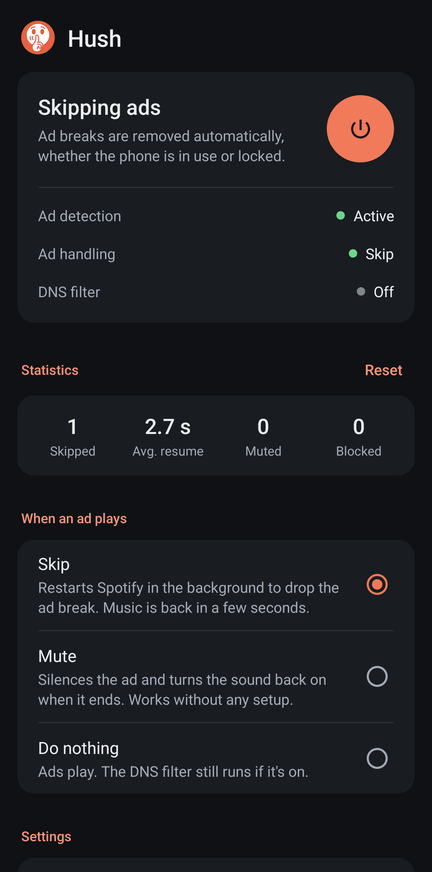
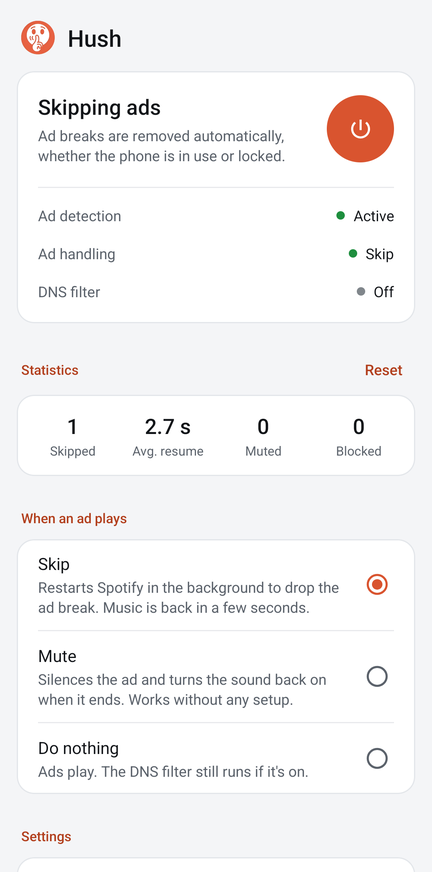
- Power button — turns Hush on or off. The notification also has a Turn off button.
- When an ad plays — Skip (restart Spotify), Mute, or Do nothing.
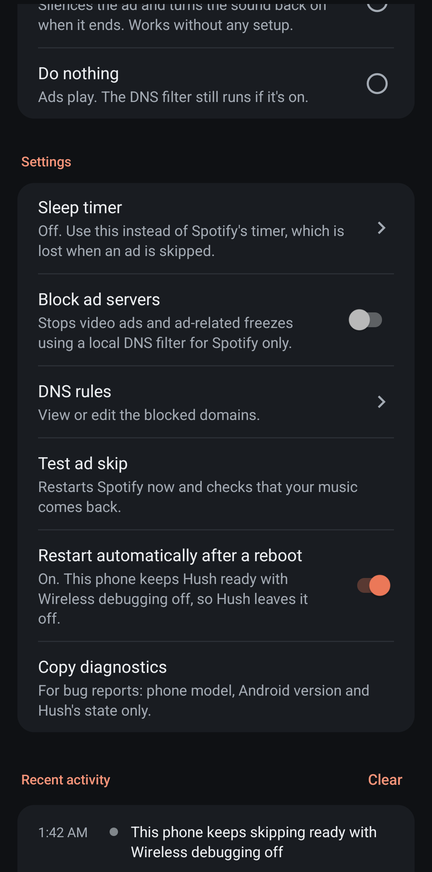
- Sleep timer — use this instead of Spotify's timer; it survives ad skips.
- In the car (Android Auto) — Skip, Mute or Do nothing while Android Auto is connected. Skipping in the car never switches apps on the phone and waits until Android Auto is not reading from Spotify, so navigation keeps running. Mute mutes Spotify itself, since the car does not use the phone's volume (needs skipping set up).
- DNS rules — view or edit the filter (
block,nxdomain,redirect,ip,upstream). - Restart automatically after a reboot — Hush brings skipping back by itself after a restart (Android 13+). Turn it off and on again to repeat the phone test.
- Test ad skip — restarts Spotify now, to check that your music comes back.
- Update Hush — gets the latest version from GitHub Releases and installs it; your settings and pairing are kept, no new setup. Tell me about updates shows one notification per new version (turn it off to stop the daily check).
- Recent activity — every ad break, skip and change, with timings. If Hush's helper can't start, the reason is shown here too.
Troubleshooting
Do Developer options and Wireless debugging have to stay on?
Developer options: yes. Turning them off also stops Hush's helper, and ads are muted instead of skipped. Wireless debugging: by default Hush leaves it the way you set it during setup. With Restart automatically after a reboot on, Hush tests once whether your phone keeps skipping ready with Wireless debugging off; if it does, Hush keeps it off and turns it on only for a few seconds after a reboot. With Skip selected, Hush also turns on USB debugging, which keeps its helper running when Wireless debugging goes off.
Does it work on mobile data?
Yes. Wi-Fi is needed only to pair and to start Hush's helper once after a reboot (Android turns on Wireless debugging only on Wi-Fi; no internet is needed on that Wi-Fi). When Wi-Fi drops, Android switches Wireless debugging off; with USB debugging also off it then stops its debugging service and Hush's helper with it. So with Skip selected, Hush turns USB debugging on (shown in Recent activity). If the helper does stop, ads are muted until Wi-Fi is back, and Hush resumes by itself. With no internet at all (no Wi-Fi and no mobile data), Hush mutes only Spotify for an ad instead of skipping it, because Spotify can't load the next song after a restart.
Spotify is silent after turning Hush off
Update to 2.0.7 or newer. Older versions left one of Spotify's audio permissions in a mode that newer Android versions treat as "not allowed", so Spotify stayed silent even at full volume (#13). 2.0.7 repairs it by itself the first time it starts; Recent activity then says "Spotify's audio settings were put back to normal".
The APK doesn't install
Hush isn't on the Play Store, so Play Protect may warn about it: tap More details → Install anyway. On some Android 16 phones the installer closes without a message because of Google's developer verification for apps from outside the Play Store; turning Play Protect off for the install (and back on afterwards) may get around it.
Notification access is greyed out ("Restricted setting")
Android 13 and newer do this for apps installed from a browser or a file manager. Open Settings → Apps → Hush, tap ⋮ at the top right, then Allow restricted settings, and turn on notification access again. Hush shows these steps with an App info button if access is still off after you tapped Allow.
Ads are muted instead of skipped
Skipping is not ready: usually Wireless debugging is off after a reboot, or Hush had to start its helper while the phone was not on Wi-Fi (it resumes as soon as Wi-Fi is back). Tap Hush's notification, or open Hush — the status card says what is missing. If Hush asks to pair again, Android has forgotten the pairing (it does that for pairings unused for 7 days unless Disable adb authorization timeout is on in Developer options).
Copy diagnostics
Settings → Copy diagnostics copies a short report (phone maker and model, Android version, Spotify version, how Hush skips, Wi-Fi and Android Auto state, the last problems Hush logged) for a bug report. It has nothing about what you listen to, and Hush never sends it anywhere by itself.
Music does not come back after a skip
Use Test ad skip to reproduce it. Hush retries once and then shows a notification; tapping it opens Spotify. Make sure Hush and Spotify have unrestricted battery use. If Spotify plays after a skip but its notification is missing, or it stops a few minutes later, Spotify is probably restricted in the background (its battery setting): Hush lifts that by itself and says so in Recent activity. Only if it can't (no helper or Shizuku) it shows Spotify in the background with a Fix button. On Xiaomi, Redmi and POCO phones, set Spotify's battery saver to No restrictions (Settings → Apps → Spotify). If it still fails, Recent activity shows the steps of the failed try: please include them in an issue.
Xiaomi, Redmi and POCO phones
- Pairing: Xiaomi shows no pop-up for Hush's pairing code. Stay on the pairing code screen, pull down the notification shade, open Hush's Enter the pairing code notification with its arrow and tap Enter code.
- Notification access: Xiaomi shows a warning screen first. Tick the box and tap OK when the countdown ends.
- Battery: pick No restrictions for Hush.
- USB debugging (Security settings) in Developer options: turn it on once while you set up Hush. Hush then switches Wireless debugging and USB debugging by itself, also after you turn it off again. If it was never on, Hush asks you to turn on plain USB debugging (that keeps skipping working when Wi-Fi drops) and, after a restart, to turn on Wireless debugging yourself.
- Autostart: switch Hush on once in Xiaomi's Background autostart list (Hush shows an Allow Autostart row with a button to it). Xiaomi keeps only an Autostart you switch on yourself; without it, Hush does not start after a restart or an update until you open it. Hush also allows it for itself and Spotify while its helper runs, which covers clearing recent apps.
Playing on a speaker, TV or computer (Spotify Connect, Cast)
A skip would move the music back to your phone, so Hush doesn't restart Spotify while it plays on another device. Instead it turns Spotify's volume on that device down for the ad and back up after. If Spotify plays the ad on your phone instead, Hush mutes only Spotify on the phone; other apps keep their sound. If neither is possible, the ad plays, but your music stays on the other device.
Removing Hush or its pairing
Uninstalling Hush also stops its helper. The pairing stays listed under Developer options → Wireless debugging → Paired devices as "Hush"; tap it and Forget to remove it too.
"Another VPN app took over"
Android allows one VPN at a time. Hush's ad skipping keeps working without its DNS filter; turn Block ad servers off, or stop the other VPN.
How it works
Once: setup. Hush pairs with Android's Wireless debugging like a computer would, and starts
its own small helper with the same rights as adb shell. The helper answers only Hush and can
do only a fixed list of actions. On a rooted phone Hush starts the same helper with root instead
(as the shell user, so with the same rights), and no pairing is needed.
flowchart LR
    P["Pair once<br/>six-digit code in<br/>Hush's notification"] --> K["Hush keeps its own key<br/>(encrypted, on the phone)"]
    K --> H["Hush starts its helper<br/>fixed actions only,<br/>answers only Hush"]
Every ad break. Spotify keeps an ad break only in memory, so a cold restart resumes the queue at the next song. Spotify is started again the way a headset play button starts it: no screen appears, and a locked phone stays locked.
flowchart LR
    A["Spotify<br/>plays an ad"] --> B("Hush detects it<br/>from the ad ID or flag")
    B --> C["Helper stops Spotify (20–90 ms),<br/>it restarts in the background"]
    C --> D["Music resumes,<br/>ad break gone"]
Looks after itself. Skipping never stops without you being told.
flowchart TD
    X{"Helper running?"} -->|yes| S["Ads are skipped"]
    X -->|no| R["Hush starts it again (about 2 s)"]
    R -->|"can't: Wireless debugging off,<br/>no Wi-Fi, pairing forgotten"| M["Ads are muted, and one<br/>Skipping paused notice says why"]
    M -->|"tap it, or by itself after a<br/>reboot or when Wi-Fi is back"| R
Spotify is watched the same way after every skip: if it comes back without its playback service (no notification), Hush repairs that, and if it crashes in its first seconds, Hush starts it again. If you closed Spotify yourself, it stays closed.
The tricky parts (Spotify's media-button intent being cancelled by a force-stop, keeping the screen state untouched, Android's background-audio rules, the pairing protocol and the reboot handling) are documented with measurements in docs/HOW-IT-WORKS.md.
Performance
Measured on one phone with Spotify 9.1 (free tier), real ads and test skips, against 1.0.3. Numbers vary a little between phones.
| 1.0.3 (with Shizuku) | 2.0.5 | |
|---|---|---|
| Apps to install | Hush + Shizuku | Hush only |
| Ad detected → Spotify stopped | 50–105 ms | 20–90 ms |
| Silence after a real ad | 2.2–2.8 s | 1.4–2.3 s |
| Silence after a test skip | 1.4–2.8 s | 1.2–2.0 s |
| Spotify's notification back | about 1 s | 0.2–1.1 s |
| Spotify shown on screen (when in the background) | never | never |
| After a reboot | open Shizuku, tap Start | automatic, about 4 s after unlocking (opt-in), or one tap |
| After a Hush update | — | ready again in 1–3 s |
| If the helper is stopped | Shizuku had to be restarted by hand | restarted by Hush in 2–3 s |
| App size | 172 KB | 220 KB |
Known issues
- Restoring the previous playlist works for playlists and albums, not for an artist's "Popular" list or radio (Hush leaves those as Spotify brings them back). With the phone locked, Spotify ignores the switch until you unlock it.
- Playing on a speaker, TV or computer: if that device doesn't let Hush turn its volume down, the ad plays there (a skip would move the music to your phone).
- Android Auto: tested with real ads in Android Auto's desktop head unit (the car screen emulator), not yet in a car. If a skip still restarts Android Auto, choose Mute under In the car and open an issue.
Privacy & security
Hush holds two powerful capabilities — adb-level rights through its own helper (or Shizuku) and a VPN — and is built so neither can be misused: the helper answers only Hush and runs only a fixed list of actions, every value passed to it is validated and quoted, the DNS forwarder accepts replies only from its resolver, all data stays in private storage and is excluded from backups, and release builds do not log what you play. Details, and how to report a vulnerability privately, are in SECURITY.md.
Roadmap
- v1.0.1 — no audio gap after skips, including with the phone locked
- v1.0.2 — no silent playback when Android freezes the restarted Spotify
- v1.0.3 — Spotify stays off screen during a skip, and its controls come back right away
- v2.0.0 — one app: no Shizuku needed, self-healing, optional automatic restart after a reboot
- v2.0.1 — fixes for playlist switches during an ad, the end-of-song timer, recovery when Wi-Fi is back, and smoother pairing
- v2.0.2 — DNS filter works on networks that block outside DNS (AdGuard Home, Pi-hole)
- v2.0.3 — skipping on mobile data, easier pairing, Android Auto choice, in-app updates
- v2.0.4 — Android Auto: skips keep navigation running, Mute works in the car
- v2.0.5 — Spotify keeps its notification and keeps playing after a skip, restarts after a crash, no "Hush Clone" on update, root support
- v2.0.6 — Xiaomi fixes (ad detection, restarts, Wi-Fi), casting to a speaker or computer keeps playing there, music comes back sooner
- v2.0.7 — Spotify plays normally again after Hush is turned off
- ESP32 companion with similar features for speakers and other devices
Details for each version are in the changelog.
Contributing
Found a bug or have an idea? Open an issue: bugs and feature requests are handled in public. Pull requests are welcome too: CONTRIBUTING.md explains how to build and test Hush. Security vulnerabilities are the one exception: please report those privately as described in SECURITY.md.
Disclaimer
Hush is an independent project. It is not affiliated with, endorsed by or connected to Spotify AB; Spotify is a trademark of Spotify AB. Blocking ads may be against Spotify's terms of service — use Hush at your own risk. If you enjoy Spotify, consider supporting artists with Spotify Premium.
License
Hush is free software, released under the GNU General Public License v3.0.
How Shizuku is used
Can skip Spotify ads by restarting Spotify, mute car playback and keep audio working via `Shizuku shell commands`.
This is an AI-assisted analysis of Shizuku-related usages in the app's public source code. It is best effort, so it may not catch every single usage.
How this app uses Shizuku
Hush uses Shizuku to run privileged shell commands that skip Spotify ad breaks and keep playback working.
- Skip Spotify ad breaks: force stops Spotify when an ad is detected, reopens Spotify and resumes music, then brings back the previous app and restores the playlist if needed, using
am force-stop,am start,cmd media_session dispatch play,input keyevent 126and recents and activity checks through Shizuku. - Mute Spotify in car: silences Spotify itself for Android Auto where phone volume does not apply, and restores sound when the break ends, using
appops set PLAY_AUDIOthrough Shizuku. - Keep restarted audio audible: allows background audio and exempts the new Spotify process from freezing, plus checks mute and frozen state and repairs it if the system muted it, using
cmd appops set CONTROL_AUDIO,am unfreeze,am isfrozen,dumpsys audioand pause and play dispatch through Shizuku. - Fix background restriction: checks Spotify background permission and allows it so a restarted Spotify keeps its playback service, using
appops get RUN_ANY_IN_BACKGROUNDandappops set RUN_ANY_IN_BACKGROUNDthrough Shizuku. - Stay ready without Wi-Fi: reads whether USB debugging is on and turns it on so skipping keeps working, and grants itself permission to toggle it later, using
settings get global adb_enabled,settings put global adb_enabledandpm grantthrough Shizuku. - Restore system volume: turns music volume back on at system level if it is still muted after an ad, using
dumpsys audioandinput keyevent 164through Shizuku. - Clean up clone copies: finds extra Hush copies in app clone spaces from update metadata and removes them, using
dumpsys packageandpm uninstallthrough Shizuku. - Allow Xiaomi autostart: allows autostart for Hush and Spotify on Xiaomi phones so the system can bring them back, using
appops set 10008andappops get 10008through Shizuku.
Android APIs or commands used
am force-stopam startam unfreezeam isfrozencmd deviceidle tempwhitelistcmd appops setappops setappops getcmd media_session dispatch playcmd media_session dispatch pausecmd package list packages -Uinput keyevent 126input keyevent 164dumpsys activity recentsdumpsys activity activitiesdumpsys activity providersdumpsys activity servicesdumpsys activity exit-infodumpsys audiodumpsys packagepm grantpm uninstallsettings get global adb_enabledsettings put global adb_enabledpidof
Notable details
Outside the car, muting uses the normal music volume control without privileged access. App updates do not need Shizuku: without the helper they install with Android's installer after a one-time install permission.
Changelog
What's new for version 2.0.7
Spotify plays normally again after you turn Hush off.
Install: download Hush-2.0.7.apk below. Updating over an older version keeps your settings. New here? Watch the setup video.
Fixed
- After turning Hush off, Spotify could stay completely silent, even at full volume, until Hush was turned on again (#13). Turning Hush off gave one of Spotify's audio permissions the wrong setting, which newer Android versions treat as "not allowed", so the volume buttons couldn't help either. Hush now puts back exactly what Android uses on your phone.
- If your phone is silent right now because of this, 2.0.7 repairs it by itself the first time it starts, even with Hush off. Recent activity then says "Spotify's audio settings were put back to normal".
Updating
- From 2.0.3 or newer: tap Update Hush in the app, or use the update notification.
- From older versions: download the APK below and install it over the old one. Settings and pairing are kept.
Verify
- SHA-256:
a9a313eac0788f133905476b1c5c329b37381db0b6676cd471f44a466fc0c6b5 - Signed with the same key as earlier releases (certificate SHA-256
62629ed66144d83b86320af51e635a5987bbcb3b891ae01c8d3ed8336afbae03).
Permissions
11 permissions requested
More from this category
 Mihon
 Aniyomi
 Crosstune
 BiliDownOut
 HLB站缓存合并