 ShizuStore
Déchaîner
1.4.0 · GitHub
More about this app
Blocks adult content as Device Owner; Shizuku runs the dpm set-device-owner setup command.

Déchaîner
A hard-to-bypass Android barrier against pornography and digital addiction.
Device Owner restrictions, an Accessibility Service and an on-device ML model working together,
built so that your future self can't simply turn it off.




Download the latest APK · How it works · Features · Installation · Recovery
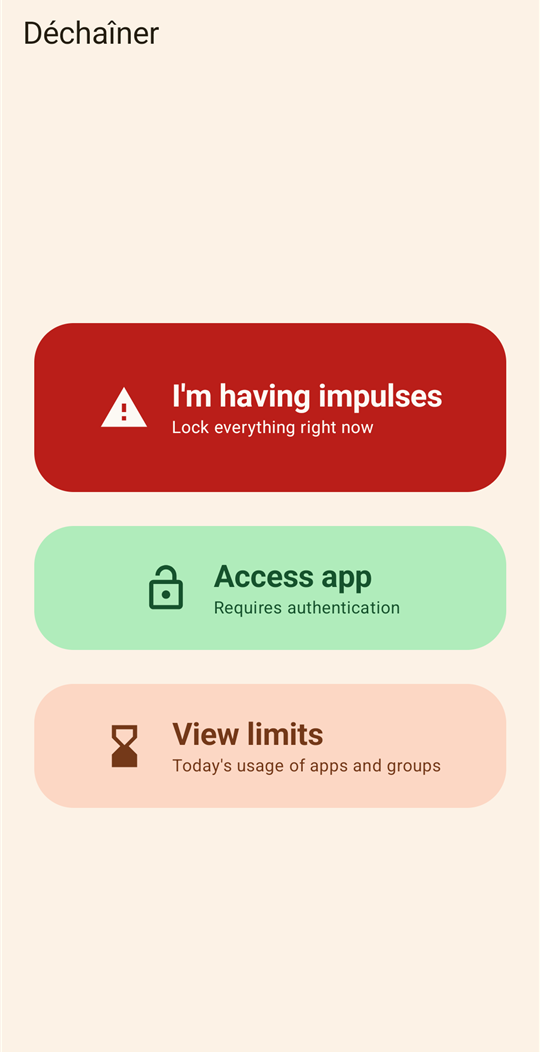
 Panic button, reachable before unlocking |
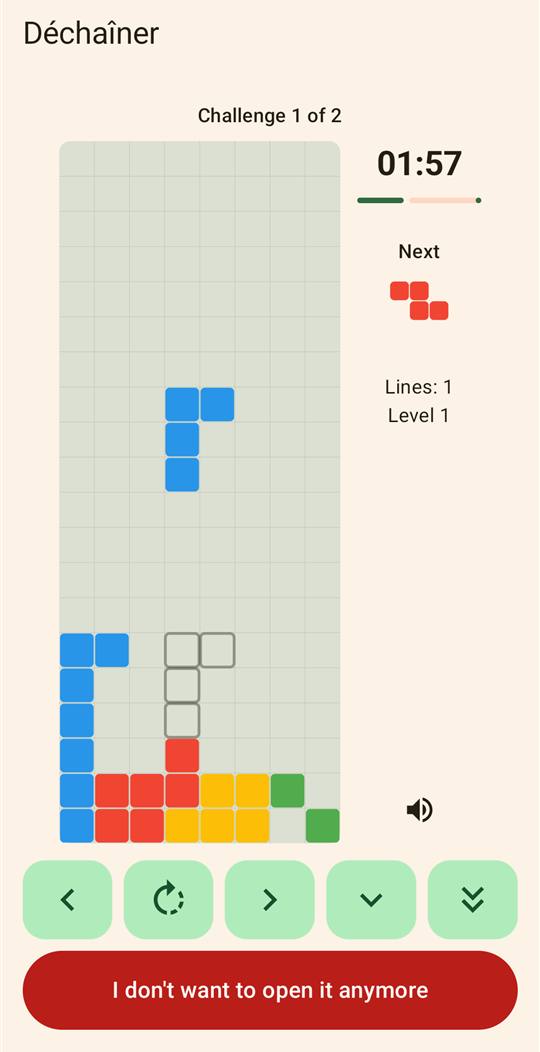
 Tetris challenge before entering |
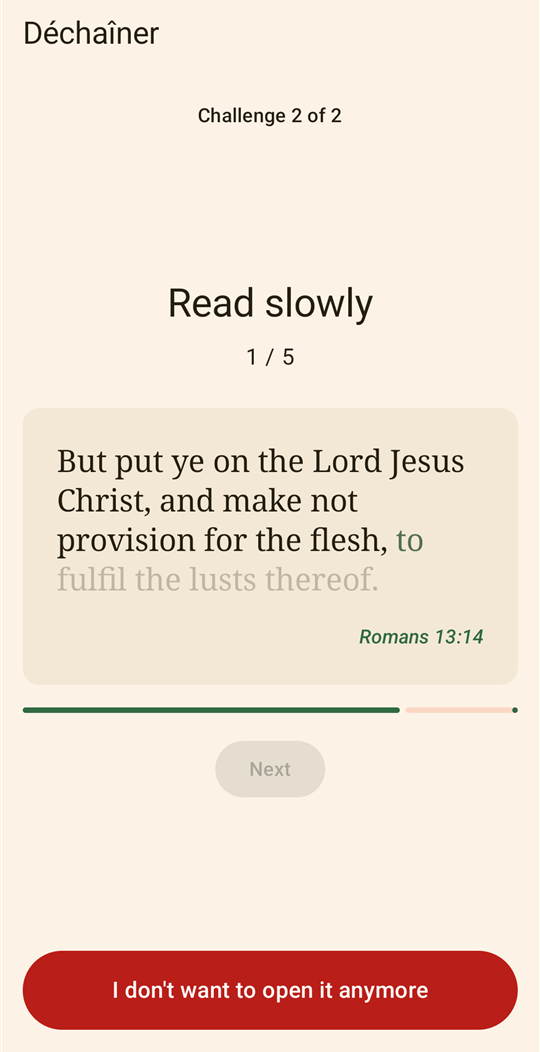
 Reflective reading, word by word |
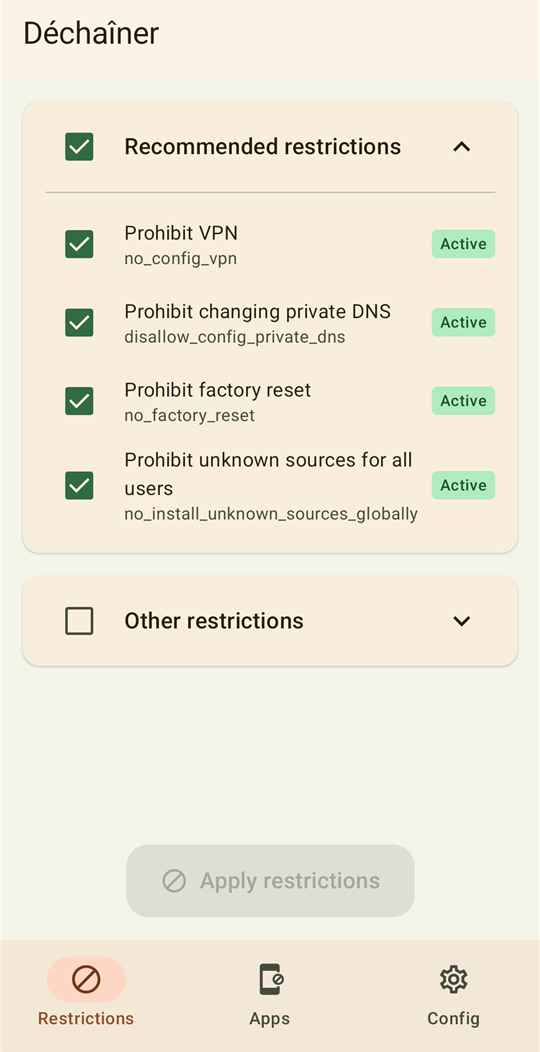
 System restrictions via Device Owner |
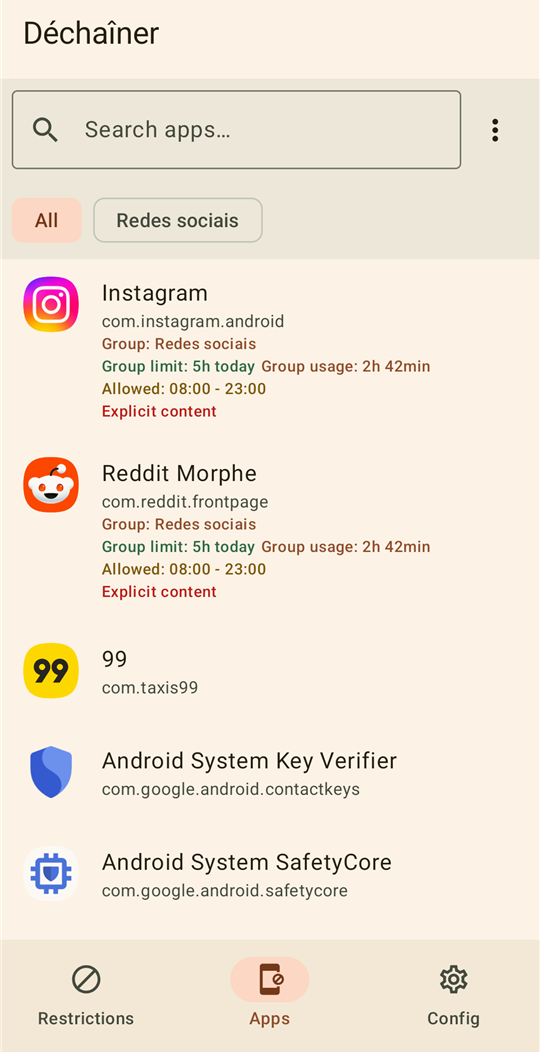
 Per-app limits, groups and time windows |
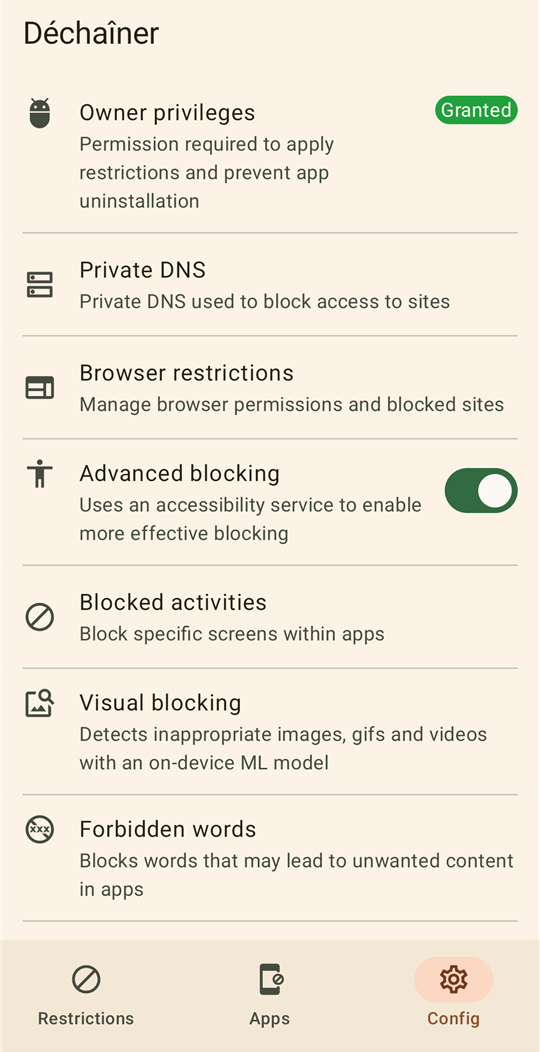
 All protections in one place |
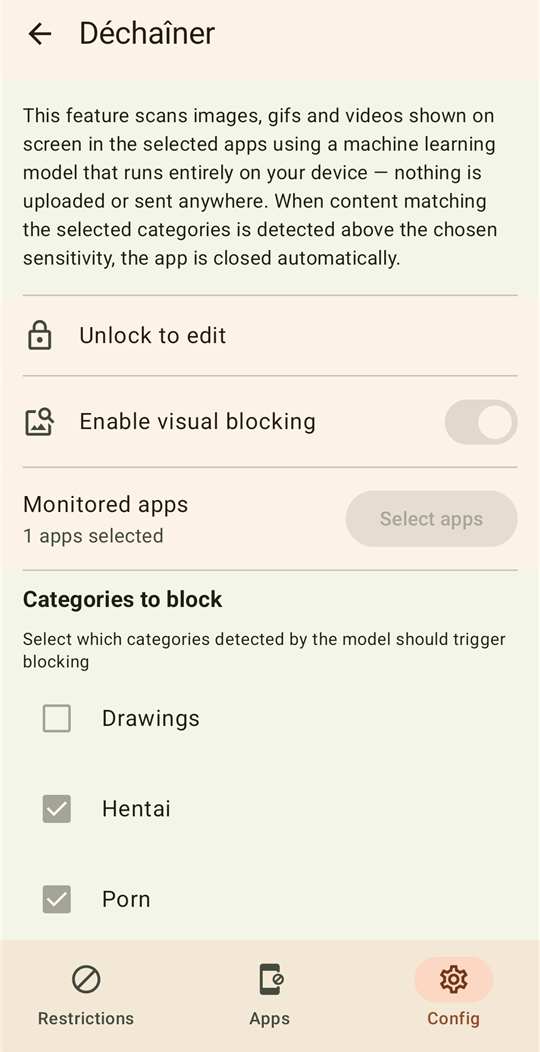
 Visual blocking with on-device ML |
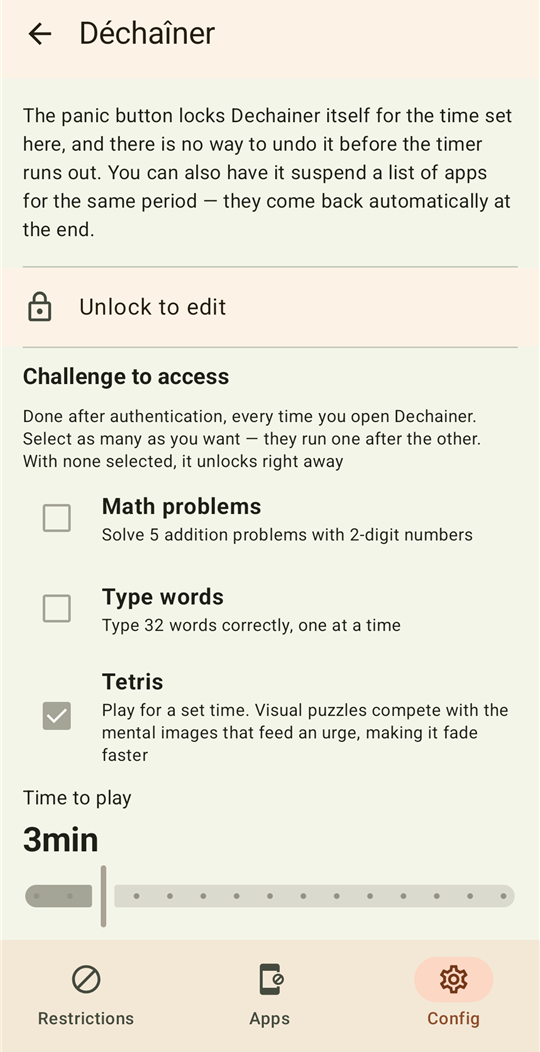
 Impulse lock and access challenges |
 Color modes on a schedule |
Caution
This software implements deep system-level modifications and is designed to be difficult to bypass. Proceed only if you fully understand the implications of Device Owner privileges. Read Recovery and Safety before installing.
Why Déchaîner?
Déchaîner (pronounced /de.ʃɛ.ne/) is a French verb meaning to unleash, unchain, let loose. Most blockers are one settings screen away from being disabled in a weak moment. Déchaîner is built the other way around:
| Typical blocker | Déchaîner | |
|---|---|---|
| Can be uninstalled on impulse | Yes | No, Device Owner prevents it |
| VPN / private DNS can be changed to get around it | Usually | Blocked at the OS level |
| Detects explicit images and video | Rarely, often in the cloud | Yes, 100% on-device |
| Blocks words typed or shown inside apps | Rarely | Yes, in the apps you choose |
| Turning it off | A toggle | A 16-character recovery code stored on paper |
| Your data | Often sent to a server | Never leaves the device |
How it works
A regular Android app lives in a sandbox. It can't see what other apps show, can't stop you from changing system settings, and can be uninstalled with two taps. That's why most blockers are so easy to get around.
Déchaîner is granted two special powers that ordinary apps never get:
1. Device OwnerThe same level of control companies use to manage work phones. It lets Déchaîner:
|
2. Accessibility ServiceThe same access screen readers use to help blind users. It lets Déchaîner:
|
Both are granted once, during setup, through Shizuku. From then on, the Accessibility Service is protected against being turned off, and only your recovery code can take either power away. That code lives on a piece of paper, not in your head.
Highlights
| 🛡️ Device Owner restrictions | Block VPNs, private DNS changes, factory reset, app installs, USB debugging and dozens more UserManager policies. |
| 🧠 On-device visual blocking | A local TensorFlow Lite model detects explicit images and video on screen and closes the app. Nothing is uploaded. |
| ⌨️ Word blocking | Erases forbidden words as they're typed, or closes the app when they appear anywhere on screen. |
| 🚨 Impulse lock | A panic button on the lock screen that locks Déchaîner (and chosen apps) for 15 minutes to 6 hours, resistant to clock changes. |
| 🍅 Focus mode | Pomodoro sessions that suspend distracting apps during each focus period and give them back on breaks. |
| ⏱️ Time limits and windows | Daily limits per app or group, per weekday, allowed time windows, reopening cooldowns and usage warnings. |
| 🌙 Color modes | Grayscale, night light, extra dim or inversion during scheduled windows, which can't be switched off while active. |
Features
System restrictions (Device Owner)
- Every Android system restriction (
UserManagerpolicy) can be toggled on. Three are pre-selected as recommended: block VPN configuration, block private DNS configuration, and block factory reset. Dozens of others are available in a searchable list (blocking app installs/uninstalls, safe boot, USB/ADB debugging, adding accounts, and more, depending on Android version). - Per-app restriction editor: any restriction an individual app declares (via
RestrictionsManager) can be inspected and applied to that app specifically.
Browser and network
- Forces a family-safe private DNS provider (Cloudflare Family, AdGuard DNS Family, CleanBrowsing, or a custom host).
- Applies
URLBlocklistandForceGoogleSafeSearchpolicies to browsers that support them. - Any newly installed browser that doesn't support these policies is suspended outright instead of being left unrestricted.
App management and time limits
- Hide/block or instantly suspend individual apps.
- Block uninstallation on a per-app basis.
- Daily usage time limits per app or per group of apps, configurable per weekday, with a lock screen once the limit is reached.
- Allowed time windows, outside of which an app can't be opened.
- Optional usage warnings as notifications, in as many stages as you want, before a limit runs out.
- A minimum cooldown before an app can be reopened.
- Automatically suspends apps rated 18+ or flagged with explicit content, checked against the Play Store's content rating page when an app is installed or first opened.
- Automatically blocks torrent apps (detected by their ability to handle magnet links or
.torrentfiles).
Word blocking
- Active blocking: erases a forbidden word as it's typed into a selected app and shows a block screen.
- Passive blocking: scans on-screen text (not just typed input) per app, useful for search results and feeds, and closes the app when a configured word appears anywhere on screen.
Visual blocking (on-device machine learning)
- A local TensorFlow Lite model (MobileNetV2) classifies on-screen images and video into drawings, hentai, neutral, porn, and sexy. No data leaves the device.
- The Accessibility Service scans the screen of selected apps for likely media regions, captures them, and runs the classifier; the app is closed when the combined score for the selected categories crosses a configurable threshold.
- Optional escalation: after a set number of blocks within a time window, the app is suspended for a configurable duration instead of just being closed.
Activity blocker
- Blocks specific Android screens (activities) by class name, with a log of recently accessed activities to help identify which ones to block.
Impulse lock and access challenges
- A panic button on the lock screen, reachable even before authenticating: starts a 15-minute to 6-hour lock on Déchaîner itself, optionally also suspending a user-chosen list of apps for the same duration.
- The timer resists system clock changes and survives the app or its service being restarted.
- Opening Déchaîner requires biometric or device authentication, plus optional extra challenges. Any combination can be selected, and they run one after the other:
- Math: a 5-problem arithmetic quiz.
- Words: typing 32 words correctly in a row.
- Tetris: playing for a configurable number of minutes (time only counts while actually playing). Gravity speeds up as levels rise, with a lock delay, line clear animations and sound effects that can be muted. When the time is up the game keeps going until you tap "Continue", so the current piece or line can be finished.
- Reflective reading: reading a configurable number of texts (5 by default) about lust and self-control, picked at random from one of four sources: Bible verses (King James Version / João Ferreira de Almeida), Quran verses (Saheeh International / Samir El-Hayek), quotes from philosophers and great writers, or your own phrases. Each text is timed for a slow reading pace based on its length, with words highlighted one by one, and the next one only unlocks when the time runs out.
- Every challenge screen has a "give up" button that goes back to the lock screen.
Focus mode (Pomodoro)
- Alternates focus periods with short breaks, and gives a long break after a configurable number of focus periods.
- A user-chosen list of apps is suspended during each focus period and restored as soon as the break starts.
- Sessions can be started from the lock screen without authenticating. Starting, resuming and skipping a break are always free; pausing or ending a session requires the recovery code.
- An ongoing notification shows the current phase, a live countdown and a progress bar, with quick actions for what doesn't need the recovery code.
- All times are configurable.
Color modes
- Applies screen color filters during user-defined time windows (including windows that span midnight): grayscale, night light, extra dim (Android 12+) and color inversion, alone or combined, with adjustable intensity for night light and extra dim.
- While a window is active the filters can't be turned off: switching them off (e.g. from Quick Settings) is reverted right away, and the active window, the selected modes and their intensity can't be changed until it ends, unless a recovery session is active. Adding windows or modes never asks for the recovery code; removing them, changing intensity or disabling the feature does.
- On devices without a platform night light (e.g. some Samsung models), night light is drawn as an amber overlay by the Accessibility Service instead, since forcing the system setting there can black out the screen.
- Your own display settings are restored once the window ends, and also if the Accessibility Service is turned off. Requires the Accessibility Service and the
WRITE_SECURE_SETTINGSpermission, granted automatically through Shizuku when Device Owner is set up, or when enabling the feature if it's still missing.
Other safeguards
- Optional shuffled keypad, so the recovery code can't be memorized by watching finger position.
- Any configuration change requires the recovery code, which unlocks a 10-minute session (renewable) so it isn't asked for on every single action.
Installation
Requirements: Android 11 or newer.
Becoming Device Owner requires a bridge between user space and system space. Follow these steps precisely:
- Install Shizuku. It's used to run the required ADB commands on the device itself.
- Enable Wireless Debugging in Developer Options and pair it with Shizuku.
- Download and open Déchaîner from the latest release, and grant it access to Shizuku.
- Become Device Owner. In the Config tab, follow the prompts to register the app as Device Owner. This runs
dpm set-device-ownerthrough Shizuku. - Enable the Accessibility Service. Still in the Config tab, turn on Advanced blocking (also applied through Shizuku). It's required for word blocking, visual blocking, activity blocking, torrent blocking, time limits and color modes. App installation is blocked while this service is off, so an unrestricted browser can't be installed in the meantime.
Recovery and Safety
During setup, Déchaîner generates a unique 16-character recovery code. It's the only ordinary way to disable restrictions or uninstall the app without a full device wipe (if a wipe is even permitted by your active settings).
A step-by-step wizard sets it up, both on first setup and whenever you generate a new code: write it down on paper, type it back from the paper to confirm every letter, then choose a safe place to store it.
Important
- Write it on paper. The key must be recorded by hand, on a physical piece of paper.
- Store it somewhere hard to reach, such as a high shelf or a different building.
- Never store it digitally. Not in notes, emails or cloud storage: you may end up blocking the very tools needed to retrieve it.
If the code is lost
The Config tab offers a forced removal option as a deliberate last resort. It starts a 48-hour timer, and once it expires, Device Owner privileges can be removed without the recovery code. The delay exists so it can't be used as a quick bypass, and it can be cancelled at any time before it completes.
Warning
Déchaîner is designed to be uncompromising. Activating full system restrictions and then losing your recovery code may leave you permanently unable to change system settings or restore the device until the 48-hour forced removal completes. This self-lockout is intentional: it's what stops your future self from relapsing. Besides the recovery code and forced removal, there is no other backdoor.
License
Released under the Apache License 2.0.
Disclaimer: this software is provided "as is", without warranty of any kind. The developers are not liable for any data loss, system instability, or permanent device lockouts resulting from the use of Device Owner privileges.
How Shizuku is used
Can become device owner, check setup conflicts, toggle activity blocking and enable visual filters via `sh` commands through Shizuku.
This is an AI-assisted analysis of Shizuku-related usages in the app's public source code. It is best effort, so it may not catch every single usage.
How this app uses Shizuku
Shizuku is used to run privileged shell commands that set up device control and content blocking.
- Become device owner: the user can give the app device owner control with a single tap, applied with the
dpm set-device-ownershell command through Shizuku. - Check setup conflicts: before granting control the app lists device accounts, existing device owners and extra users with
dumpsys account,dpm list-ownersandpm list usersthrough Shizuku, so it can warn when setup needs attention. - Toggle activity blocking: the user can turn the app's activity blocking service on or off from settings, applied by reading and writing the secure accessibility settings with
settings getandsettings putshell commands through Shizuku. - Enable visual blocking: the user can allow the app's grayscale, night light, extra dim and color inversion filters, granted with the
pm grantshell command for secure settings through Shizuku.
Android APIs or commands used
dpm set-device-ownerdumpsys accountdpm list-ownerspm list userssettings get secure enabled_accessibility_servicessettings put secure enabled_accessibility_servicessettings put secure accessibility_enabledpm grant
Changelog
What's new for version 1.4.0
This version lets each color mode run on its own schedule and only in the apps you choose, adds a pause to focus mode that keeps apps blocked, and fixes the reopen interval being triggered by popups.
- Independent color mode schedules: each color mode (grayscale, night light, extra dim, inversion) now has its own time windows. Your existing windows were copied to every mode, so your current schedule keeps working unchanged.
- Color modes per app: choose where each mode applies:
- Whole device (default).
- Whole device, except some apps: the mode turns off while one of those apps is open and comes back when you leave it.
- Only in specific apps: the mode turns on only while one of those apps is open.
- Focus pause without unblocking: tapping Pause no longer asks for the recovery code. The countdown stops but the apps stay suspended. Long press Pause to also release the apps, which requires the recovery code.
- Focus mode without Device Owner: without Device Owner privileges, focus mode works as a timer only, and selecting apps to suspend requires Device Owner.
- Fix: reopen interval triggered by popups: the interval between reopenings now only starts when you actually leave the app and reach the home screen. Popups (like the save password prompt), opening recents, or responding a notification and coming back no longer count as leaving the app.

Permissions
18 permissions requested
Sources
2 sources
Sources
2 sources
More from this category
 Dhizuku
 OwnDroid
 Harbor
 MDPC
MDPC