 ShizuStore
XiaoEr
1.0.21 · GitHub
More about this app
On-device AI agent that visually operates Android apps, with scheduled, notification, and ClawBot task triggers. Supports both Shizuku and accessibility-based control.
Auto Xiao'er


📸 Screenshots
 |
 |
 |
 |
 |
 |
📖 Introduction
Auto Xiao'er is a pure on-device native Android agent app that operates your phone visually just like a human, seamlessly integrating with any app. Supports multiple task trigger channels: scheduled tasks, notification triggers, ClawBot, and more. If you happen to have a spare phone, try installing Xiao'er and get a 24/7 cyber companion.
Key Features:
- 🚀 No Computer Required: Runs directly on the phone without ADB connection
- 🎯 Seamless Integration with Social Apps: Vision-based operation works with any social app installed on your phone
- 🤖 Dual Agent: Controller (LLM Agent) + Executor (Phone Agent) collaborate on planning and screen actions
- 🔧 MCP Support: Includes a built-in Amap MCP and supports adding, testing, enabling, disabling, and managing custom MCP servers
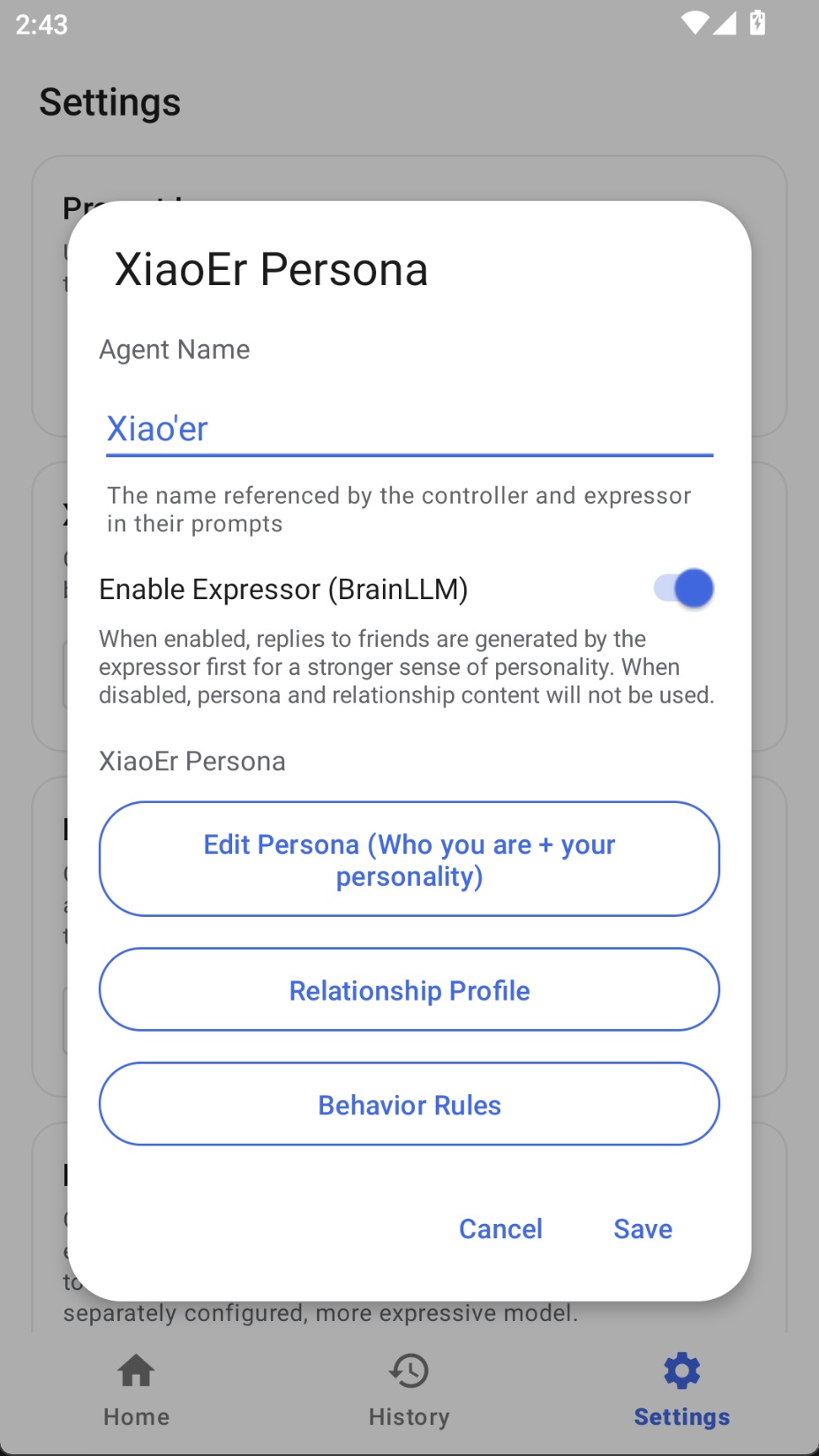
- 🎭 Optional Persona: Supports configuring separate prompts and models for persona, unlocking different personalities for Xiao'er
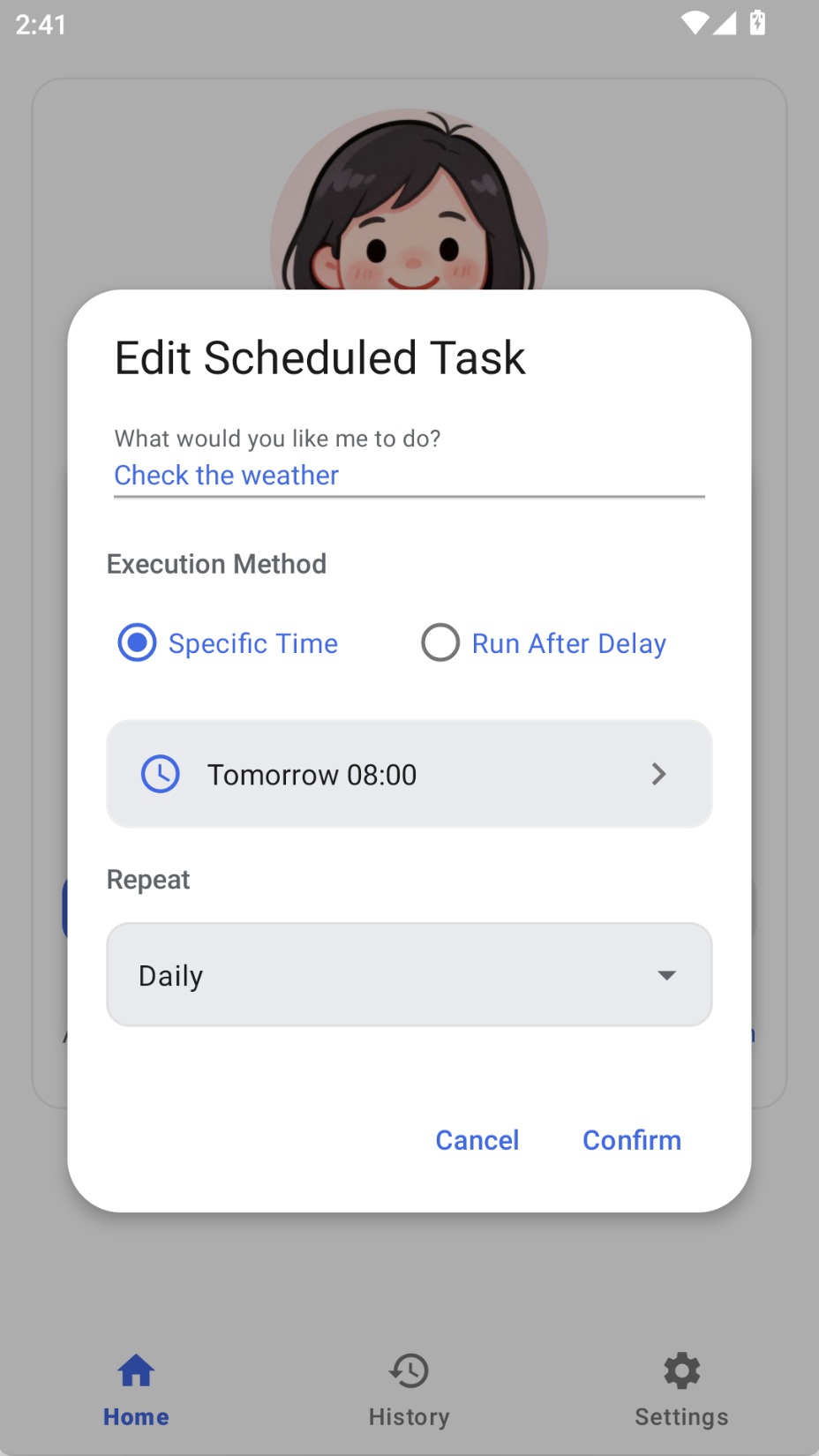
- ⏰ Scheduled Tasks: Supports timed task execution with repeat modes, auto wake screen
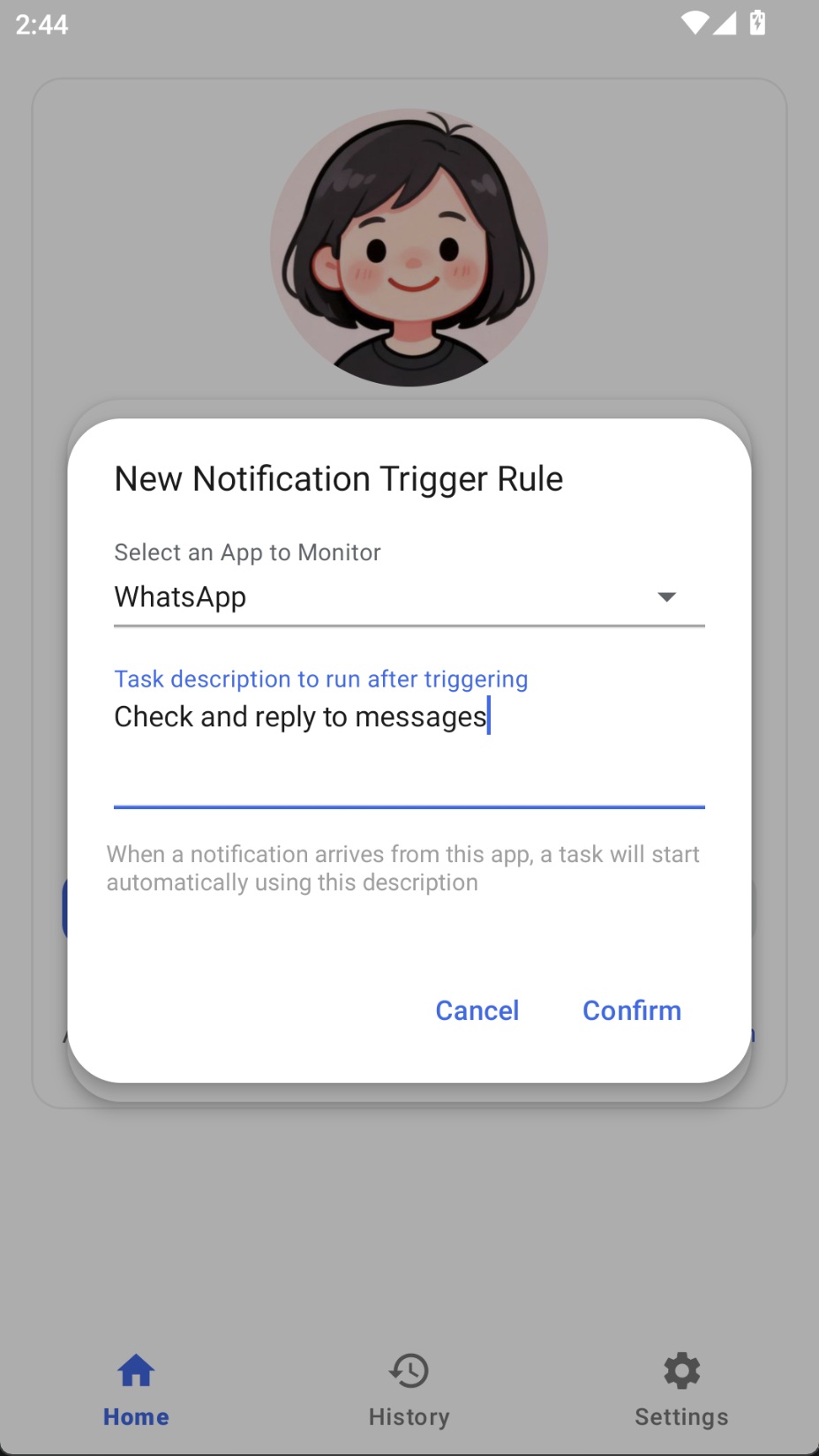
- 🔔 Notification Triggers: Monitors specified app notifications and auto-triggers preset tasks
- 📶 WeChat Remote Control: Connect via WeChat QR code scan to control Xiao'er remotely
- 🔒 Dual Control Backends: Supports Shizuku and Android Accessibility Service, with flexible switching in Settings
- 🪟 Floating Window Interaction: Floating window displays task execution progress in real-time
- 📱 Native Experience: Material Design, smooth native Android experience
- 🌐 Bilingual Support: Both the interface and built-in prompts support Chinese and English
- 🔌 Multi-Model Support: Compatible with any model API supporting OpenAI format and image understanding
📋 Features
Core Features
- ✅ Task Execution: Input natural language task descriptions, AI automatically plans and executes
- ✅ Screen Understanding: Screenshot → Vision model analysis → Output action commands
- ✅ Multiple Actions: Click, swipe, long press, double tap, text input, launch apps, etc.
- ✅ Task Control: Pause, resume, cancel task execution
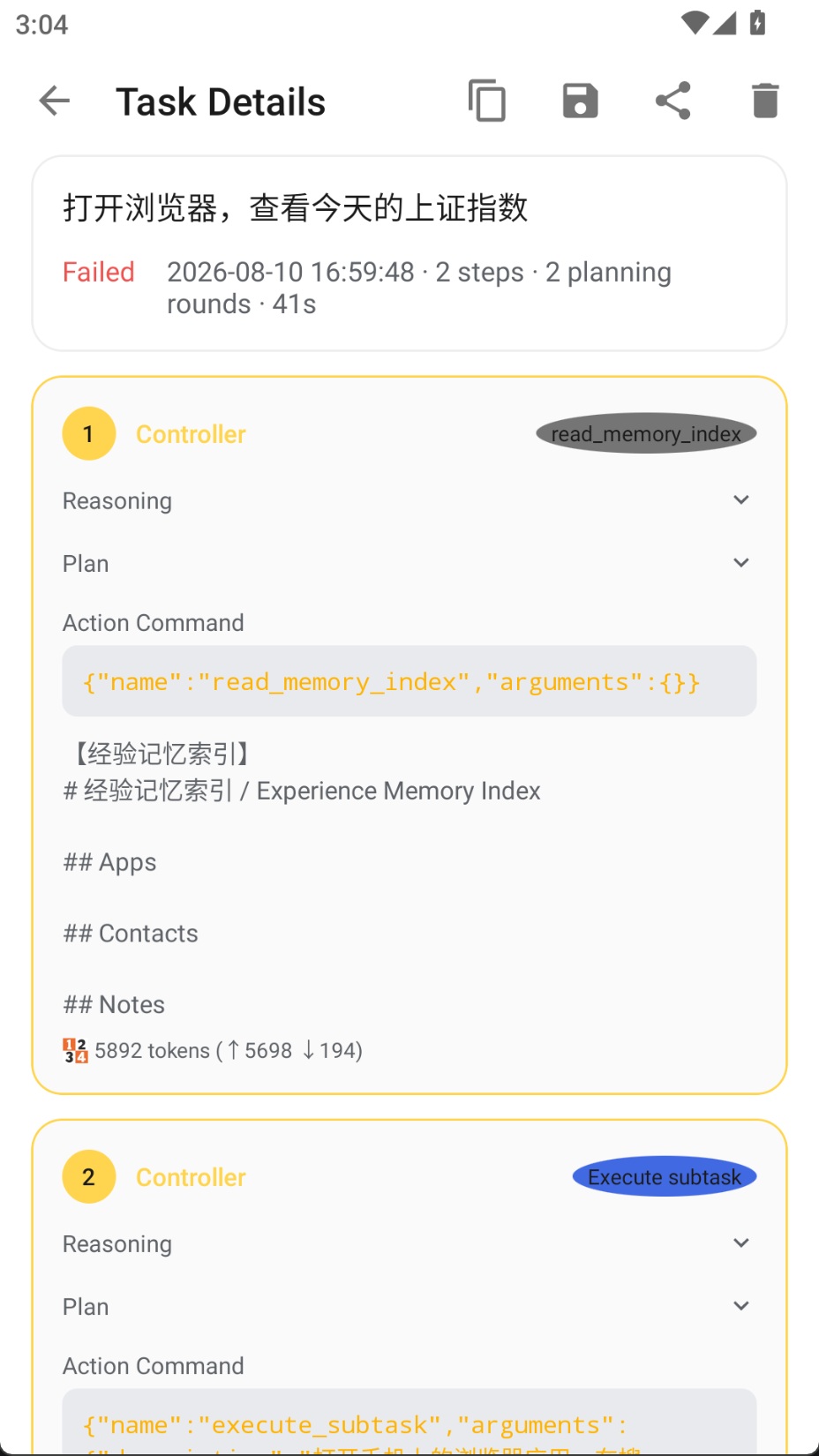
- ✅ History: Save task execution history, view details and screenshots; the model can also actively call tools to look back at history records during task execution
- ✅ Experience Memory: The Agent reads accumulated operation experience at the start of a task and writes new experience to the memory store upon completion; supports categorized storage by app, contact, and custom notes to continuously improve efficiency on repeated tasks
- ✅ Scheduled Tasks: Preset tasks to execute automatically at designated times, supporting one-time and repetitive tasks
- ✅ Notification Triggers: Monitor specific app notifications to automatically trigger corresponding tasks
- ✅ WeChat Remote Control (ClawBot): Connect via WeChat QR code scan, send commands remotely, receive task execution results, and query details or send follow-up instructions
- ✅ Persona Separation: The Controller (LLM Agent) focuses on task breakdown and tool dispatch; when Expresser (BrainLLM) is configured separately, it generates natural-language messages to friends or users, with persona and relationship context on the expresser side while the controller can stay in a neutral scheduling voice
- ✅ Expresser Wording (BrainLLM): When enabled, outgoing text can be polished via
request_brainusing persona and relationship archives; can use a different provider/model from the controller, e.g. a text model better at dialogue and role-play - ✅ Data Migration: Import and export personas, prompts, scheduled tasks, MCP configurations, and other data for easy migration between phones (API keys and other sensitive information are not exported)
User Interface
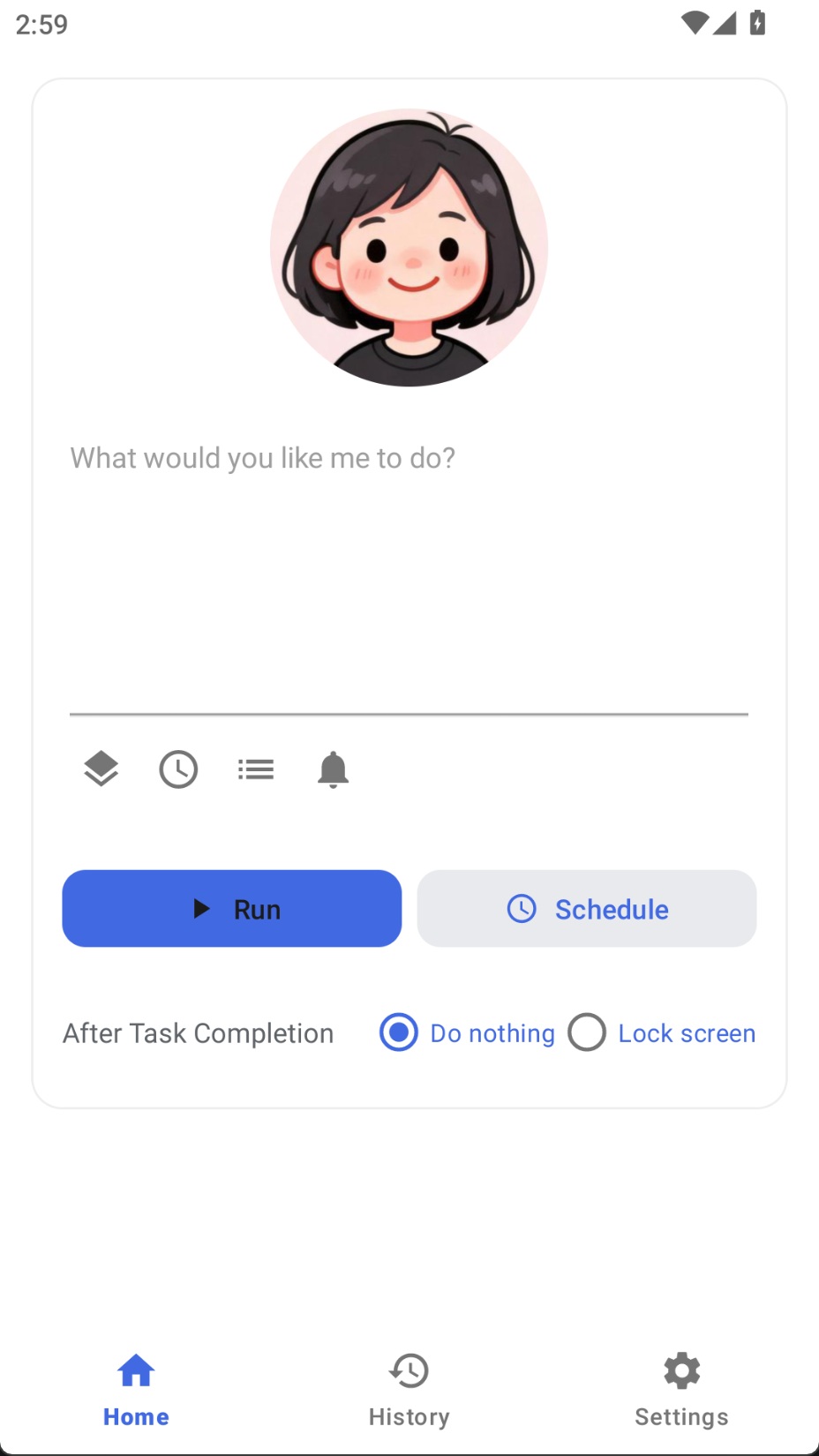
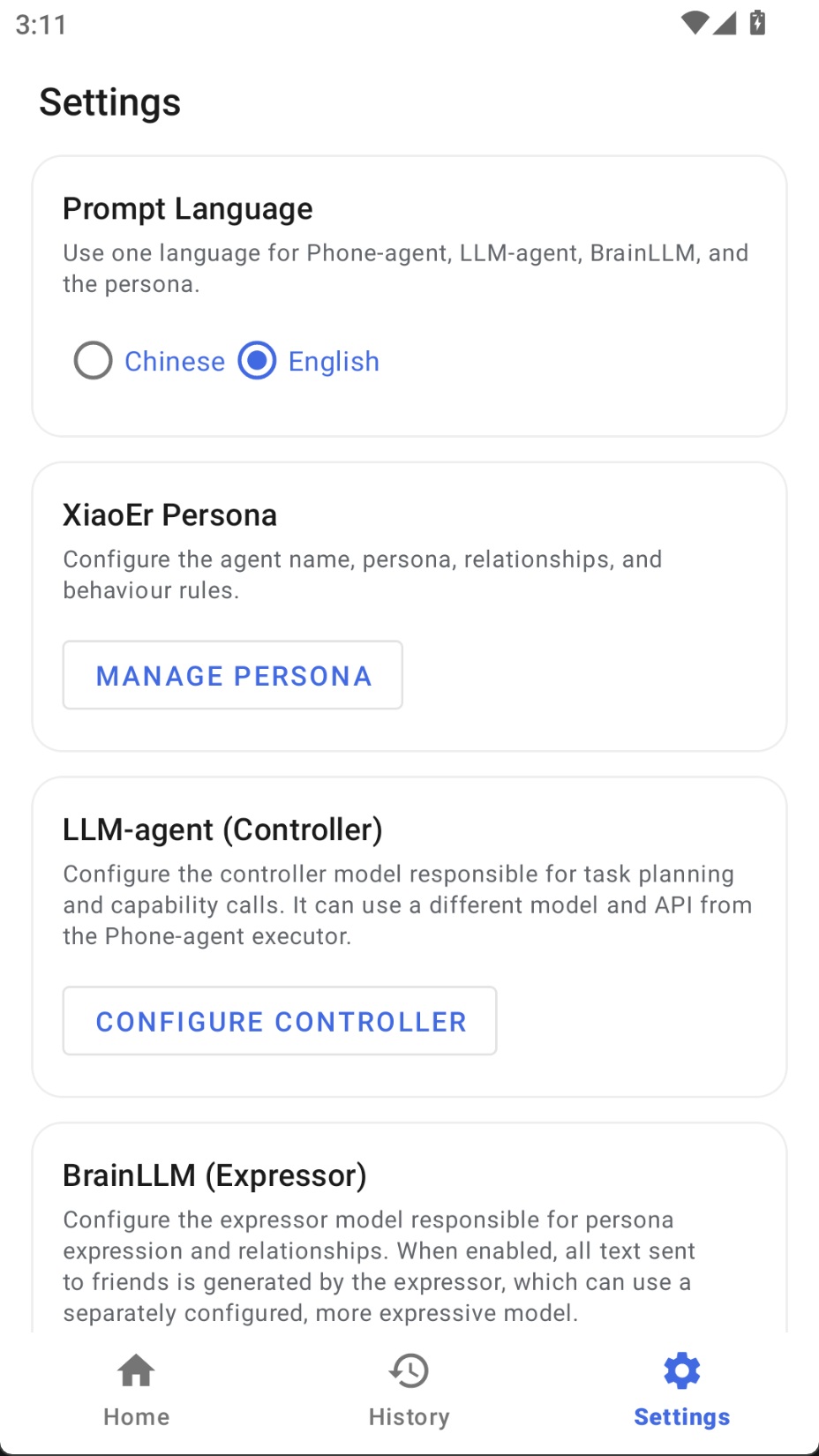
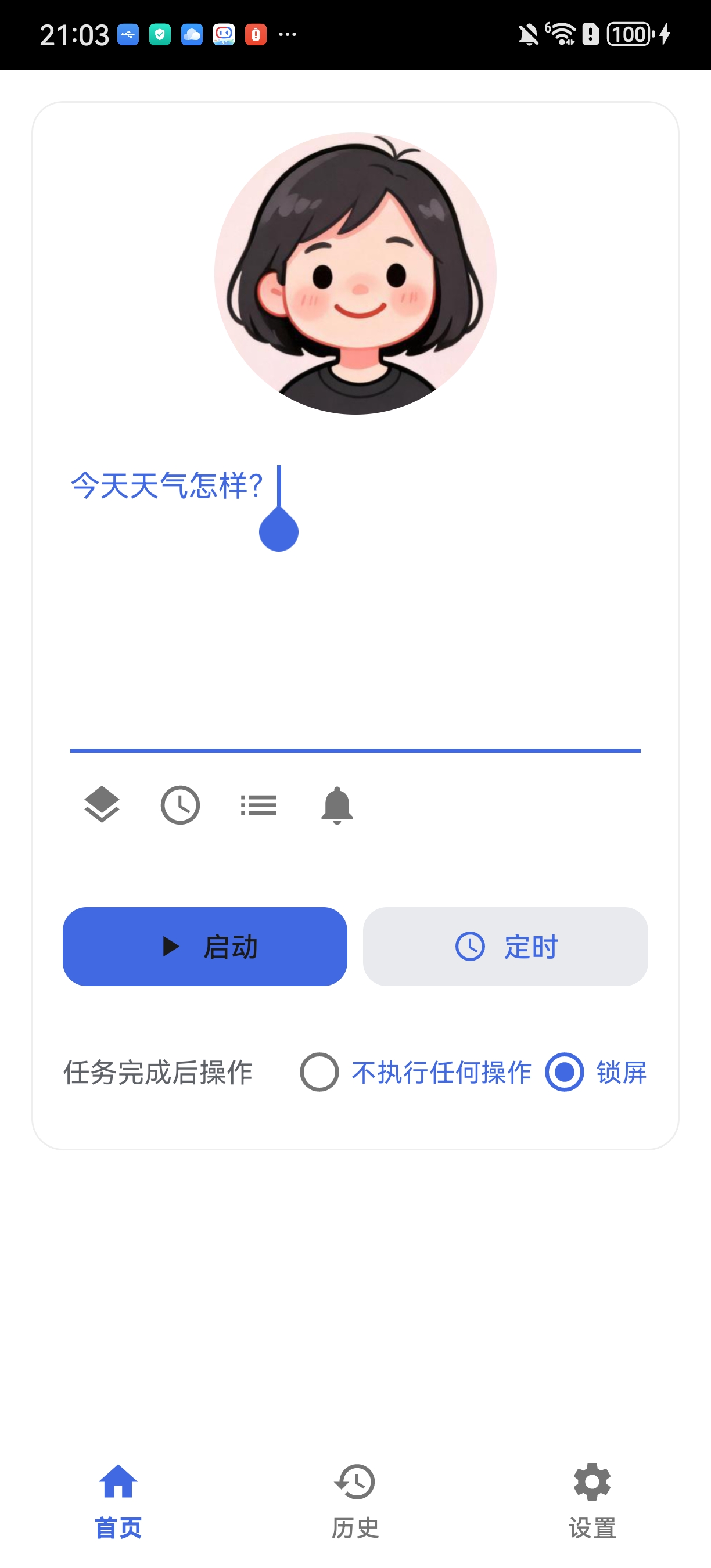
- ✅ Main Screen: Task input, status display, quick actions
- ✅ Floating Window: Real-time display of execution steps, thinking process, action results
- ✅ Settings Page: Model configuration, Agent parameters, multi-profile management
- ✅ History Page: Task history list, detail view, screenshot annotations
Advanced Features
- ✅ Multi-Model Configuration: Support saving multiple model configuration profiles for quick switching
- ✅ Custom Prompts: Support custom system prompts
- ✅ Quick Tile: Notification bar quick tile, fast access to floating window
- ✅ Log Export: Export debug logs with automatic sensitive data sanitization
📱 Requirements
- Android Version: Android 7.0 (API 24) or higher
- Control Method (choose one):
- Shizuku: Install and activate Shizuku for more complete system-level controls
- Accessibility Service: No additional app required; enable "Accessibility → Auto Xiao'er" in system Settings
- Network: Connection to model API service (supports any OpenAI-compatible vision model)
- Permissions:
- Overlay permission (for floating window)
- Network permission (for API communication)
- Background running permission (for background task execution)
- Shizuku permission (required when using the Shizuku backend, for system operations)
- Accessibility Service permission (required when using the Accessibility backend, for taps, swipes, text input, and other screen operations)
- Notification listening permission (optional, for notification trigger feature)
🚀 Quick Start
Step 1: Choose a Control Method
Auto Xiao'er supports both Shizuku and Android Accessibility Service. Choose either method for setup, and switch between them any time in Settings.
Option A: Shizuku Control (Optional)
Shizuku provides more complete system-level controls, making it suitable for tasks that need key events such as volume or power buttons.
Download and Install
Activation Methods (Choose One)
| Method | Use Case | Persistence |
|---|---|---|
| Wireless Debug | Recommended, no PC needed | Re-pair after reboot |
| ADB Connection | When PC is available | Re-execute after reboot |
| Root Permission | Rooted devices | Permanent |
Wireless Debugging Activation Steps (Recommended)
- Connect to any WiFi network
- Go to phone "Settings" → "Developer Options"
- Enable "Wireless Debugging"
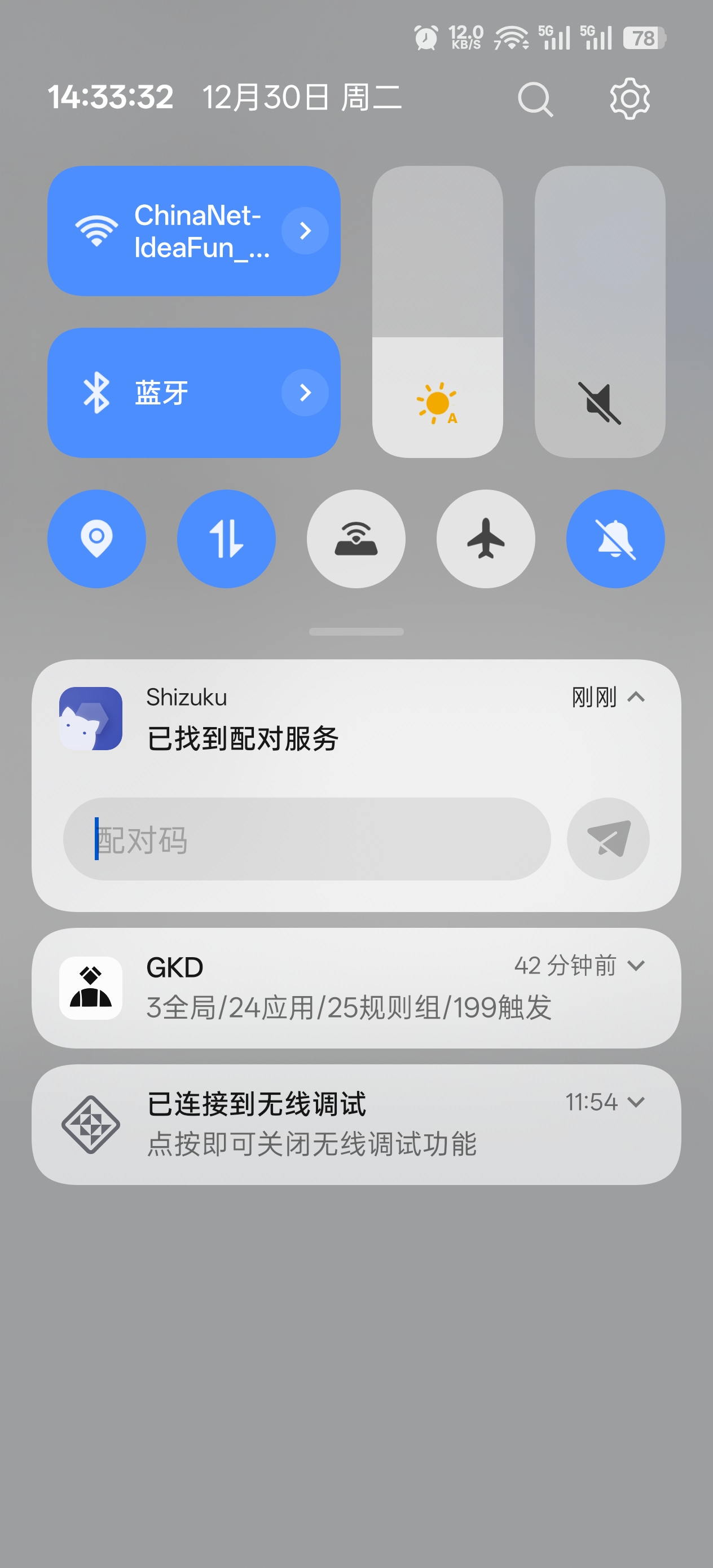
- Tap "Pair device with pairing code"
- Wait for Shizuku notification to appear, enter the pairing code in the notification
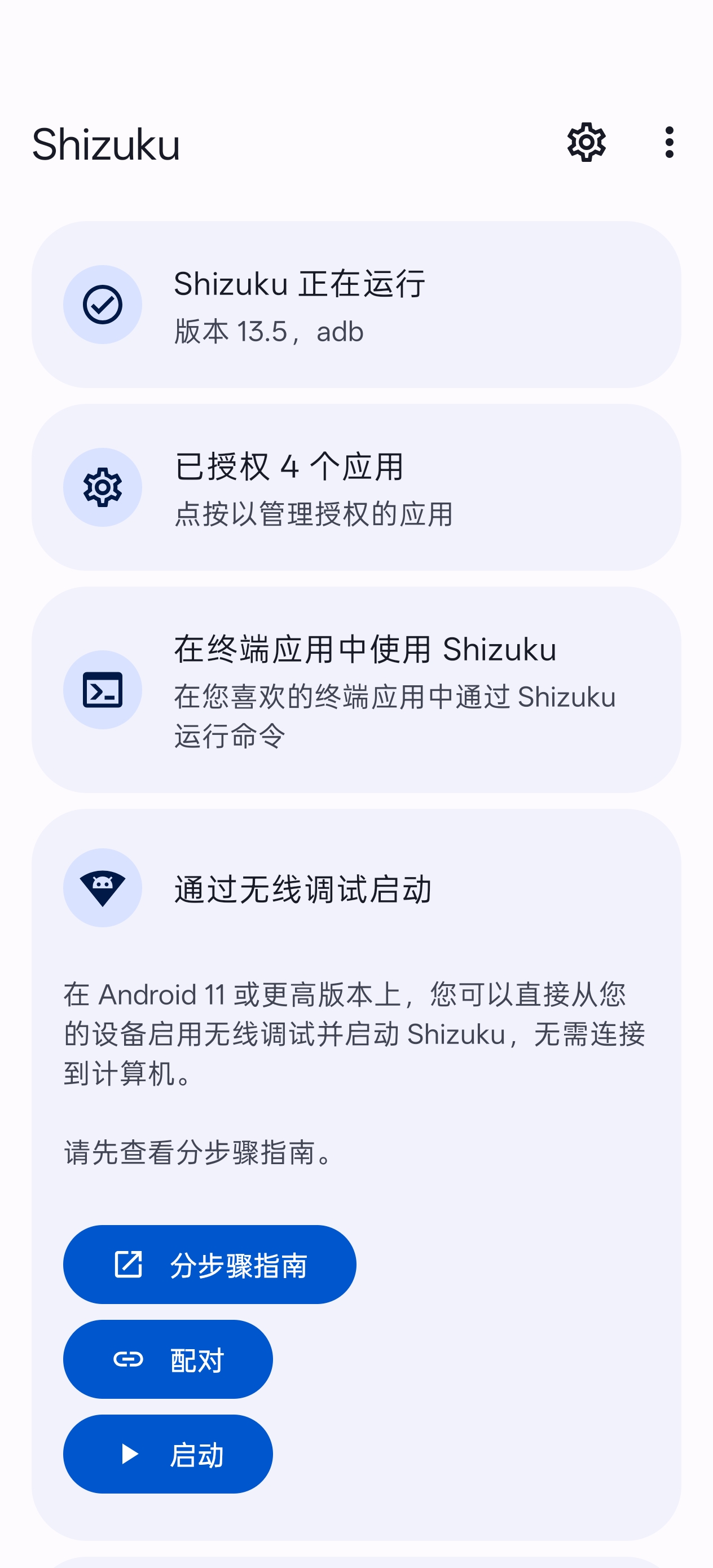
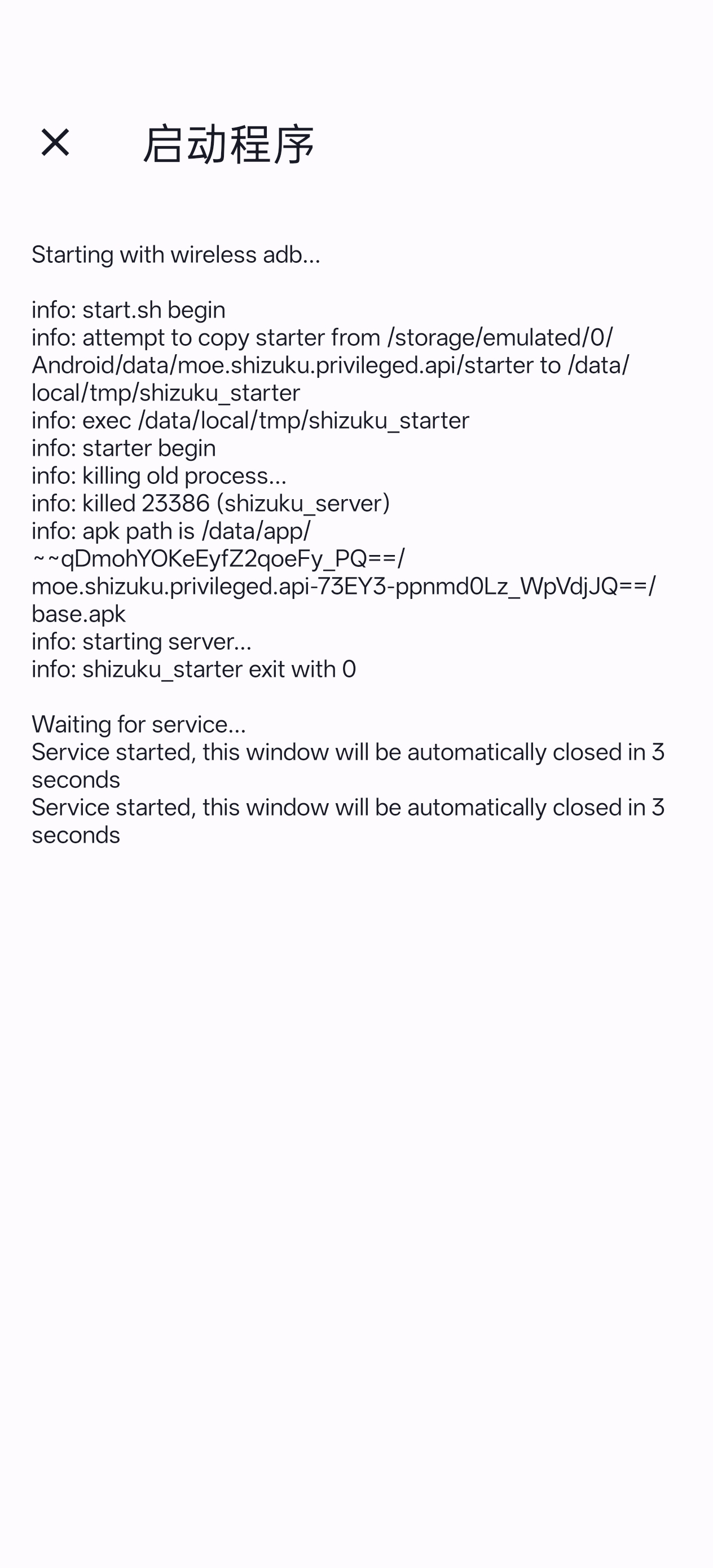
- Open Shizuku and tap "Start", wait for it to complete
- When Shizuku shows "Running", activation is successful
 |
 |
 |
 |
 |
 |
💡 Tip: If you can't find Developer Options, go to "About Phone" and tap "Build Number" multiple times to enable it.
Option B: Accessibility Control (Recommended for Quick Setup)
No Shizuku installation is required. In your phone's "Settings" → "Accessibility", find "Auto Xiao'er" and enable its Accessibility Service.
Control Method Comparison
| Method | Advantages | Notes |
|---|---|---|
| Shizuku | More complete system-level controls, including volume and power key events | Requires installing and activating Shizuku; wireless-debugging activation must be restarted or paired again after a reboot |
| Accessibility Service | No additional app or ADB required; usable as soon as the service is enabled | Does not support volume-key injection; power operations lock the screen |
Step 2: Install Auto Xiao'er
- Download the latest APK from Releases Page
- Install the APK and open the app
Step 3: Grant Required Permissions
After opening the app, grant the following permissions in order:
| Permission | Purpose | Action |
|---|---|---|
| Shizuku Permission (when using Shizuku) | Execute system-level screen operations | Tap "Authorize" → Always Allow |
| Accessibility Service permission (when using Accessibility) | Execute taps, swipes, text input, and other screen operations | Go to system "Accessibility" → Enable "Auto Xiao'er" |
| Overlay Permission | Display task execution window | Tap "Authorize" → Enable toggle |
| Keyboard Permission | Input text content | Tap "Enable Keyboard" → Enable Xiao'er Keyboard |
 |
 |
 |
💡 Tip: If overlay permission cannot be granted, go to app details page, tap "Menu (top right)" → Allow restricted settings, then try granting overlay permission again.
Step 4: Configure Model Service
Go to "Settings" page and configure the AI model API.
This app uses a dual-model, dual-agent architecture, with an optional standalone Expresser (BrainLLM):
| Role | Responsibility | Recommended Model |
|---|---|---|
| LLM Agent (Controller) | Receives user tasks, performs high-level planning via ReAct loop, breaks complex tasks into sub-tasks, and can review sub-task results using screenshots | A multimodal LLM with image understanding is recommended |
| Phone Agent (Executor) | Awaits sub-tasks, analyzes screenshots and executes actions | Vision model with image understanding (e.g. autoglm-phone) |
| BrainLLM (Expresser · optional) | Persona expression, relationships, and human-facing wording; when enabled, outgoing messages can be generated solely by the expresser | Pure text LLM (same or different provider as the controller; models strong at role-play and dialogue, e.g. doubao-seed-2.0) |
Phone Agent (Executor) and LLM Agent (Controller) APIs are always configured independently; the Expresser is a third independent endpoint, off by default and participates in wording once enabled in Settings.
Phone Agent Configuration (Vision Model)
Recommended Configuration (Zhipu BigModel) 🎉 autoglm-phone model is currently FREE!
| Setting | Value |
|---|---|
| Base URL | https://open.bigmodel.cn/api/paas/v4 |
| Model | autoglm-phone |
| API Key | Get from Zhipu AI Open Platform |
Alternative Configuration (ModelScope)
| Setting | Value |
|---|---|
| Base URL | https://api-inference.modelscope.cn/v1 |
| Model | ZhipuAI/AutoGLM-Phone-9B |
| API Key | Get from ModelScope |
After configuration, tap "Test Connection" to verify the settings.
LLM Agent Configuration (Controller · Planning LLM)
Go to Settings → LLM Agent Configuration to set up the controller's large language model:
| Setting | Description |
|---|---|
| Base URL | OpenAI-compatible API endpoint |
| Model | Any OpenAI-compatible LLM; a multimodal model with image understanding is recommended |
| API Key | API key for the corresponding service |
| Max Planning Steps | Maximum ReAct iterations for the LLM loop, default 20 |
| Custom System Prompt | Overrides the built-in controller prompt to tune behaviour |
💡 LLM Agent config is strictly independent from Phone Agent config — any OpenAI-compatible LLM can be used.
Under Advanced Settings, enable Phone-agent Screenshot Review to have the LLM Agent check the final Phone Agent screenshot after each sub-task, improving task success rates. Choose either "Review on Failure" or "Review Every Round"; this feature requires visual input support and increases token usage.
BrainLLM Configuration (Expresser)
Go to Settings → Configure Expresser (BrainLLM) (or use the expresser toggle under persona settings) for the wording model that works with persona and relationship archives. Fully decoupled from LLM Agent (Controller) — different Base URL, model, and API key are supported.
| Setting | Description |
|---|---|
| Enable Expresser | When off, human-facing text is generated by the controller model; when on, the controller must obtain expresser output via request_brain before filling send-related actions |
| Base URL | OpenAI-compatible API root (/chat/completions) |
| Model | Pure text model name (e.g. glm-4-plus) |
| API Key | API key for this service (can differ from controller and Phone Agent) |
| Max Tokens / Temperature | Limits expresser output length and sampling randomness |
| Custom System Prompt | When set, overrides the built-in expresser prompt for persona and speaking style |
💡 Persona, relationships, and behavior rules are maintained under Manage Persona; expresser prompts work with them for control vs. wording separation.
 |
Using Other Third-Party Models:
Any model service can be used as long as it meets the following requirements:
- API Format Compatible: Provides OpenAI-compatible
/chat/completionsendpoint - Multi-modal Support: Supports
image_urlformat for image input - Image Understanding: Can analyze screenshots and understand UI elements
Phone Agent (Executor) must meet all requirements above. LLM Agent (Controller) only needs requirement 1; it must also meet requirements 2 and 3 when Phone-agent Screenshot Review is enabled in Advanced Settings to receive and review screenshots. BrainLLM (Expresser) also only needs requirement 1 (standard text chat).
⚠️ Note: Non-AutoGLM models may require custom system prompts to output the correct action command format. You can customize system prompts in Settings → Advanced Settings.
Step 5: Start Using
- Enter a task description on the main screen, e.g., "Open WeChat and send a message to File Transfer: test"
- Tap "Start Task" button
- The floating window will automatically appear, showing execution progress
- Watch the AI's thinking process and execution actions
⚠️ Security & Privacy Risks
Please read the following risks carefully before using this app:
Safety Limits Are Prompt-Based
The app's safety restrictions (e.g. refusing to perform dangerous actions) are implemented via AI model system prompts, not hard-coded constraints. This means:
- Prompts can potentially be bypassed by carefully crafted task descriptions (i.e. "prompt injection" attacks)
- Different models vary in how strictly they follow the same prompt
- Do not use this app for high-risk scenarios involving sensitive accounts, financial transactions, or private data
Model API Data Security
- All AI features in this app are powered exclusively by third-party model APIs configured by the user
- The app itself does not collect, upload, or store any user data or screenshots
- Screenshots taken during task execution are sent to your configured model service provider via the API you set up
- Ensure you trust the model service provider you use, and review their privacy policy carefully
Usage Recommendations
- 🔒 Sensitive screens (payment pages, password fields, etc.) trigger system protection and appear as black screenshots
- 👀 When executing tasks involving sensitive operations, keep an eye on the screen and be ready to intervene manually
- 🔑 Do not include passwords, verification codes, or other sensitive information in task descriptions
User Guide && FAQ
📞 Contact
- Email: [email protected]
⭐ Star History
📄 License
This project is licensed under MIT License.
🙏 Acknowledgments
- AutoGLM-For-Android - Luokavin's open-source project
AutoGLM For Android is based on Open-AutoGLM — it transforms the original computer + ADB phone automation into a standalone app running entirely on the phone.
- Open-AutoGLM - Original open-source project
- Shizuku - System permission framework
- Zhipu AI - AutoGLM model provider
If this project helps you, please give it a ⭐ Star!
How Shizuku is used
Can visually operate other apps via taps, swipes, key presses, text entry, app launches and screenshots through Shizuku shell commands in backticks.
This is an AI-assisted analysis of Shizuku-related usages in the app's public source code. It is best effort, so it may not catch every single usage.
How this app uses Shizuku
Shizuku lets the on device AI agent see the screen and operate the phone on the user's behalf.
- Tap and gesture control: the agent taps, double taps, long presses and swipes at positions it chooses on screen using the
input tap,input swipeand low level touch event commands through Shizuku. - Press system buttons: the agent goes back, goes home, adjusts volume, toggles power and wakes the screen using the
input keyeventcommand through Shizuku. - Launch and detect apps: the agent opens apps by package name and checks which app is in the foreground using activity launch and window status commands through Shizuku.
- Type text automatically: text from the automated task is entered into the focused field by switching keyboards and sending it to the helper keyboard using input method and broadcast commands through Shizuku.
- See the screen: each automation step captures what is on screen for the agent to decide the next action using the
screencapcommand through Shizuku.
Android APIs or commands used
input tapinput swipeinput keyeventsendeventgeteventusleeppm resolve-activityam startdumpsys windowscreencap -pbase64cattailheadstattimeoutrm -ftest -eime list -sime enableime setsettings get secure default_input_methodam broadcast
Notable details
The same automation can run without Shizuku using the accessibility control backend when that service is enabled.
Changelog
What's new for version 1.0.21
20260907 release_v1.0.22
- 新增 MCP 功能
- 内置高德 MCP
- 支持自定义添加 MCP 服务
- ClawBot 对话能力优化
- 支持追加引导或问询
- 支持查看详细步骤
- Added MCP feature
- Built-in Gaode MCP
- Supports custom addition of MCP services
- ClawBot conversation ability optimized
- Supports adding guidance or inquiries
- Supports viewing detailed steps

Permissions
16 permissions requested
More from this category
 Operit AI
 AndroidHarness
 Minis
Minis
 OpenDroid
 Agent
Agent
 Aether
 ClawGUI
 rish-mcp
 Zafiro
 小万
小万
 Ruto
Ruto
 OpenCyvis