 ShizuStore

AppManagerNG
0.8.0 · GitHub
More about this app
Fork of [AppManager](https://github.com/muntashirakon/appmanager) to inspect, debloat, back up, freeze and control Android apps; works with Shizuku, ADB, Dhizuku or root.

AppManagerNG
Understand every installed package. Take back control when you need it.
AppManagerNG brings package inspection, debloating, backups, permissions, and advanced Android tools into one app. Start without root, then choose a privileged mode when you need deeper access.





If AppManagerNG helps you understand or fix an Android device, a coffee helps me keep it tested and maintained.
Download the full APK • All release files • Report a problem

Android package control without the guesswork
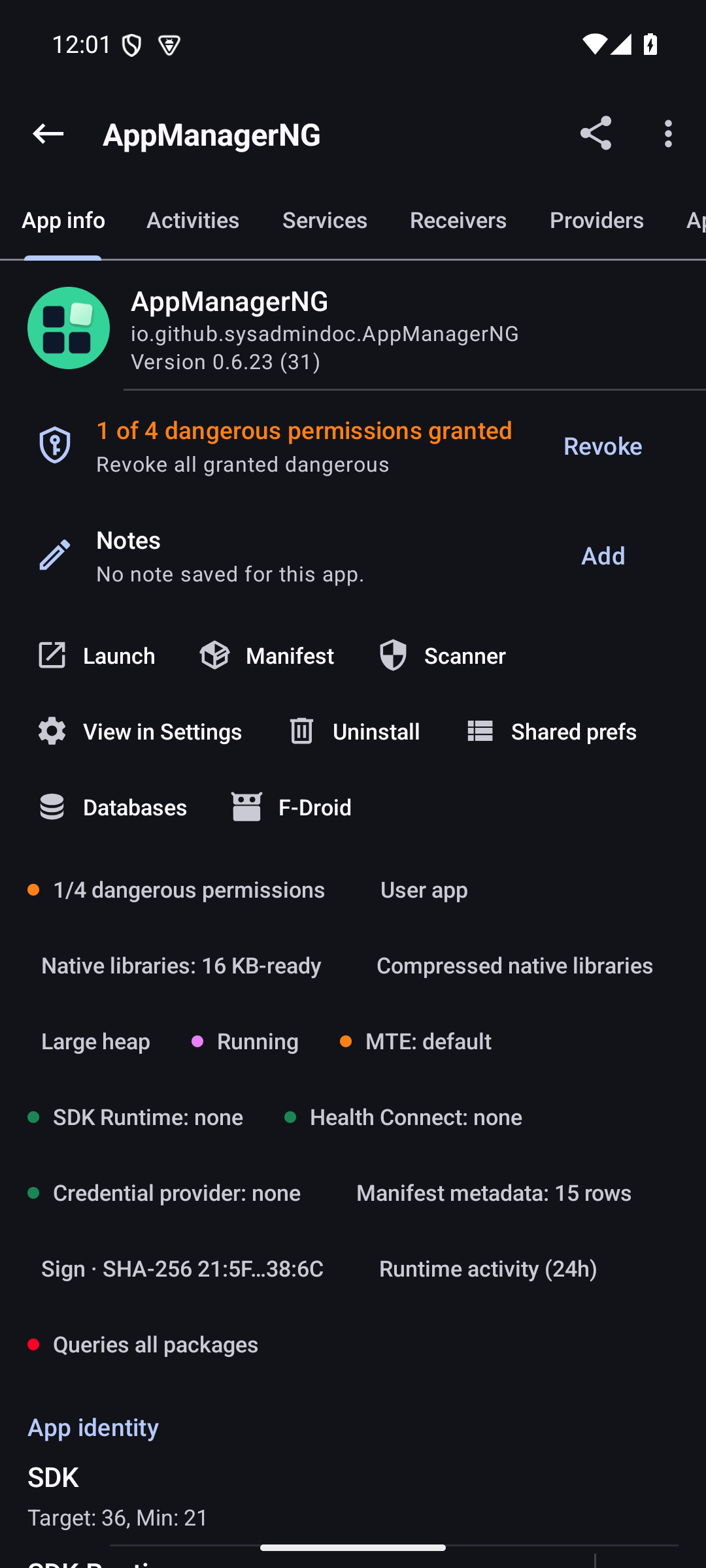
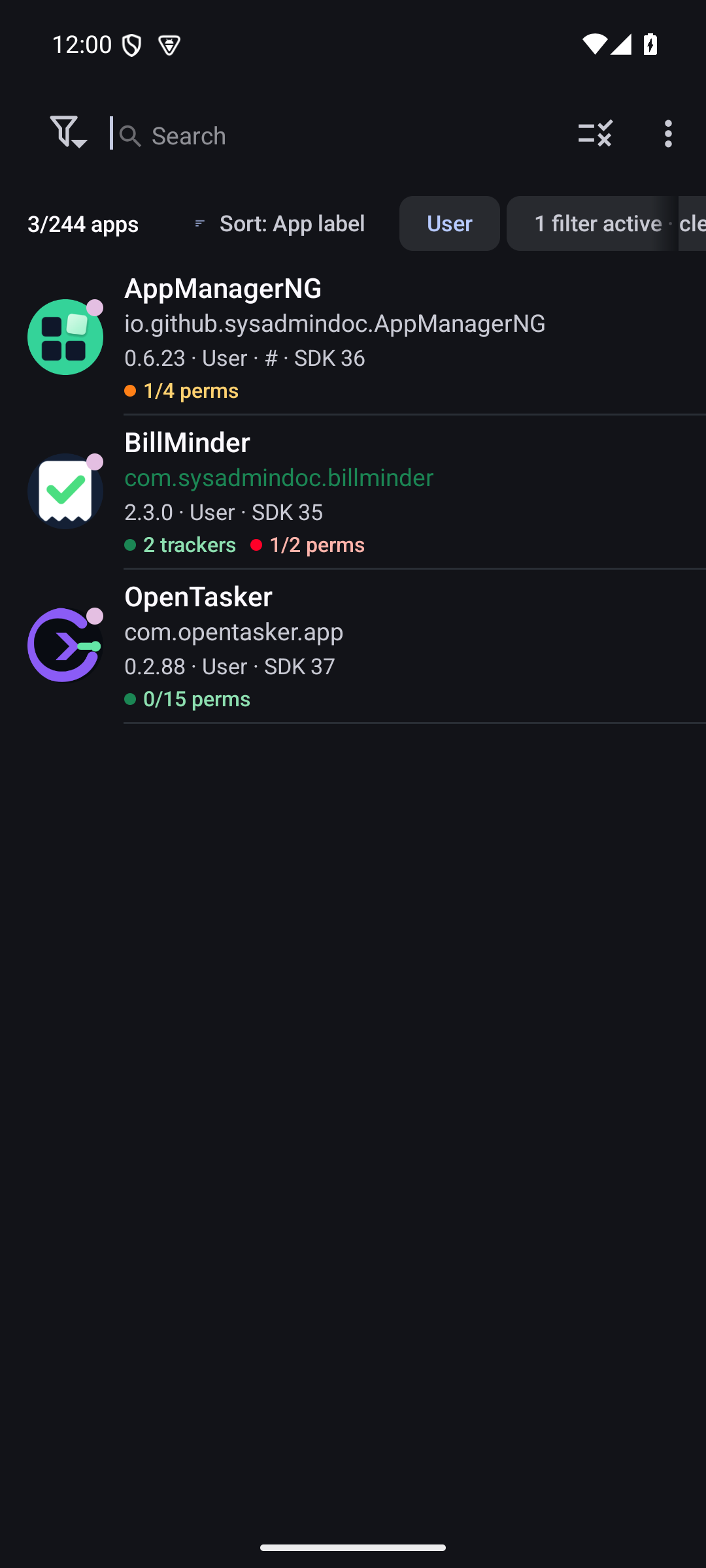
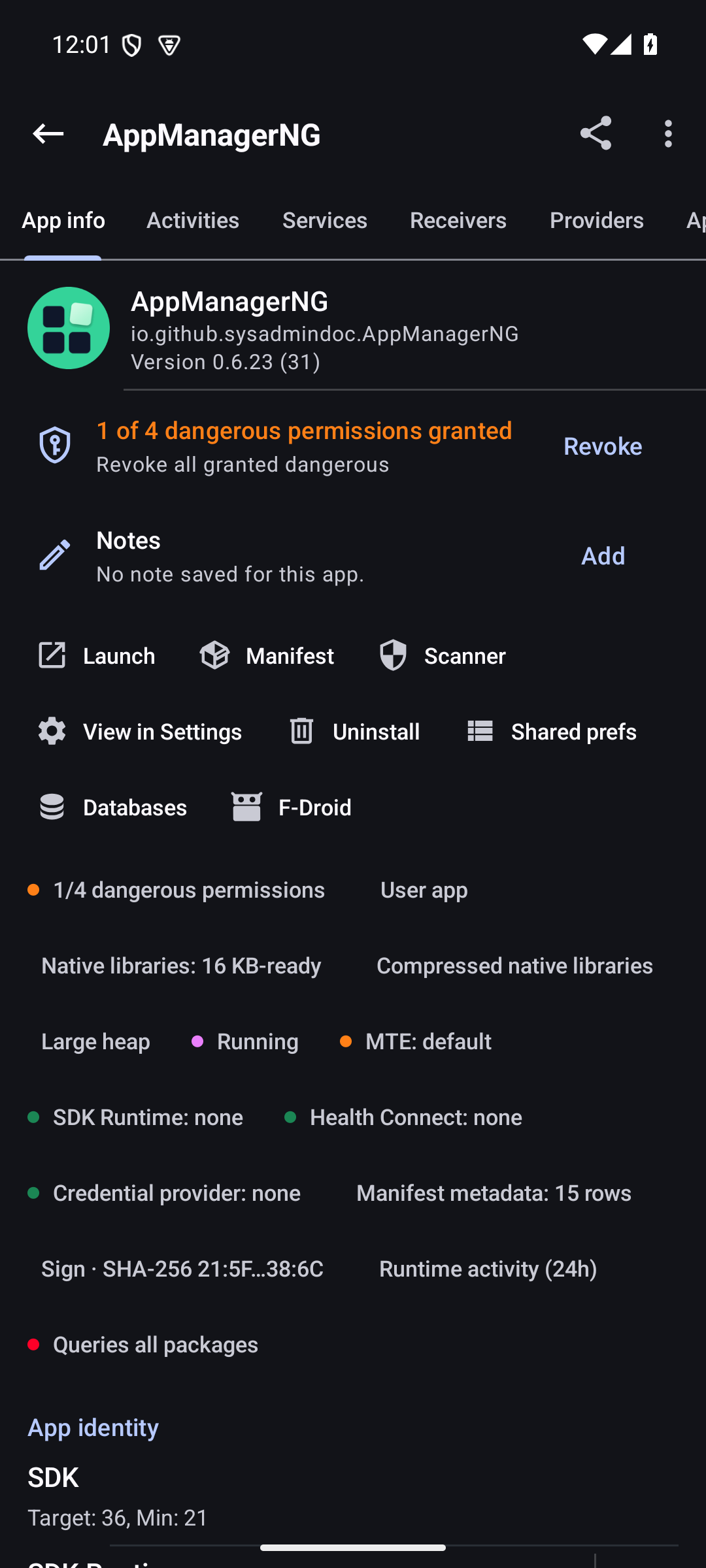
Android exposes only a small part of each installed app. AppManagerNG gives you the fuller picture: components, permissions, AppOps, trackers, signatures, storage, usage, native libraries, and the package manifest. Actions show what will change before they run, and the app records enough detail to make failures understandable.
It is built for people who maintain their own devices, troubleshoot apps, or want a safer way to remove vendor clutter. There are no ads, analytics, telemetry, or bundled tracking SDKs.
A closer look


Why people use it
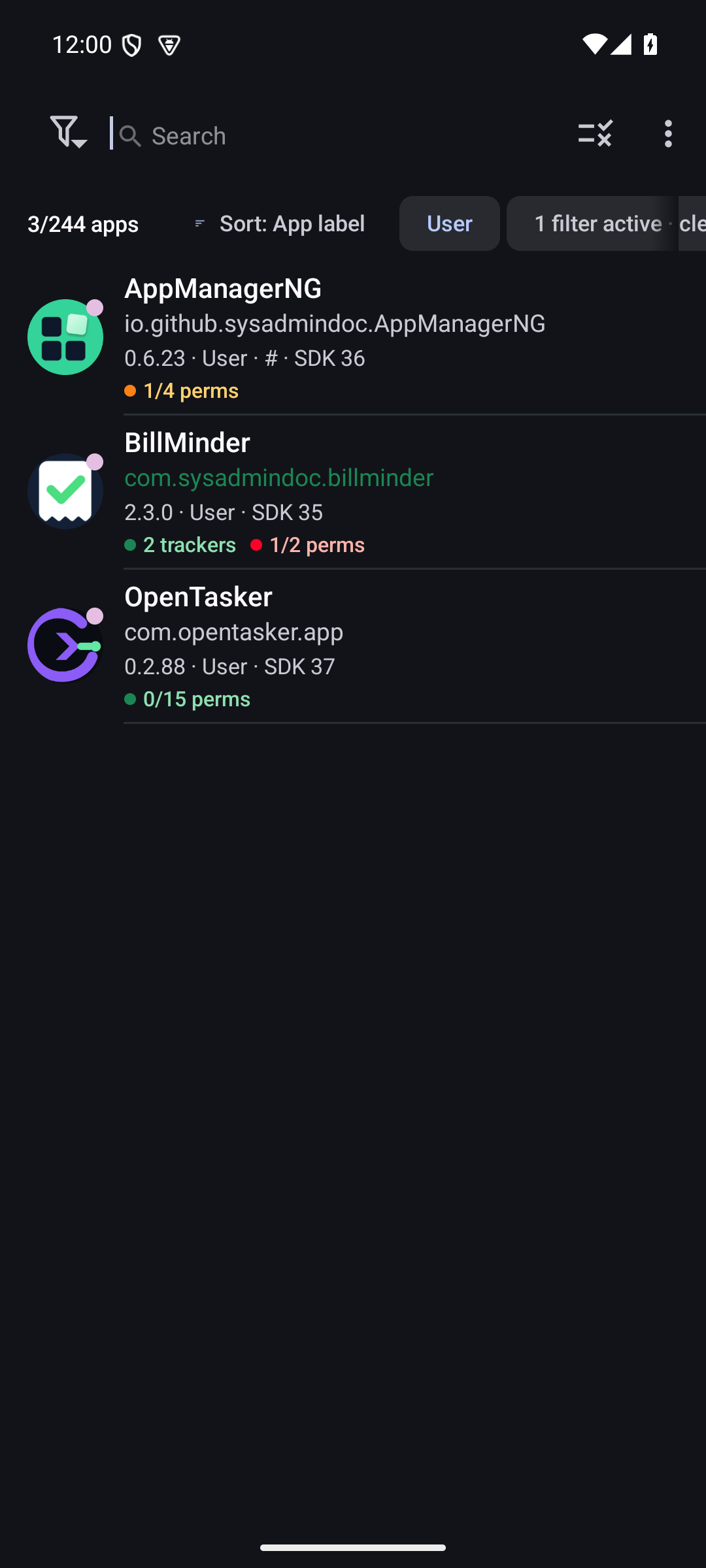
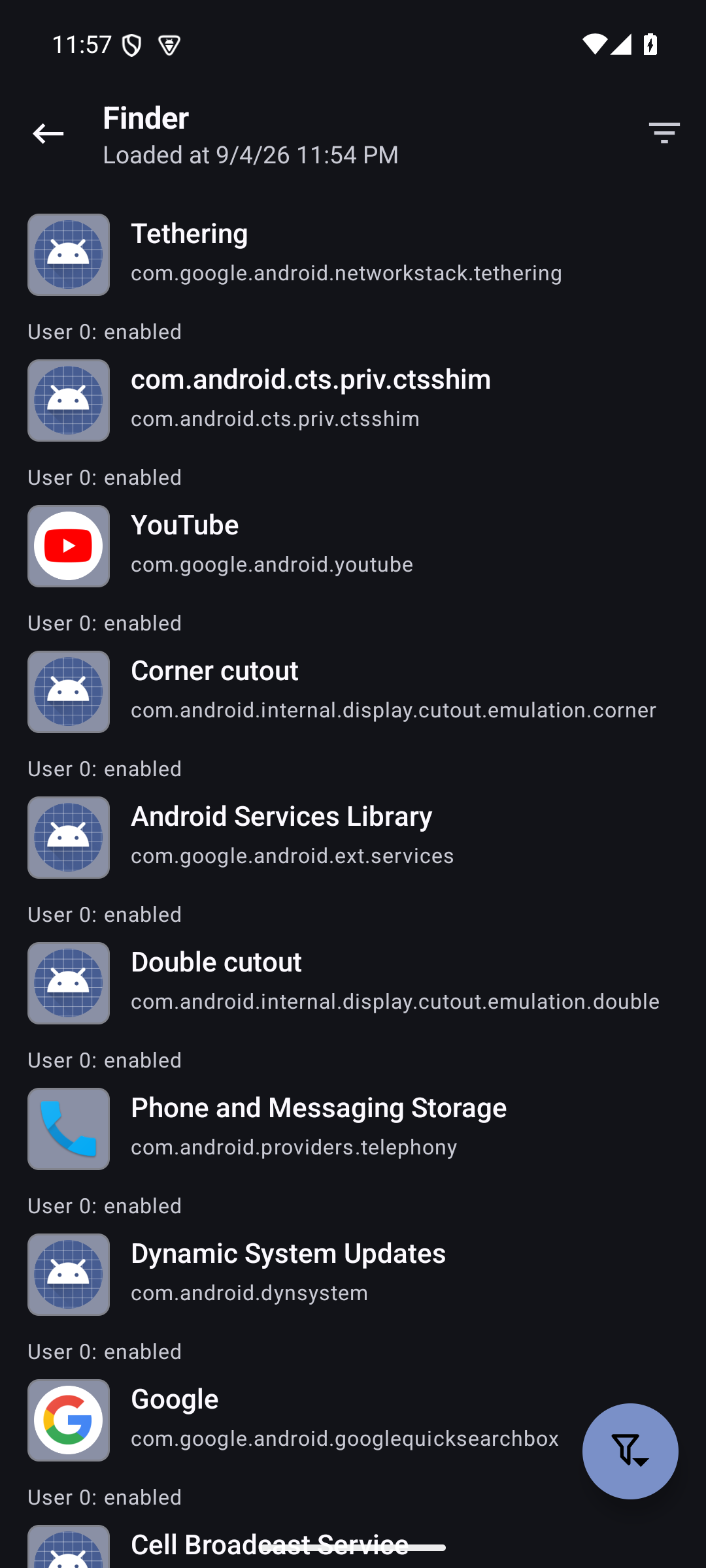
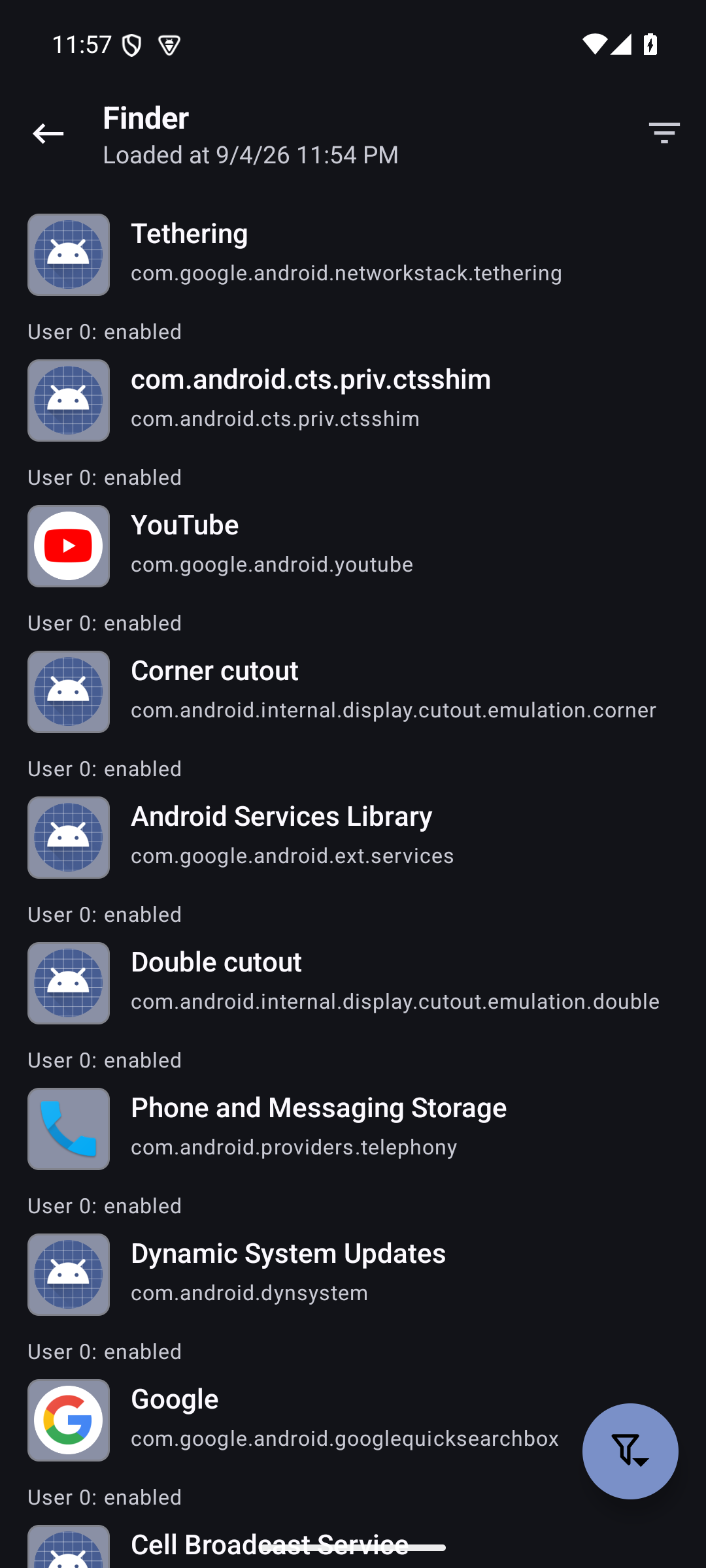
- Find the odd app fast. Finder combines package state, permissions, trackers, SDK level, installer, signature, storage, backup state, and native-library readiness in reusable queries.
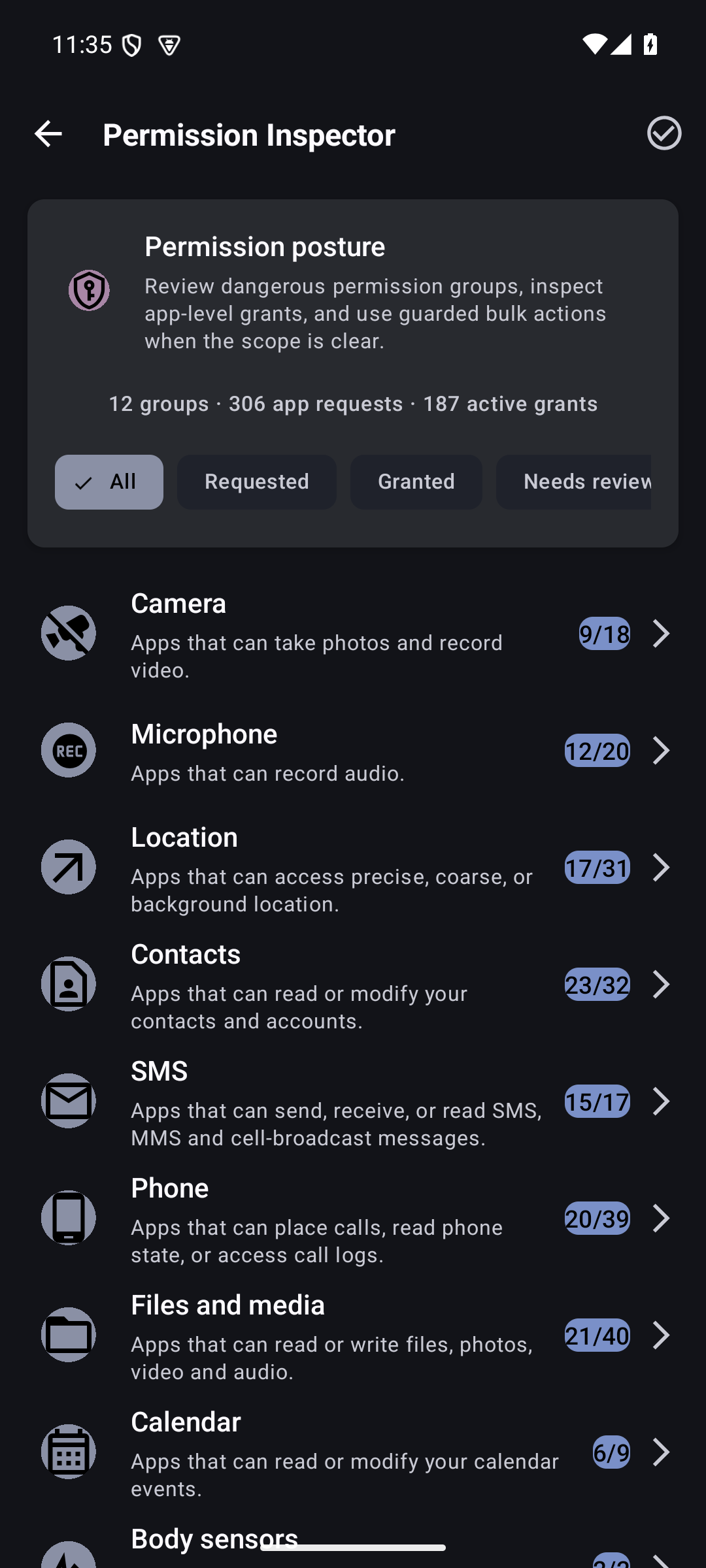
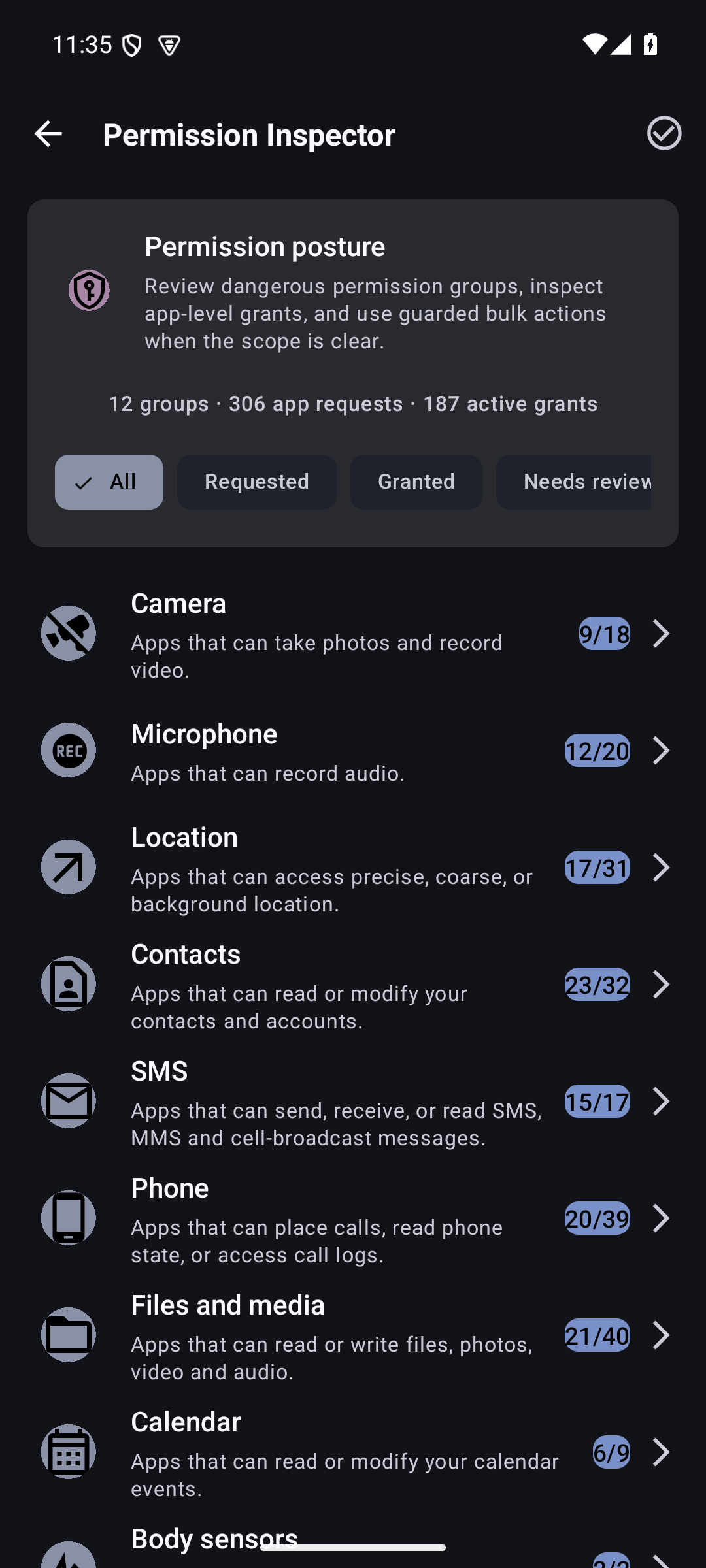
- Review access by permission. Permission Inspector starts with Camera, Location, Contacts, Notifications, and other sensitive groups, then shows every app holding that access.
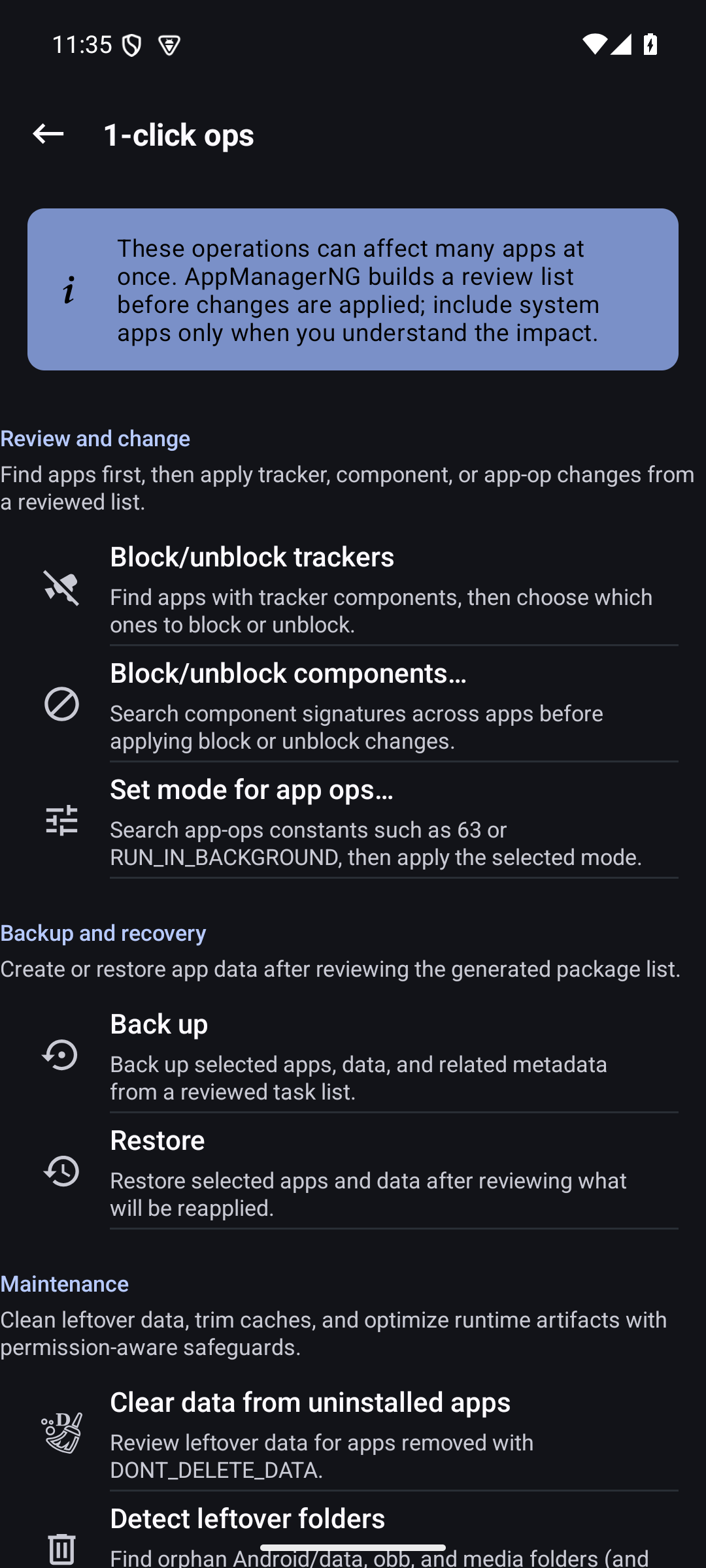
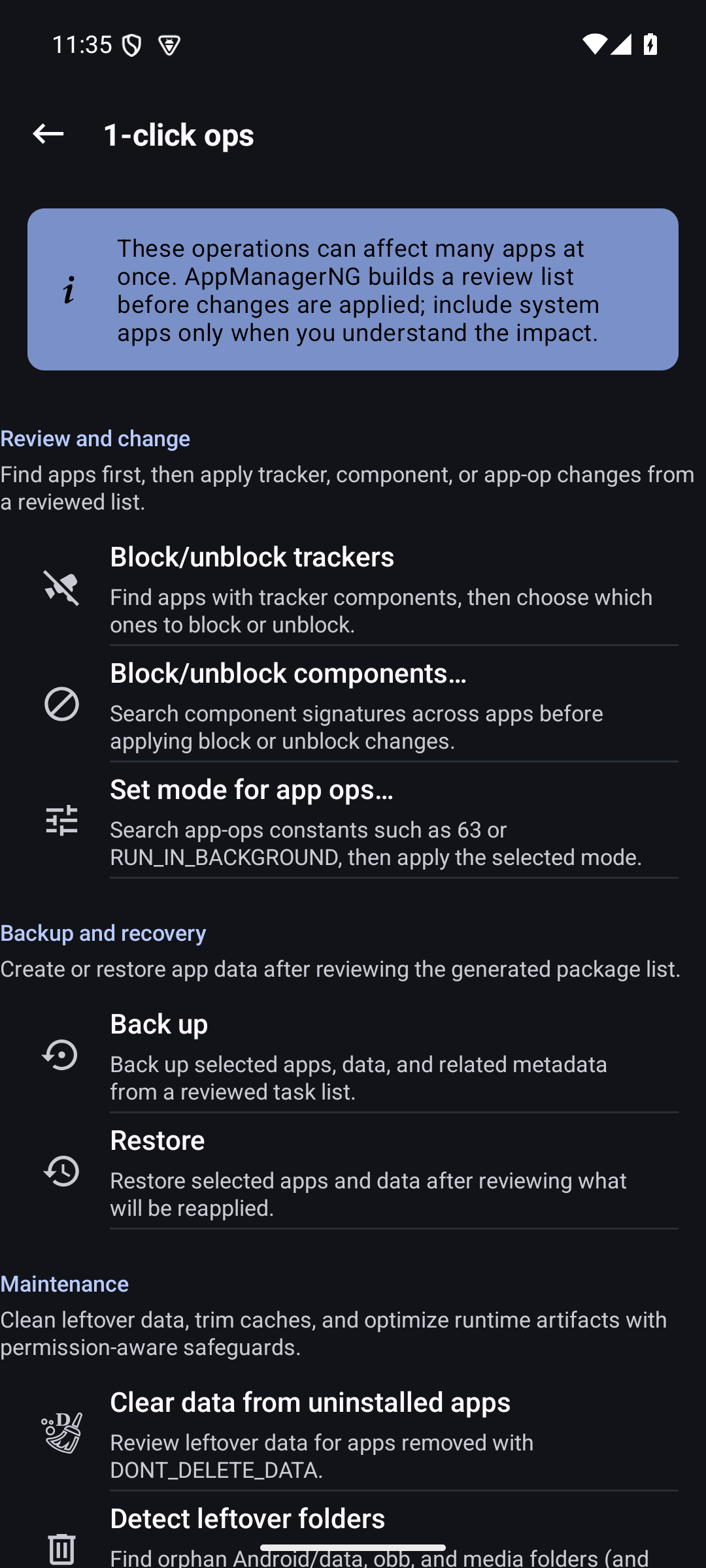
- Make careful changes at scale. One-click operations and profiles preview the selected packages before freezing, uninstalling, clearing, backing up, or applying rules.
- Keep recovery options. Back up APKs and app data where the selected access mode permits it. Encrypted snapshot bundles can carry rules, profiles, and preferences to another device.
Pick the access mode that fits your device
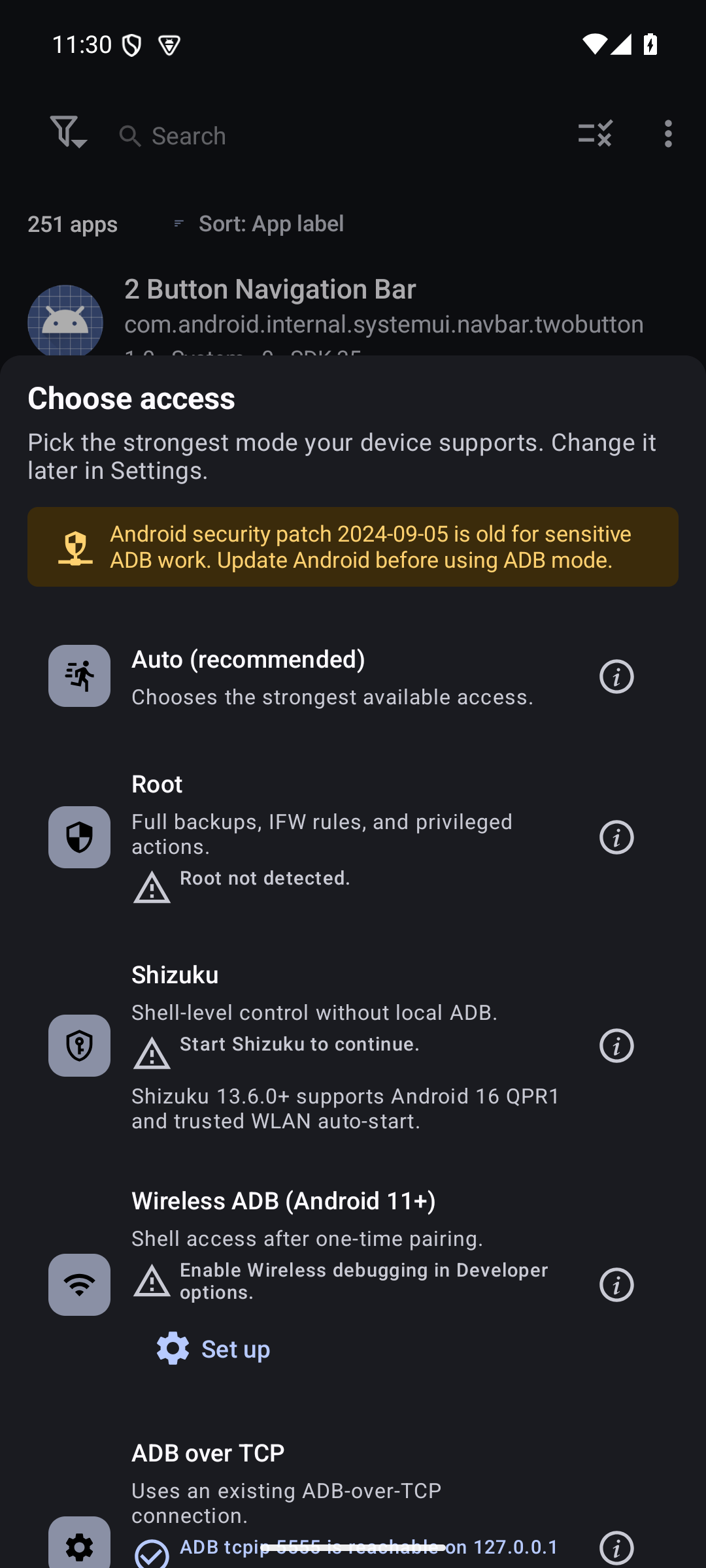
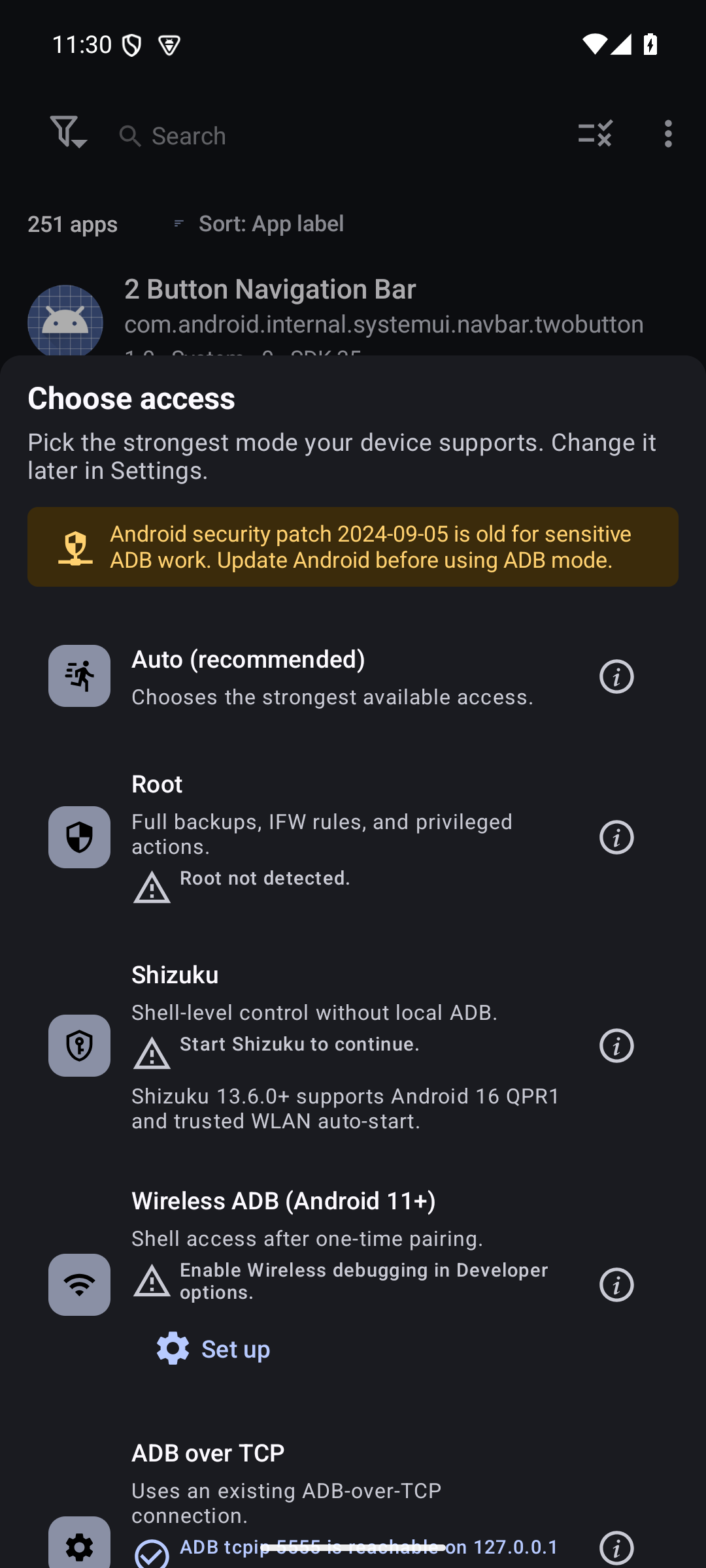
AppManagerNG does not require root just to open and inspect your apps. More powerful actions need an Android privilege path.
| Mode | Best for | What it adds |
|---|---|---|
| No root | Everyday inspection and standard Android actions | Package details, manifests, exported components, permitted installs, reports, and Android-supported archiving |
| Shizuku | Stock devices with Wireless debugging | Access to supported system package APIs without rooting the device |
| ADB | Desktop-assisted work or dedicated devices | A privileged bridge for supported package, process, and file operations |
| Root | Full device administration | The broadest component, data, backup, AppOps, and system configuration control |
The access chooser reports what is ready on the current device. If a feature needs more privilege, AppManagerNG explains the requirement instead of silently doing nothing.
What is included
Inspect and investigate
- Rich package details for activities, services, receivers, providers, permissions, AppOps, signatures, shared libraries, storage, and usage
- Tracker and library scanning with evidence labels and exportable reports
- Manifest viewer, class viewer, intent tools, log viewer, running-process view, and native-library packaging checks
- Sideload diagnostics for Android restricted settings and installer failures
Control and clean up
- Install APK, APKS, APKM, XAPK, split APK, and OBB packages
- Freeze, unfreeze, force-stop, clear data, clear cache, uninstall, and archive supported apps
- Debloater classifications, component rules, network policy controls, and battery optimization tools
- Batch actions, scheduled profiles, package-event triggers, and Tasker-compatible intents
Back up and recover
- APK and app-data backup with rules, permissions, roles, and extras where the access mode allows it
- Encrypted archives using OpenPGP, RSA, ECC, or AES
- Import support for OAndBackup, Neo Backup, Swift Backup 3.0 to 3.2, and Titanium Backup
- Selective snapshot restore with a preview before anything is written
Work directly on the device
AppManagerNG also includes a file manager, code editor, shared-preferences editor, terminal, app-usage explorer, and Quick Settings tiles for frequent actions.
Install
Every release includes two signed universal APKs. Both support armeabi-v7a, arm64-v8a, x86, and x86_64 on Android 5.0 and later.
| Build | Choose it when | Network posture |
|---|---|---|
| Full | You install from GitHub or Obtainium and want optional VirusTotal reports or debloat-list updates | Optional online features are available but remain off until enabled |
| FLOSS | You want the smallest network surface or use an F-Droid-style distribution | Third-party online report features are removed at compile time |
Download the full APK or the FLOSS APK.
Automatic updates with Obtainium
Add https://github.com/SysAdminDoc/AppManagerNG to Obtainium. The optional preconfigured Obtainium file pins the release pattern and skips prereleases.
Privacy and release trust
The default FLOSS build has no ads, analytics, telemetry upload, or optional third-party report traffic. Broad package visibility is necessary for an on-device package manager and is documented in the package visibility note.
Releases are built twice from clean checkouts. Publication stops unless the APKs are byte-identical. Each release includes checksums, a CycloneDX SBOM, dependency review evidence, and a receipt tying the artifacts to the source commit.
Reading a stack trace from a release build
Release builds are minified, so a crash report from one shows names like nf0 instead of real classes. Every release publishes the R8 mapping that decodes them, as AppManagerNG-reproducible-<flavor>-release-mapping.txt with a matching .sha256. Both mappings are verified byte-identical across the two clean builds, and the gate refuses to publish an APK whose mapping is missing.
To turn an obfuscated trace back into source names, save the trace to a file and run retrace from the Android build tools that match the release:
retrace AppManagerNG-reproducible-floss-release-mapping.txt trace.txt
Pick the mapping for the flavor you installed. Trace lines from android.*, java.*, and AppManagerNG's own classes are already readable in a support bundle; the mapping is what recovers everything else.
The signing certificate SHA-256 fingerprint is:
21:5F:B4:70:63:2E:A6:CD:59:A4:BA:AB:35:0A:9E:0B:99:AD:11:0F:DD:FA:F5:A9:EA:64:61:E5:D0:C2:38:6C
Compare it with the stable record in docs/fingerprints.txt or verify the APK with AppVerifier. The reproducible build guide explains the local release gate.
Build from source
The project uses Java, Android Views, Gradle 9.9, and AGP 9.3.3. Android SDK 37 and NDK 28.2.13676358 are the current pins.
git clone --recurse-submodules https://github.com/SysAdminDoc/AppManagerNG.git
cd AppManagerNG
./gradlew assembleFlossDebug
See BUILDING.rst for the complete toolchain and signed-release steps. Contributions are covered in CONTRIBUTING.md, and release history lives in CHANGELOG.md.
Project history
AppManagerNG is a maintained continuation of Muntashir Al-Islam's App Manager. It began from upstream commit 3d11bcb on April 30, 2026. The upstream project and its contributors supplied the foundation. This continuation focuses on a clearer interface and current Android behavior, backed by locally verified releases.
License
AppManagerNG is released under GPL-3.0-or-later. See COPYING for the full license. Per-file SPDX headers and the LICENSES/ directory preserve the licenses for bundled work.
How Shizuku is used
Can manage apps, inspect processes, read logs and run shell and file operations via `Shizuku user service`
This is an AI-assisted analysis of Shizuku-related usages in the app's public source code. It is best effort, so it may not catch every single usage.
How this app uses Shizuku
AppManagerNG uses Shizuku to run a privileged service that performs app and system management with elevated rights.
- Manage installed apps: inspect, freeze, disable, clear data and reset apps using privileged access to package and related system services through Shizuku.
- Run maintenance commands: execute fixed maintenance commands with elevated rights, including starting and stopping wireless ADB with
setprop service.adb.tcp.portandsetprop ctl.restart adbd, resetting system app updates withpm uninstall-system-updates, and fixing backup contexts withrestorecon -Rthrough Shizuku. - Inspect running processes: load the live process list inside the privileged service and show it in the running apps view through Shizuku.
- Reach system services: obtain system service binders and transact with them under the privileged identity for package, activity, app operations, backup, network and sensor related app details through Shizuku.
- Access protected files: read and write app private and system files, including creating links, through the privileged file system service through Shizuku.
- Read system logs: capture
logcatoutput through the privileged process path for diagnostics and log viewing through Shizuku. - Watch permission changes: register permission watch targets from the privileged service so permission changes are relayed to the app through Shizuku.
Android APIs or commands used
Runtime.getRuntime().execServiceManager.getServiceOs.symlinkandroid.os.Process.myUidBinder.clearCallingIdentityBinder.restoreCallingIdentitypm uninstall-system-updatessetprop service.adb.tcp.portsetprop ctl.restart adbdrestorecon -Rlogcat
Notable details
When the privileged service is not alive the same code paths fall back to local execution or unprivileged binders, so some operations remain available with reduced capability. App installs can also use the system package installer intent without privileged access.
Changelog
What's new for version 0.8.0
Signer pins are the headline. Pin an app to the key it's signed with, and AppManagerNG refuses any install or update of it signed by another key. A reinstall or restore checks the pin before it removes anything. Hunting adware got easier too. The top app bubble now shows an overlay apart from the app under it, Top app history keeps a log of what showed up and when, and a Possible ad source filter lists the apps that can draw over others and start on their own.
There's a Notification filter with rules and a quiet mode, language files so you can translate the app or fix a translation yourself, and a much bigger Russian translation. Local sync picks up a broken download where it stopped and can replace an app signed by a different key. The Permission Inspector now covers special app access and works without root.
On the fix side, the first switch to Shizuku, root or ADB mode sticks again, saved notes and favorites survive an upgrade that goes wrong, and scheduled backups and routines keep running after an error. Ones that already stopped come back on their own.
What changed
Added
- Signer pins. Open an app's Signatures tab, or an APK you're looking at, and pick Signer pin from the menu to tie that app to the key it's signed with. From then on an install or update of it signed by any other key is refused before Android gets the files, and the message shows both fingerprints. An update signed by a newer key that the pinned one handed over to still installs, the same way Android allows it. A reinstall, a backup restore or a LAN sync Replace that has to remove the app first checks the pin before anything is removed, so a refused one leaves the app and its data where they were. Replacing or removing a pin shows both keys first. If the pin changed while that dialog was open, nothing changes and you're told to open it again. Every change goes into the operation history, failed ones included. Settings, Privacy, Signer pins lists them and clears them. Snapshots carry the pins too, but an import only adds pins for apps that don't have one yet. Nothing here checks an online database, and if the pin list ever gets damaged, installs stay blocked until you clear it there.
- The top app bubble now tells an overlay apart from the app under it (issue #26). An app drawing a pop-up or a floating ad gets its own row on top in red, with the app you were using named underneath, so the overlay no longer takes that app's place. Once the overlay goes away it stays listed, faded and marked gone, until a different app comes up.
- Top app history (issue #26). Open it from Labs and turn on recording, and while the bubble is on it keeps a list of every app and overlay it sees, newest first, with the time each one showed up. Each row says what happened, like "Weather drew an overlay over Chrome", so an ad that was gone before you could read the bubble can still be traced. It keeps the last 1,000 changes. Tap a row to copy it, and clearing the list can be undone. It's off until you turn it on and stays on the phone.
- A Possible ad source chip on the main list, plus a filter of the same name (issue #26). An app gets it when it's allowed to draw over other apps and also has a way to come up without being opened, by starting itself after a restart or by opening full screen from a notification. Tap the chip to go straight to that app's permissions. It's only a hint and doesn't check for malware. Plenty of normal apps match too (chat bubbles, alarm clocks), and system apps never get it.
- Toast history has a search box (issue #27). It looks through the toast text, the app name and the package, as plain text or as a regular expression, and it works together with the app filter.
- Toast history can keep the newest toasts in one silent notification while it's recording (issue #27), so a toast that vanished before you could read it is a pull-down away. The switch is on the Toast history screen.
- A Toast history tile for quick settings (issue #27). On a locked phone it asks for your PIN first, like the other tiles.
- Notification filter, in Settings, Privacy (issue #32). A rule picks notifications by app and by words in the title, the text or the sender (plain text or a regular expression), then lets them pop up as usual, makes them silent or vibrate only, or blocks them. Rules are checked from the top and the first match wins. Quiet mode quiets everything no rule lets through, either until you turn it off or on a daily schedule, and it has its own quick settings tile. A history shows what was filtered and why for 1, 7 or 30 days, and nothing leaves the phone. It needs notification access, which root or ADB mode can turn on for you. Silent and vibrate work by posting a quiet copy and removing the original, so the original's pop-up can flash for a moment.
- Language files, in Settings, Appearance (issue #31). You can translate the app yourself, or fix a built-in translation, without waiting for a new version. Start a translation saves a .json file with every English string to fill in, either empty or started from a built-in translation, and Import a language file brings a finished one in. Each file in the list shows how much of the app it covers and how many strings are out of date or need fixing. Tap one to use it, stop using it, export it to keep working on, or remove it (removing can be undone). A string whose placeholders or tags don't match the English stays in English and comes back marked when you export the file, so nothing a translator wrote gets lost. Language files only hold text and can't run anything. Using one needs Android 11 or newer, but any version can make and share them.
- Local sync picks up a download where it stopped (issue #22). If the Wi-Fi drops halfway through a big app, getting it again only fetches the rest, and the whole file is still checked against the other phone's copy. A phone still on v0.7.0 just sends the file from the start.
- Received APKs, in the Local sync menu (issue #22). Apps you get from another phone stay for 2 hours, 1 day or 7 days, so a failed install can be tried again after the other phone is gone. Each one can be installed again, deleted, handed to Android's own installer or saved to Downloads. An app's APK goes away once it's installed unless you turn on Keep APKs after installing, and every install from here is checked against the signing key the other phone listed.
- When an app from Local sync won't install, you get the reason plus a way out (issue #22). The notification offers Android's own installer or saving the APK to Downloads. Split APKs can only be saved, as one .apks file.
- Local sync keeps the screen on while sharing or downloading, so a phone that times out its display doesn't stop sharing partway (issue #22). Keep screen on in the menu picks off, 10 minutes, 30 minutes or until transfers finish.
- Local sync tells you what to check when the phones can't find or reach each other (issue #22). The card covers firewalls and per-app data settings, the LAN rule in AFWall+, Huawei's separate Wi-Fi switch and guest networks. Troubleshooting in the menu brings it back any time.
- Local sync has a search box, the same one as the main list (issue #22). It matches the app name, the package, the version and who signed the app (the signing certificate's subject, like "O=WhatsApp Inc.") on either phone. Both phones need this version for the signer part, and an older one still lists its apps as before.
- Local sync can replace an app signed by a different key (issue #22), like a store build on one phone and a fork on the other. Turn on the switch under the Signature differs filter and those apps get a Replace button. The new copy downloads and gets checked first, and only then is the installed app uninstalled with its data and the new one installed. If the uninstall fails, the old app stays and the new copy waits in Received APKs. System apps can't be replaced, and the switch is off by default.
- The install prompt shows what an update changes (issue #22). Under the SHA-256 it names the app and the file it came from, then the version change and how many permissions, activities, services, receivers and providers it adds or removes. Tap a row to see the names. A switch on the prompt, also in Installer settings, turns the comparison off.
- Without root or ADB, the Permission Inspector sends you to Android's own settings for a permission (issue #33). Apps used to show up greyed out and marked Read-only. Now each row says whether the app has the permission, and tapping it opens the right Settings page, like the app's notification settings for Notifications or its app info page for Camera. The list updates when you come back. An app's Permissions tab does the same for runtime permissions it can't change.
- The Permission Inspector now covers special app access too (issue #33). Below the runtime permission groups you'll find sections for display and system access, background and battery, network and data, installs and files, and system-level access like Do Not Disturb, device admin and VPN. That's 18 kinds in all, from display over other apps to usage access, and each one only shows up on Android versions that have it. Every app in a list says whether it's allowed, not allowed or unknown. If AppManagerNG can change it (that usually takes root or ADB) you get a switch. Otherwise you get a button that opens the right Settings page. When AppManagerNG can't read a state at all (network data rules need extra access, for example), the count shows a question mark instead of a guess.
- Revert AppManagerNG changes now checks each setting before it writes anything. Freezing and unfreezing, permissions, app ops and network policy changed from App Info, the app's tabs, Running apps or a batch operation now keep a record of the value found, the value asked for and the value read back afterwards. That includes Reset to default and Deny dangerous app ops on the App Ops tab. When you revert an app, every setting is read again first and only put back if it still holds what AppManagerNG left there. One that something else has changed since is listed as Changed elsewhere with both values and left alone. A batch that only partly worked can be undone a setting at a time, and the confirmation lists each step so you can untick any you want to leave as they are. Each record is signed with a key only this install has, so a record edited outside the app stops counting and goes to manual review. The JSON history export includes these records with whether each one checked out, and clearing or pruning history clears them too. Changes recorded before this update are undone the old way.
- Privilege Health now says so when your Android version is newer than the one this build was tested on. The notice names both versions, a tap hides it until your next Android update, and the app keeps working as before. Support bundles carry the same line, plus the hidden Android calls that had to fall back to another route since the app started. Each of those fallbacks also writes one warning to the log, where most of them used to leave no trace at all.
- You can block one app's internet access. Open its Permissions tab and turn off the switch on the INTERNET row. It needs Android 14 or later with root, ADB or Shizuku. Without one of those running, the switch is off and the row says why. Android drops the block every time the phone restarts, so AppManagerNG puts it back once root, ADB or Shizuku is up again, and the row tells you the app can go online until then. Removing and reinstalling an app gives it a new UID, and AppManagerNG moves the block over at its next check for app changes. That check runs about every 15 minutes, or less often when AppManagerNG hasn't been opened in a while. The block is saved with the app's other rules, so rule exports, imports and backups carry it, and a restore warns you when it couldn't put a saved block, or a lifted one, into force. Apps that share a UID share one block, and allowing one of them leaves it in place until the others are allowed too.
Changed
- Root mode now starts the privileged server with a small native launcher that ships inside the APK, ported from upstream App Manager's run_server. Android unpacks it into the app's library folder, where only the system can write, and nothing on the way to the server goes through a shell script. The server also runs am.jar straight from the app's own storage now. Upstream copies it into /data/local/tmp first, and since that folder belongs to the ADB shell user, anything running as that user (or an app it lent Shizuku to) could swap the copy for its own file before root opened it. The server's log still goes to /data/local/tmp so you can pull it over adb, but it won't follow a link planted in its place or write to a file that has a second name. If your root can't run files from the library folder at all, the app falls back to the old script on its own, and that script runs the jar from the same place. ADB mode is unchanged.
- File manager thumbnails for images, SVGs, PDFs, fonts, EPUBs, J2ME apps, OpenDocument files and APKS bundles are now drawn in a separate process with no permissions, which can only read the one file it's handed. A booby-trapped file can't reach your other files or the app's root or ADB access that way. A file that's damaged or over its size limit gets the generic icon, and so does one that takes more than 5 seconds to draw. Thumbnails also load on their own two threads now, so a slow one doesn't hold up the folder list, and ones drawn before show up without waiting behind it. Scroll past a row and its thumbnail isn't drawn at all. Font thumbnails need Android 8 or newer, since older versions can only load a font from a file path. A file only root can read, or one inside a zip you've opened, gets a thumbnail up to 64 MB. Inside a zip or APK you've opened, the file manager now reads only the start of each file to tell what it is. Apart from APKS bundles, a file drawn in the separate process gets a temporary copy that's deleted once it's drawn, instead of being unpacked into the archive's cache, where it stayed until you closed the archive.
- The Russian translation now covers nearly the whole app, about 3,580 of 3,900 strings, thanks to antiframe (issue #31). Every string was checked against the English original before it went in, and the 30 that no longer match it (missing or extra placeholders, usually from an older English wording) stay in English until they're redone.
- The notes on whom the privileged server trusts (docs/policy) now cover how both sides prove they hold the session token without sending it, and why the connection has no TLS. A new test fails if the server ever listens anywhere but loopback, and the release gate now runs the server's own tests.
- The release CVE scan now sorts each finding by whether it ships, separately for the FLOSS and full builds, into packaged in the release, in the release but not applicable, or build and test tools only. Whether a class ships is read from the published APK's DEX and its R8 mapping, and the report goes out with the release as JSON and text. Any unsuppressed finding at CVSS 9.0 or more still stops the release, even when the scanner itself lets it through. Every suppression now has to say what kind it is (host-only, a CPE name mix-up, not affected or fabricated), and one tagged host-only that now ships, one that covers every version of a library, or one that no longer matches anything fails the gate too. NVD has rejected the six SQLite CVEs from August 2026 that SQLite called hallucinated, so the scan no longer reports them and they need no entry. Guava stays at 32.1.3, since the fix for its deserialization advisory (CVE-2026-102554) needs Android 6.0 and the app still supports 5.0. versions.gradle says how that bug could be reached.
- Builds now use Gradle 9.9.1 and the Android Gradle Plugin 9.3.3. The Gradle move closes five advisories that reach the machine building releases. Two are deserialization holes in the daemon, and the others cover trust in a tampered daemon registry, a stale registry port another process could take over, and a repository that stayed on after it failed SSL. The plugin move brings R8 fixes for output that could differ between two builds of the same source, and for dex that could fail verification and crash on launch. Dependency checksums and lockfiles were refreshed to match, and each new checksum was checked against the one its publisher posts.
- The Backups and Profiles folders AppManagerNG shows in the system file picker can now be picked as a whole folder by apps that ask for one, still read-only. Android checks every file such an app opens against that folder, so it can't reach a file outside it, one behind a symbolic link that leads elsewhere, or one that's been deleted.
Fixed
- Scheduled backups, routines, the permission watcher, the operation history cleanup and the background check for app changes now keep their schedule after an unexpected error. When one of them crashed on something like running out of memory, Android's job scheduler stopped running it, and changing its settings didn't bring it back. The error is now logged (or a short note is, when the error itself can't be written out) and the next run happens at its usual time. A schedule that stopped this way before this update comes back the next time AppManagerNG starts, unless you've turned it off since.
- A home-screen shortcut made from an app's Activities tab now opens its activity right away. When AppManagerNG was allowed to change secure settings, every shortcut it made went through the assistant first. It borrowed your assistant setting and asked you to press the assistant button, even for an activity that opens fine on its own. The assistant is now only the fallback for an activity that won't start directly, and a shortcut to an app that's been uninstalled says so instead of asking. When the assistant is needed, yours comes back once the activity covers the prompt or you tap Close, even if you tapped the shortcut twice. It used to stay borrowed for up to 10 minutes.
- Opening an activity from App Details through the assistant gives your assistant back once the activity covers App Details. Leaving App Details or turning the screen while it asks you to press the assistant button does the same. Until you tapped Close, the assistant used to stay borrowed for up to 10 minutes.
- Backups in root mode to a folder only root can reach work again. That's the usual case for the AppManager folder when the app doesn't have access to all files. Each part of a backup is synced to storage as it's written, and in that folder the sync went to a pipe that can't be synced, so every backup there failed on its first part. Backups now write and sync the file itself.
- A backup that fails while it's writing a compressed archive now shows the error that stopped it. Closing the archive a second time used to fail with "Deflater has been closed", and that message replaced the real one in the backup log.
- A backup import that stops before it gets through the folder is now reported as failed. It used to end as a success with nothing imported. When the folder can't be read at all, the message says so instead of "Could not import 0 backups".
- Picking a new backup folder now lets go of the old folder's access once nothing needs it. Android only keeps so many folder grants per app and drops the oldest past that, so after enough changes it could drop the folder your backups go to. An old folder keeps its access while it still holds backups or a backup tag policy points there, and if a backup is running the cleanup waits for the app's next start. A folder on a drive that's unplugged, or a network folder that can't be read right now, counts as holding backups and keeps its access too. Folders you add with + in the backup folder list are let go the same way once they aren't the backup folder and hold no backups, so they don't pile up. A folder you import from is let go when the import finishes cleanly. When it doesn't, or the app is closed partway through, the folder keeps its access for 7 days, across restarts too, so you can try the import again from the batch history. Imports run again from the batch history or retried after a failure count too. An old backup folder you're importing from keeps its access while that import waits to start or can still be retried. Folders the file manager opened are never touched. If Android won't give write access to the new folder, you get a message and the backup folder you had stays.
- A scheduled backup that needs a network now waits while Android blocks AppManagerNG's network, as Data Saver or a background restriction can. WorkManager could start it anyway because the network looked connected, so a backup to a network folder failed. Now the scheduled run hands off to a one-time catch-up that backs up once the network can be used again, and the schedule keeps its time of day. The catch-up tries again after 15 minutes, then waits a little longer each time. A scheduled run that comes while another backup is running, or that Android won't let start, hands off the same way. A backup you start by hand drops the waiting catch-up, since it covers the same apps, and a change to the network or charging setting reaches the catch-up too. While it waits, the backup status in Settings says so, until you turn the schedule off. Backups set to unmetered networks also wait while the phone is on a metered one. Backups set to run without a network, and runs you start by hand, aren't held back.
- Pure black theme now only applies while the app is dark. Turning it on in Night and then switching to Day left a black background behind Day's dark text and icons, which was close to unreadable, and it stayed that way after a restart. Day now gets the normal light colors and Night gets true black. Follow system and Battery mode go by whether the app is dark at that moment. The switch keeps its setting for the next time you're in Night. Outlined field borders, inactive icons and the usage chart's labels are darker in Day and lighter in Night and Pure black, since they were too faint to make out against the background in every theme.
- Importing rules, or restoring a backup's rules, now keeps the imported rules for an app that already had rules saved. They were dropped as the app's saved rules were reloaded, so only apps with no rules yet got them.
- Resetting an app's ops now stops when not a single op can be read, such as in a mode without app-op access. It used to go ahead with nothing saved, so a rollback had nothing to put back.
- Tapping the text of the untested Android notice in Settings now hides it the same way as tapping the rest of the row. Only notices with a link in them keep the link tappable.
- The app list no longer writes one warning per app when the standby bucket call fails to link on a build whose hidden interface changed. That's logged once per run now, and the bucket shows as unknown.
- Reading what an app op is stored as no longer crashes on an unexpected error from a vendor build. The plain answer is kept, and the first failure is logged.
- A backup that includes an app's KeyStore entries now copies them into AppManagerNG's private storage while it packs them, and deletes the copies even when packing fails. They used to sit in the shared cache, where other apps could read them on older Android versions. An encrypted backup's plain metadata file is also written to private storage now, not next to the encrypted copy in the backup folder.
- Denying the camera, microphone or another op that Android is already holding back (a privacy toggle, a suspended app, a device restriction) now saves the deny. The app read those ops as already denied and skipped the write, and the history image could record the wrong mode for a rollback to put back.
- Resetting an app's ops no longer stops at the first op it can't read, such as a vendor op this build doesn't know. That op is skipped and logged, and the rest are still saved for rollback and reset.
- The first switch to Shizuku, root or ADB mode no longer closes Settings and leaves you on no-root without saying so. AppManagerNG gives itself log access while it switches, and Android closes any app that gets that permission, so the new mode was never saved. Log access now waits until you've left AppManagerNG and nothing of it is running, and the switch sticks. Seen on Android 17 with Shizuku.
- Settings comes back on the page you left when Android restarts it, for Mode of operation, Language and About the device too. Those three used to drop you back at the top of Settings after a language change, or after Android closed AppManagerNG in the background. On tablets and foldables with Settings in two panes, the right pane keeps the page you picked when you come back from Home or Android restarts it, and a nested page or one opened after a dialog comes back too. Before, it went back to Language. Turning to a narrower screen opens the page you picked, or the list if you hadn't picked one, instead of the language list. A settings link's page that you left with Back stays closed after a restart too. A link opened while the app lock or the startup dialog is still up now opens its page even if the screen turns before you get past it.
- Privilege health no longer tells Magisk 30.1 to 30.6 users that su keeps Linux capabilities unless it's started with --drop-cap. Only Magisk 30.7 and later work that way, and older versions now get the note that they predate it.
- Picking Root on Magisk 31.1 or later only got the generic "Unable to use the current mode of operation" toast, because that Magisk never asks apps for root. The toast now says to add AppManagerNG in Magisk > Superuser > +, and that works with a hidden Magisk app too, since Magisk's su says which version it is. Picking Root or Auto again in Mode of operation asks su again instead of reusing the refusal until the app restarts, and so do Root in the setup sheet, the Request root grant button in Privilege health and an automation switch to Root on Magisk 31.1 or later. The Root warning in the setup sheet says the same and has an Open Magisk button unless the Magisk app is hidden. It also no longer checks su on the main thread, and anything you pick while that check is still running wins over it, setting up wireless debugging included. SukiSU Ultra counts as KernelSU now, so Mode doctor and Privilege health can open its manager too.
- Restoring an app's data with root no longer leaves files the app can't open. Since 0.7.0 a restore unpacks the data next to the app's folder and moves it in, and the moved files kept the wrong SELinux label, so Android blocked the app from reading its own restored data. They're relabeled now. If fixing the owner or the label fails for one folder, the other folders and the rest of the restore still go through before it's reported as failed, and a restore that fails late still offers to restart the app and set it back as a default app.
- The CVE database refresh in the release gate no longer gives up partway with NVD 503 errors. It now waits six seconds between NVD requests, which is what NVD asks clients to do.
- When signing an APK before installing it failed, the installer could go on and hand Android the half-written copy from that attempt. It tries signing again now, and the install stops at that file if signing still fails.
- Your notes, history, favorites, filters and freeze choices no longer get wiped when the app's saved data can't be upgraded. Upgrading from the very first version works again, and the old file is copied aside before every upgrade. If the file can't be read, came from a newer version of the app, can't be upgraded or is damaged, it's kept in the app's files folder (under db_recovery) before the app starts fresh, and you're told where it went. That's a notification, or with notifications off, a message on the main screen that stays until you dismiss it. If even the copy fails, the file is left exactly as it was and changes made during that run aren't saved. The three newest copies are kept, and they stay out of Android's backups like the database itself. When the saved data can't be opened three launches in a row (storage full, for one), the app tells you instead of failing without a word.
- The Finder's App ops filter no longer crashes, and an app no longer matches or misses depending on how many times the filter already ran. An app whose details can't be read (it was just uninstalled, or belongs to another user) counts as having no app ops, trackers, components or permissions, and they show up once it can be read again.
- The audio player no longer crashes when you skip back near the start of a track. Skips stay inside the track. For a stream or any file whose length Android can't tell, the progress bar turns off and the length shows --:-- until it's known. While the next track loads, dragging the progress bar or tapping skip waits instead of stopping that track from ever playing.
- AppManagerNG no longer crashes when Android won't let it run in the background, which happened on Android 17 partway through a freeze. A long job like a batch freeze or a backup keeps going, shows its progress as a normal notification and asks you to keep the app open until it's done. If Android stops it anyway, a "Didn't finish" notification replaces the progress and says whether queued jobs were dropped too. Freezing when the screen locks, auto lock, the app lock's Lock app button, waiting for Wi-Fi to reconnect and the search for the pairing port stop instead and tell you what didn't happen. The top app bubble says it couldn't start, and a log recording keeps what it caught before Android stopped it.
- A watched permission set to Always deny gets taken back right away when someone grants it in Settings, in root, ADB and Shizuku modes (issue #15). Android doesn't tell apps about a permission granted there, and it pauses apps in the background, so the grant used to stick until the next check. The privileged server now watches those apps itself and starts the check the moment one changes. No-root mode still checks at the usual times.
- An install that waited in the queue drops its "Added to queue" notification once it starts (issue #22). The notification used to stay next to the result, so a finished install still looked queued.
- The installer no longer says "Added to queue" when it's brought back with nothing new to install (issue #22).
- An APK sent to AppManagerNG while its lock screen is up no longer gets lost when a second one arrives before you unlock, or when the screen turns before you do. Each one installs once, in the order it came in, and with "Set package origin and URI" on, each one's APK source is the app that actually sent it.
- Overlay switches in App Details show what Android reports after a change, even when the change fails, and stay off while it runs. Searching or sorting the Overlays tab no longer hides overlays until the next reload. After clearing an app's cache, storage totals refresh only once Android confirms the clear.
- The Debloater's list always ends on the filters and search you picked last. Changing them quickly could leave an older result on screen, or leave the list stuck loading. Opening one app's details right after another's no longer shows the other app first.
- On Android 17, AppManagerNG finds Wireless debugging again after it restarts on a new port. Android 17 keeps the same name for it every time, and Android 14 and later answered a search for a name they'd seen before with the old port from memory, so connecting kept trying a port that was gone. The app now follows the service and connects at the port it moved to. When the phone sees it on two networks at once, like Wi-Fi and its own hotspot, turning one off keeps the port from the other. Other phones with Wireless debugging on the same network are dropped from the search as soon as they turn out not to be this one, since Android only lets an app run a few searches at a time.
- An install that fails before Android's prompt shows up now says why (issue #22). Those failures used to get lost or come back as a generic error. A root or ADB install that Android 14 and later hands back for confirmation, because another app owns the app's updates, now shows the prompt and waits for the real result instead of failing.
- An install that Play Protect stops to ask about no longer ends in a timeout (issue #22). Android keeps the install open while its "Harmful app blocked" or "Scan app?" dialog waits for you, and AppManagerNG gave up after a minute and missed Android's real answer, which came moments later. It now keeps waiting as long as Android still has the install open, for up to 15 minutes.
- SVG files in the file manager get a thumbnail again. A change in June that tightened how SVGs are read used options phones don't have, so every SVG failed to load and showed the generic icon. SVGs that declare a DOCTYPE are still refused.
- Files inside an APK you've opened in the file manager show their real size. They used to show the size of a small record in the APK's index, usually under 100 bytes.
- An install that Play Protect or another verifier turns down now says it was blocked (issue #22). Android reports that refusal the same way as a cancel, so the result told you to try again and keep the installer open, and an app from Local sync got no notification offering another way to install it. It now reads as blocked, with Android's reason underneath.
- The reference flag next to a permission or app op works both ways now (issue #33). Tapping it on a pinned reference used to pin it again and say "Reference pinned", so there was no way to take one off. A second tap unpins it, the flag is filled while a reference is pinned, and each tap says what it did. This applies in the Permission Inspector and on an app's Permissions and App ops tabs. A reference that has drifted still offers Restore first, and when the app can't change that permission it offers Unpin instead of greying the button out.
- The unit test suite no longer runs out of memory about ten minutes in. Each test's copy of the app installed its crash handler on top of the last one, and that chain kept every earlier test's app and resources alive until the run died. The handler is now skipped under the test runner, so nothing changes on a phone.
- Refreshing an app in the main list no longer fails when its SSAIDs can't be read and the error has a percent sign in it, as an encoded file path does.
- Archived apps show in the main list under their own name and icon, with Archived at the front of the details line where the UID goes, and screen readers hear it as well. An app archived only for another user is still listed by its package name, since Android gives an archived app's name and icon only to the user it was archived for.
- An app installed for more than one user no longer loses its backup mark in the main list. When it's installed for one user and uninstalled for another, it only gets the keystore mark if an installed copy has keystore items, and a refresh no longer tints its UID over the other user's uninstalled copy (a full reload never did).
- An app you install again after the list showed it from a backup no longer stays listed as uninstalled after a refresh, however many backups of it you have. Backups left by a user who's since been removed count once, from the newest, so a refresh no longer lists that user twice.
- Tapping a row for an app that turns out to be installed after all opens its details and reads the row again from Android, instead of patching it in place.
- On MIUI and HyperOS, an install or restore that Android turned down on the first try no longer comes back as failed while the automatic retry is still running. The retry now happens inside the same install, so the result you see is the last try's, and a confirmation you dismissed on the earlier try can't be taken for it. Ported from upstream App Manager (f3db2698a).
- On HyperOS without root or ADB, an install that Android stopped (a cancelled prompt counts) no longer sits there without ever saying how it ended. HyperOS still calls itself MIUI but numbers its builds differently, and reading that number as a MIUI version failed.
- Opening the diagnostics for scheduled backups or for routines no longer crashes on Android 5. Both asked for the job scheduler in a way that only works from Android 6 on.
- Add to profile no longer reads your saved profiles before its dialog can open. The dialog shows up right away and the list fills in once they've loaded.
- The Finder doesn't look up each app's APK on disk as you scroll anymore. Whether an app is installed gets read once, while the list loads.
- Persian showed blank text while backing up an app or installing a package, because those two translations were empty. They fall back to English now, and so do one empty Norwegian string and one Traditional Chinese string.
- An APK or bundle opened from another app or from shared storage could be swapped for a different file between the install prompt and the install. The installer now copies it once into storage only AppManagerNG can write, and the prompt, the signer check and the install all read that copy. If the file it's about to install isn't the size and SHA-256 you reviewed, it stops and asks you to open the package again. Installing again from history checks the same way, so a file that changed since then won't go in.
- Installing several packages in a row keeps each reviewed copy open until its own install is done, even after the prompt has moved on to the next package. The prompt also deletes the copies it no longer needs instead of leaving them until the app closes. A package opened from another app is copied once now, not twice, and one that fails to open leaves no copy behind. File manager thumbnails for APK bundles read the bundle where it is without copying it first. When there isn't room for a copy, Android 8 and later are asked to clear cached files before the installer gives up. If Android stops the installer while installs are still waiting in the queue, the copies those installs held are deleted too. A package that finishes opening after you've closed the prompt is closed and its copy removed. Closing one package never waits for another one that's still opening, so a slow APKM can't freeze the screen.
- A restore read each backup file twice, once to check it and once to restore from it. A backup on shared storage or behind a document provider could change in between, so data that never passed the check could still go back on the phone. Now a restore copies each file it uses once into storage only AppManagerNG can write, checks that copy and restores only from it. Encrypted backups are decrypted there too, not in the shared cache folder other apps could write to on Android 10 and older. A file that fails its check stops the restore before the app's data is cleared. The copies need free space plus 64 MB to spare, and a restore without room stops before it touches anything (Android 8 and later first ask the system to clear cached files). An encrypted backup also needs room for its decrypted copy, and one that doesn't fit stops before anything is decrypted.
- Moving past a package in the install queue while it's still opening can't swap it in for the next one anymore. It used to be able to finish late and replace the next package's file, so the install checked the wrong file and was refused. A package that isn't installed also stops showing the installed version and signature check of the package before it.
- If releasing one waiting install fails while Android stops the installer, the other waiting installs are still released.
- In a batch install, a package that finishes opening, or fails to, just as the installer moves on to the next one can't stand in for the next package anymore. It used to be shown and installed as the next item, or make the installer skip the next item as unreadable. Rotating the screen before the next package has opened no longer brings the previous one back either.
- App Info, the manifest viewer, backups and installing for another user now work for an app that's installed under an older package name than its APK declares (a renamed app, usually a system app). They couldn't find its base APK, so App Info wouldn't open it and a backup didn't record its splits. Installing such an app for another user also asks for the name it's installed under now.
- The manifest viewer and the code editor no longer give an attribute or resource the name it only has in a newer Android version (upstream App Manager #2040). A manifest now decodes with the framework table of the Android version its app was built against. When that version isn't recorded, or the versions it could be disagree about an ID, you see the raw ID (
android:r0x01120017,@0x01050010) instead of a wrong name. That goes for attribute names too when an unrecorded manifest targets Android 8.1 or older, because Android's own manifests from then used some of those IDs for different attributes. A target written as text is a preview codename to Android, even when it's all digits, so it counts as new, and a target that points at a resource counts as missing, so the minimum version decides. Any other value is taken as the plain number Android reads, so a target of 0 or less counts as old. Damaged binary XML, such as elements nested hundreds deep or strings running past the end of the file, now gets a short error everywhere it's read, the installer included, instead of a stalled screen or a crash. - A manifest or other binary XML file holding a block Android doesn't use now opens in the manifest viewer and the code editor, and the installer and App Info read it too (upstream App Manager #2060). Android skips those blocks when it installs the app, so AppManagerNG does the same now instead of calling the file broken. A block that's cut short or runs past the end of the file is still refused, like Android refuses it, and so is a tag too short for its kind, a stray closing tag included, or a tag whose attribute list starts past its end, even an empty list. Anything after the manifest's closing tag is ignored, since Android stops reading there, and so are bytes past the length the file's header gives. A file with two string tables or two resource ID tables is read with the last of each, as Android reads it, and a closing tag with nothing left to close is skipped, so it can't hide nesting deeper than the limit.
- The Revert AppManagerNG changes confirmation never showed its list of steps, only the summary above it, so there was no way to leave a step out. The list shows now.
- Restoring background running from Running apps couldn't be reverted afterwards. Its history entry had nothing to undo it with, so it always landed in manual review. It now reverts like any other app op change.
- An app opened from a home-screen shortcut made with Create shortcut on an app's Activities tab now stays in Recents, so you can switch back to it like any other app (upstream App Manager #2054). The shortcut passed its own keep-out-of-Recents mark on to the app it opened. When the shortcut's app is gone, won't open or the system blocks it (say, while another app is pinned to the screen), you get the "target is no longer available" message and the shortcut closes, instead of leaving an invisible screen over everything until you press Back.
- An encrypted backup was first written as plain files to the shared cache folder, where other apps with storage access could read or change them on Android 10 and older before they were encrypted. Those plain files now go to storage only AppManagerNG can reach, and they're deleted once the backup is done or fails.
- A backup that AppManagerNG encrypted is no longer restored once its files have been swapped for unencrypted ones. The backup's info file isn't encrypted, so anything that could write to the backup folder could replace the data with plain files and matching checksums, and the restore ran them as root. AppManagerNG now keeps its own note of how each backup it makes is encrypted and stops before touching the app when the backup says otherwise. Backups made before this update get the same check if the app list had already loaded them.
- Setting an app op to Ignore now works when it was set to Foreground and the app is in the background. On Android 10 and later AppManagerNG read that op as already ignored and skipped the change, on the App Ops tab and in batch and one-click app op changes.
- Tapping a home-screen shortcut from an app's Activities tab again while AppManagerNG's lock screen was still up opened its app right away, before you'd gotten past the lock. It now waits for the lock screen first.
Which APK should I install?
Pick the FLOSS APK if you want the app with no optional online lookups. Pick the full APK if you'd like the optional VirusTotal reports and debloat list updates described in the README. Both are universal builds for Android 5.0 and later.
Both are signed with the same release key as earlier versions, so they update an existing install. The certificate's SHA-256 fingerprint is 21:5F:B4:70:63:2E:A6:CD:59:A4:BA:AB:35:0A:9E:0B:99:AD:11:0F:DD:FA:F5:A9:EA:64:61:E5:D0:C2:38:6C. Each APK has a matching .sha256 file, and each flavor's R8 mapping, the CycloneDX SBOM and the dependency check reports are attached as before.
Reports this release addresses
v0.8.0
- #15 Watched permissions now take back a grant made in Settings right away
- #22 Local sync: resumed downloads, received APKs, search, keep screen on, connection help and replacing an app signed by another key
- #26 Overlays shown apart from the app under them, Top app history and the Possible ad source filter
- #27 Toast history search, tile and notification
- #31 Language files, and the bigger Russian translation
- #32 Notification filter and quiet mode
- #33 Permission Inspector: special app access, Android's own settings without root, and the reference flag
Permissions
72 permissions requested
More apps from this developer
 File Explorer
 LocalAndroidStore
 OpenTasker
More from this category
 Canta
 ADB/Root Toolbox
 Hail
 Buge App Manager
 Thor
 MKM
 CloneSpace
 VOID // APPS
 AppVaultX
 Blocker
 Youki Users
 DroidUtility